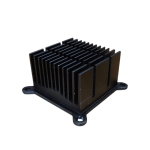
The NerdQAxe++ can be overclocked from its stock ~4.8 TH/s to approximately 6.0-6.5 TH/s with moderate tuning, or pushed beyond 8 TH/s with aggressive settings and upgraded cooling. Overclocking involves incrementally raising the ASIC frequency and adjusting core voltage through the device’s web UI while monitoring temperatures to stay within safe operating limits. This guide covers every aspect: baseline performance, firmware settings, step-by-step tuning, undervolting for efficiency, cooling upgrades, stability verification, power supply selection, and troubleshooting.
The NerdQAxe++ is the most powerful open-source desktop Bitcoin miner in existence. Four BM1370 ASIC chips — the same silicon inside Bitmain’s Antminer S21 Pro — sit on a single compact board, delivering 4.8 TH/s at stock while sipping approximately 72 watts. That is institutional mining technology, hacked down to a device that sits on your desk. But the stock configuration is deliberately conservative. The engineers set it there for compatibility with the included power supply and thermal design. The silicon itself has significant headroom.
This is the most comprehensive NerdQAxe++ overclocking guide available. We cover everything from the first-timer making a cautious 25 MHz bump to the hardware hacker chasing 10 TH/s with custom cooling and modified firmware. Whether you are running your NerdQAxe++ as a solo miner hunting for a full block reward or pointed at a pool stacking sats, overclocking gives you more hashrate — and in solo mining, more hashrate means more lottery tickets per second.
If you have not set up your device yet, start with our NerdQAxe++ Setup Guide first, then come back here to push it further.
Table of Contents
- Stock Performance Baseline
- Understanding Firmware Settings
- Step-by-Step Overclocking Process
- Optimal Settings Matrix
- Temperature Management
- Undervolting for Efficiency
- Cooling Upgrades
- Stability Testing
- Power Supply Considerations
- Common Mistakes & Troubleshooting
- NerdQAxe++ vs Bitaxe Overclocking
- Frequently Asked Questions
1. Stock Performance Baseline
Before you touch a single setting, you need to understand exactly what your NerdQAxe++ delivers out of the box. These baseline numbers are your reference point — the floor you are building from, and the safe harbor you return to when an overclock goes wrong.
| Specification | Stock Value |
|---|---|
| ASIC Chips | 4x Bitmain BM1370 (Antminer S21 Pro silicon) |
| Stock Frequency | 600 MHz |
| Stock Core Voltage | 1150 mV |
| Hashrate | ~4.8 TH/s (4,800 GH/s) |
| Power Consumption | ~70-76W at the wall |
| Efficiency | ~15 J/TH |
| ASIC Temperature (typical) | 50-60°C (at 22°C ambient) |
| VRM Temperature (typical) | 45-55°C (at 22°C ambient) |
| Fan Speed | Auto mode, ~40-60% |
| Noise Level | ~40 dB (whisper quiet) |
| Connectivity | WiFi (2.4 GHz) |
| Power Input | 12V DC barrel jack |
| Included PSU | 12V / 10A (120W) |
| Firmware | Open-source (AxeOS / NerdAxe-based) |
| Current Hardware Revision | Rev 6.1 |
At stock settings, the NerdQAxe++ is remarkably efficient. That ~15 J/TH figure means you are getting Antminer S21-class efficiency in a device that draws less power than a lightbulb. The 4.8 TH/s stock hashrate is not a limitation of the BM1370 silicon — it is a design choice that ensures stability across all environments, ambient temperatures, and the included 120W power supply.
Why overclock? Because the BM1370 chips are designed to run at frequencies well above 600 MHz in their native Antminer S21 Pro implementation. Bitmain runs these chips at 700+ MHz with industrial cooling. Your NerdQAxe++ has the same silicon — it just needs better cooling and more power headroom to unlock it. A NerdQAxe++ found Bitcoin block #913,272 in September 2025 and block #920,440 in October 2025, earning their operators hundreds of thousands of dollars. Every additional terahash you squeeze out is another shot at that prize.
2. Understanding Firmware Settings
The NerdQAxe++ runs open-source firmware based on the AxeOS / NerdAxe platform, accessible through a browser-based web UI. Before adjusting anything, you need to understand what each overclocking parameter does and how they interact.
Core Frequency (MHz)
Frequency controls how many hash calculations each ASIC chip performs per second. Higher frequency equals more hashes equals higher hashrate. This is the primary lever for overclocking. The relationship is roughly linear: a 10% frequency increase yields approximately a 10% hashrate increase, assuming voltage and cooling support it.
- Stock: 600 MHz
- Adjustable range: ~400 MHz to 1200+ MHz (firmware dependent)
- Recommended adjustment step: 25 MHz increments
- Impact: Directly proportional to hashrate. 625 MHz ≈ 5.0 TH/s, 700 MHz ≈ 5.6 TH/s, 800 MHz ≈ 6.4 TH/s
The frequency wall — the point where chips become unstable without more voltage — varies per device due to silicon quality differences (the “silicon lottery”). Most NerdQAxe++ units hit their first wall somewhere between 650-700 MHz at stock voltage.
Core Voltage (mV)
Voltage determines how much electrical energy is delivered to the ASIC chips. Higher voltage provides more headroom for higher frequencies, but increases power consumption and heat exponentially. Voltage is the dangerous lever — it is the setting that can damage components if pushed too far.
- Stock: 1150 mV
- Safe operating range: 1100-1275 mV (conservative to aggressive)
- Danger zone: Above 1300 mV (significant component stress)
- Extreme territory: 1350-1400+ mV (documented but not recommended for daily use)
- Recommended adjustment step: 25 mV increments
Critical relationship: Power consumption scales with the square of voltage. Increasing voltage from 1150 mV to 1250 mV (a 9% increase) raises power consumption by approximately 18%. This is why voltage tuning demands respect — small increases have outsized thermal consequences.
Fan Speed Control
The firmware offers two fan modes:
- Auto mode: The firmware adjusts fan speed based on ASIC temperature. Fine for stock operation, but the ramp-up curve may lag behind rapid heat increases during overclocking.
- Manual mode: You set a fixed fan speed percentage. For overclocking, always use manual mode at 100%. You want maximum cooling before adding heat, not reacting to it after the fact.
Shutdown Temperature
This is your safety net. When ASIC temperature hits this threshold, the firmware kills mining to prevent damage. The default is typically set conservatively. Do not raise the shutdown temperature above 75°C. If your device is reaching shutdown temperature, your overclock is too aggressive for your cooling, full stop. Lower the frequency or improve cooling — never raise the safety limit to mask the problem.
The “Danger Zone”
In the web UI’s settings, frequency and voltage controls live in a section labeled the “Danger Zone.” The name is not decorative. Changes here directly affect silicon stress, power delivery, and heat output. Every adjustment should be deliberate, documented, and followed by monitoring.
3. Step-by-Step Overclocking Process
This is the core procedure. Follow it methodically. Impatience is the number one cause of fried NerdQAxe++ boards — pushing too far, too fast, without monitoring.
Step 1: Verify Prerequisites
Before touching the Danger Zone, confirm:
- Your NerdQAxe++ is connected to a mining pool and actively mining (you need real hashrate data to validate changes)
- Your power supply is adequate (see Section 9: Power Supply Considerations)
- You have additional cooling ready if pushing beyond conservative settings (see Section 7: Cooling Upgrades)
- WiFi connection is stable (unstable WiFi causes rejected shares that mask overclocking instability)
- You have recorded your stock baseline numbers (hashrate, temps, voltage, power draw)
Step 2: Access the Web UI
Open a web browser and navigate to your NerdQAxe++’s local IP address: http://192.168.x.xxx. Find this IP in your router’s connected device list or on the NerdQAxe++’s display if equipped with one. This web UI is your command center. Bookmark it.
Step 3: Set Fan to 100% Manual
Navigate to fan settings. Switch from Auto to Manual mode. Set speed to 100%. Yes, it will be louder. You want maximum thermal headroom before adding heat. Once you find your final stable settings, you can experiment with dialing the fan back — but during tuning, keep it maxed. Overclocking with auto fan control is like driving with your eyes closed and trusting the guardrails.
Step 4: Record Baseline at 100% Fan
With the fan now at 100% but all other settings still at stock, wait 10 minutes and record:
- Hashrate: should be ~4.8 TH/s
- ASIC temperature (should drop from auto-fan readings)
- VRM temperature
- Power consumption
- Share acceptance rate (your “normal” rejection rate baseline)
These are your true starting numbers with maximum cooling. The temperature delta between this reading and your thermal limits is your overclocking thermal budget.
Step 5: First Frequency Bump — 625 MHz
Navigate to the Danger Zone. Increase frequency from 600 MHz to 625 MHz. Leave voltage at 1150 mV. Click Save/Apply.
Wait 5-10 minutes for the hashrate to stabilize. During this time, monitor:
- Hashrate: Should increase to approximately 5.0 TH/s
- ASIC temperature: Should remain below 65°C
- VRM temperature: Should remain below 70°C
- Rejected shares: Should not spike above baseline
- Device stability: No restarts, no “ASIC not found” errors
If everything is stable, proceed to the next step.
Step 6: Continue Incrementing — 650, 675, 700 MHz
Repeat the process in 25 MHz increments. At each step:
- Increase frequency by 25 MHz
- Save and apply
- Wait 5-10 minutes for stabilization
- Check all parameters (hashrate, temps, shares, stability)
- If stable, proceed to next increment
- If unstable (crashes, share rejection spike, temp exceeds limits), stop and read Step 7
Most units will run 650 MHz at stock voltage without issues. Around 675-700 MHz, many units start hitting the wall — hashrate stops increasing proportionally, or the device becomes unstable. This is where voltage tuning enters the picture.
Step 7: Voltage Bump — When Frequency Alone Is Not Enough
When you hit instability (crashes, erratic hashrate, high rejection rate), the chips need more voltage to sustain the higher clock speed. Increase voltage by 25 mV — for example, from 1150 mV to 1175 mV.
After the voltage bump:
- Wait 5-10 minutes for stabilization
- Verify stability has returned
- Note the increased power consumption and temperature
- If stable, you can try another 25 MHz frequency increase
- If still unstable, add another 25 mV voltage bump
This dance between frequency and voltage is the core of overclocking. You push frequency until it breaks, add voltage to stabilize, push frequency again. The limiting factors are heat (set by your cooling) and power (set by your PSU).
Step 8: Find Your Ceiling
Your overclocking ceiling is defined by whichever limit you hit first:
- Thermal limit: ASIC temperature reaches 70°C or VRM reaches 75°C
- Power limit: Consumption approaches 80% of your PSU’s rated capacity
- Stability limit: No voltage increase resolves the instability (silicon limit reached)
- Efficiency limit: The J/TH ratio becomes unacceptable for your electricity costs
For most NerdQAxe++ units, the practical ceiling falls between 700-800 MHz at 1175-1250 mV, delivering 5.6-6.5 TH/s. Individual silicon quality varies — some boards overclock 10% better than others. That is the silicon lottery, and there is no way to predict it before testing.
4. Optimal Settings Matrix
This matrix provides starting points for four overclocking profiles. Your specific device may need slightly different voltage due to silicon variation. Use these as a baseline and fine-tune from here.
| Profile | Frequency | Voltage | Expected Hashrate | Power Draw | Efficiency (J/TH) | Cooling Required | PSU Required |
|---|---|---|---|---|---|---|---|
| Stock | 600 MHz | 1150 mV | ~4.8 TH/s | ~72W | ~15.0 | Stock | Stock 120W |
| Conservative | 650 MHz | 1150-1175 mV | ~5.2 TH/s | ~82-88W | ~16.2 | External 120mm fan | Stock 120W (marginal) |
| Balanced | 700-725 MHz | 1175-1200 mV | ~5.6-5.8 TH/s | ~95-105W | ~17.5 | 120mm fan + improved airflow | 200W+ recommended |
| Aggressive | 750-800 MHz | 1200-1250 mV | ~6.0-6.5 TH/s | ~110-125W | ~18.5 | NQ-HELIX shroud + upgraded heatsink + 120mm fan | 200W+ mandatory |
| Maximum | 900+ MHz | 1300+ mV | ~7.5-8.5+ TH/s | ~150-200W+ | ~22+ | Premium cooling stack, modified firmware | 350W+ mandatory |
Our recommendation for most users: The Balanced profile at 700-725 MHz offers the best combination of hashrate gain, efficiency, and hardware longevity. You pick up roughly 17-21% more hashrate versus stock while keeping temperatures manageable and power consumption within easy PSU range. The Aggressive profile is for dedicated overclockers with proper cooling investments. Maximum is for experimental purposes only and is not recommended for daily operation.
The Efficiency Curve: Why It Matters
Notice how efficiency (J/TH) degrades as you push higher. At stock, you get 15 J/TH — outstanding efficiency. At the Aggressive profile, that climbs to ~18.5 J/TH. At Maximum, it can exceed 22 J/TH. This matters because your electricity costs determine whether those extra terahashes are actually profitable or just expensive heat.
For solo miners, the math is different. You are not optimizing for daily profitability — you are optimizing for the probability of hitting a block. A 35% hashrate increase (4.8 to 6.5 TH/s) represents 35% more lottery tickets per second. Even if efficiency suffers, the expected value of finding a full block reward can justify the extra power cost. Use our Solo Mining Probability Calculator to run your specific numbers.
5. Temperature Management
Temperature management is the non-negotiable discipline of overclocking. Ignore it and you will damage your hardware. The NerdQAxe++ has two critical thermal zones you must monitor independently.
Critical Temperature Thresholds
| Component | Optimal | Acceptable | Caution | Danger — Back Off Immediately |
|---|---|---|---|---|
| ASIC Chips | Below 55°C | 55-65°C | 65-70°C | Above 70°C (shutdown at 75°C) |
| VRM (Voltage Regulators) | Below 60°C | 60-70°C | 70-75°C | Above 75°C (component damage risk) |
| Board / Ambient Environment | Below 25°C | 25-35°C | 35-45°C | Above 45°C (reduce OC or relocate) |
Why VRM Temperature Is Your Real Limit
Most overclockers obsess over ASIC chip temperature. The experienced ones watch VRM temperature more carefully. The voltage regulators handle the increased current draw from higher voltage settings — they are the bottleneck. VRMs can fail catastrophically (short circuit, burnout) without warning, and they are harder to replace than ASIC chips. When people report “my NerdQAxe++ died while overclocking,” the VRMs are the usual culprit, not the ASICs.
Always ensure cooling airflow passes over both the ASIC chips and the VRM components. A common mistake is directing a fan solely at the heatsink over the ASICs while the VRMs bake in stagnant air nearby.
Ambient Temperature: The Invisible Variable
Every degree of ambient temperature increase raises your component temperatures by roughly the same amount. A setting that runs at 62°C ASIC temperature in a 20°C room will run at 72°C in a 30°C room — pushing you from comfortable to the danger zone with no setting changes whatsoever.
Seasonal planning is mandatory. If you dial in your overclock during a Canadian winter at 18°C ambient, prepare to back off 25-50 MHz when summer arrives. Better yet, build in a 5-10°C thermal margin from the start. Target 60°C ASIC temps in winter, and you will still be under 70°C in summer.
For our fellow Canadians: cold climate is a genuine overclocking advantage. A NerdQAxe++ in a cool basement in Montreal or Calgary has significantly more thermal headroom than the same device in a warm apartment in Arizona. This is one of the many reasons mining in Canada has structural advantages.
Thermal Throttling Behavior
When temperatures approach the shutdown threshold, the firmware may begin thermal throttling — reducing frequency automatically to lower heat output. You will see hashrate drop without changing any settings. If you notice periodic hashrate dips correlating with temperature spikes, your overclock is thermally marginal. Back off frequency by 25 MHz or improve cooling.
6. Undervolting for Efficiency
Overclocking is not always about maximum hashrate. For miners paying close attention to their electricity bill, undervolting — reducing voltage below stock while maintaining stock frequency — can deliver the same hashrate at lower power consumption and better efficiency.
The Undervolting Sweet Spot
The stock 1150 mV voltage includes safety margin. Many NerdQAxe++ units can run perfectly stable at 600 MHz with only 1100-1125 mV. At 1100 mV, you save approximately:
- Power reduction: ~8-12W less than stock (approximately 60-64W vs 72W)
- Efficiency improvement: ~12.5-13.3 J/TH (down from 15 J/TH)
- Temperature reduction: 3-5°C lower ASIC temps
- Annual savings: At $0.10/kWh, saving 10W continuously saves ~$8.76/year per device. At Canadian residential rates of $0.07-0.08/kWh, that is still meaningful over multiple devices and years.
Undervolting Procedure
- Keep frequency at stock 600 MHz
- Reduce voltage by 25 mV to 1125 mV
- Run for 30 minutes, check stability and share rejection rate
- If stable, reduce to 1100 mV
- Run for 2 hours, check stability
- If stable, try 1075 mV (most units will fail here — this is finding the floor)
- Back up 25 mV from the first unstable voltage — that is your undervolt sweet spot
The Hybrid Approach: Moderate OC with Efficient Voltage
The most sophisticated approach combines a modest frequency increase with a carefully tuned voltage. Instead of pushing to 750 MHz at 1225 mV, try 675 MHz at 1150 mV. You get ~5.4 TH/s — a 12% improvement over stock — at roughly stock voltage and only modest power increase. This is the “set it and forget it” overclock: more hashrate without stressing components or your PSU.
| Approach | Frequency | Voltage | Hashrate | Power | Efficiency (J/TH) |
|---|---|---|---|---|---|
| Stock | 600 MHz | 1150 mV | 4.8 TH/s | 72W | 15.0 |
| Undervolted Stock | 600 MHz | 1100 mV | 4.8 TH/s | 62W | 12.9 |
| Efficient OC | 675 MHz | 1150 mV | 5.4 TH/s | 78W | 14.4 |
| Aggressive OC | 800 MHz | 1250 mV | 6.5 TH/s | 125W | 19.2 |
The Efficient OC profile is particularly attractive for pool miners who care about sats-per-watt. Solo miners hunting blocks may prefer the Aggressive profile despite worse efficiency — in the solo mining lottery, absolute hashrate trumps efficiency because you either find a block or you do not.
7. Cooling Upgrades
Cooling determines your overclocking ceiling. No amount of voltage or frequency tuning overcomes inadequate heat dissipation. Here are the cooling tiers, from basic to extreme.
Tier 1: External 120mm Fan (Low Cost, High Impact)
The single highest-impact cooling upgrade. Position a quality 120mm case fan to blow directly across the NerdQAxe++ board, ensuring airflow covers both the ASIC heatsink and VRM area.
- Recommended fans: Noctua NF-A12x25 (best overall airflow), Noctua NF-F12 (best static pressure for constrained spaces), Arctic P12 (budget option)
- Expected temperature reduction: 8-15°C under load
- Overclocking headroom gained: ~50-100 MHz additional frequency
- Cost: $15-30
Tier 2: Upgraded Heatsink + Thermal Paste
The stock heatsink does its job at stock settings but becomes the bottleneck under overclocked heat loads. Upgrading to a larger copper or copper-core aluminum heatsink dramatically improves heat transfer from the ASIC chips to the airstream.
- Recommended heatsinks: Thermalright AXP90-X47 (compact, excellent performance), Thermalright AXP90-X53 (taller, better cooling, check clearance)
- Thermal paste: Thermal Grizzly Kryonaut (premium), Noctua NT-H1 (excellent and easier to apply), Arctic MX-6 (good budget option)
- Expected additional temperature reduction: 5-10°C beyond external fan alone
- Cost: $20-40 for heatsink + $8-15 for thermal paste
When replacing thermal paste, clean the old compound completely with isopropyl alcohol (90%+) and lint-free wipes. Apply a thin, even layer — more is not better. Air bubbles in thick paste applications create insulating pockets that defeat the purpose.
Tier 3: NQ-HELIX Shroud + Fan + Heatsink (The Full Stack)
The NQ-HELIX is a purpose-designed shroud for the NerdQAxe++ that directs airflow optimally across all heat-generating components — ASICs, VRMs, and power delivery — rather than relying on a loose fan blowing in the general direction of the board. Combined with an upgraded heatsink and quality fan, this is the gold standard cooling configuration for serious overclocking.
- Components: NQ-HELIX shroud + Thermalright AXP90-X47/X53 heatsink + Noctua NF-F12 fan + premium thermal paste
- Expected temperature reduction: 15-25°C under load versus stock cooling
- Overclocking headroom: Unlocks the Aggressive profile (750-800 MHz) comfortably
- Cost: $50-80 total
This is the configuration we recommend for anyone targeting 6+ TH/s sustained. Check our open-source miners and accessories collection for compatible cooling components.
Tier 4: Extreme Cooling (For Maximum Profile Only)
Community members chasing 8+ TH/s have deployed extreme cooling configurations:
- Dual Thermalright AXP90-X53 full copper coolers
- Noctua NF-F12 iPPC 3000 PWM fans (industrial-grade, 3000 RPM, serious noise)
- Dual NQ-HELIX shrouds
- Thermal Grizzly Kryonaut Extreme compound
- Spot coolers or AC-directed airflow
One documented extreme overclock achieved 10 TH/s at 1,226 MHz and 1.4V. At those settings, the device consumed approximately 230W at the UI (293W at the wall), and VRM temperature still reached 83.5°C — well into component-damage territory. The experiment ran for five days. The long-term viability of those settings is highly questionable. This is hack-it-and-see territory, not production configuration.
8. Stability Testing
Finding settings that look good for 10 minutes is easy. Finding settings that survive 24/7 operation through temperature swings, WiFi hiccups, and load fluctuations — that is the real test. No overclock is final until it passes stability testing.
The 24-Hour Verification Protocol
After finding your target settings through the step-by-step process above, run the device continuously for a minimum of 24 hours (48 hours preferred) while checking these metrics periodically:
- Hashrate consistency: The hashrate should not fluctuate more than 5% over any 30-minute window. Brief dips are normal (variance in hash computation), but sustained drops indicate marginal stability.
- Share rejection rate: Must stay below 1%. A rejection rate above 2% means your overclock is producing invalid results — the chips are computing incorrectly at that frequency/voltage. This wastes electricity and represents real hashrate loss.
- Temperature stability: Temperatures should reach a steady state within 30-60 minutes and stay there. Gradually climbing temperatures over hours indicate insufficient cooling capacity — heat is being generated faster than it can be dissipated.
- No crashes or restarts: Zero tolerance. Any crash during the 24-hour test means the overclock is unstable. Back off 25 MHz and restart the test.
- Temperature at warmest ambient: Run your stability test during the warmest part of the day in the warmest room conditions you expect to encounter. An overclock that passes at 3 AM when the house is cool but fails at 2 PM when the room warms up is not stable.
Monitoring Methods
- Web UI dashboard: The built-in dashboard shows real-time hashrate, temperatures, and share statistics. Check it every few hours during your stability test.
- Mining pool dashboard: Your pool’s web interface shows your device’s reported hashrate and share acceptance rate over time. This gives you a second perspective on stability and catches issues the device’s UI might not report clearly.
- Uptime monitoring: If your pool supports it, enable notifications for when your miner goes offline. This catches crashes that happen overnight while you are not watching the UI.
What Passes, What Fails
| Metric | Pass Criteria | Fail Criteria |
|---|---|---|
| Hashrate stability | Less than 5% variance over 30 min | More than 10% variance or sustained drops |
| Share rejection | Below 1% | Above 2% |
| ASIC temperature | Below 70°C sustained | Reaching 75°C or climbing continuously |
| VRM temperature | Below 75°C sustained | Reaching 80°C or climbing continuously |
| Crashes | Zero in 24 hours | Any crash = fail |
| Power draw | Below 80% of PSU rated capacity | Above 80% (unsafe for sustained operation) |
A miner that crashes once every 6 hours wastes more hashrate during downtime and reboot cycles than you gain from the aggressive overclock. Stability always beats peak numbers. A rock-solid 6.0 TH/s beats a flaky 6.5 TH/s every time.
9. Power Supply Considerations
The power supply is the most overlooked and most critical component in any overclock. The stock 12V/10A (120W) PSU included with the NerdQAxe++ is designed for stock settings with margin. It cannot reliably power any meaningful overclock.
Why You Need an Upgraded PSU
Even a conservative 650 MHz overclock pushes power consumption to ~85W. The 80% rule for sustained PSU operation means a 120W PSU should only deliver 96W continuously. That leaves almost no margin for transient power spikes, which happen constantly during hash computation. The result: voltage sags under load, causing crashes, corrupted shares, and inconsistent hashrate. Worse, running a PSU near its limit generates excess heat in the PSU itself, degrading it over time.
PSU Recommendations by Overclock Level
| Overclock Level | Power Draw | Minimum PSU (80% Rule) | Recommended PSU |
|---|---|---|---|
| Stock (600 MHz) | ~72W | 90W | Stock 120W (fine) |
| Conservative (650 MHz) | ~85W | 106W | 150W+ quality 12V supply |
| Balanced (700-725 MHz) | ~95-105W | 131W | 200W+ quality 12V supply |
| Aggressive (750-800 MHz) | ~110-125W | 156W | Mean Well LRS-200-12 (200W) or larger |
| Maximum (900+ MHz) | ~150-200W+ | 250W | Mean Well LRS-350-12 or RSP-350-12 (350W) |
Top PSU Choices for NerdQAxe++ Overclocking
- Mean Well LRS-350-12 (350W, 12V, 29A) — The community favorite. Massive headroom for any safe overclock. Proven reliable by thousands of miners. Voltage adjustment potentiometer allows fine-tuning output. Overkill for conservative overclocks, perfect for aggressive.
- Mean Well RSP-350-12 (350W, 12V, 29.2A) — Similar to LRS-350-12 with active power factor correction. Slightly more expensive, slightly more efficient. Another excellent choice.
- Mean Well LRS-200-12 (200W, 12V, 17A) — Sufficient for Balanced and Aggressive profiles. More compact than the 350W models.
- Any quality 12V PSU rated 200W+ from reputable manufacturers (Mean Well, Delta, TDK-Lambda). Avoid no-name or cheap units — unstable voltage under load causes all the symptoms of a bad overclock.
Voltage Adjustment at the PSU
Many overclockers set their PSU output to 13.0V instead of 12.0V. Why? Under the heavy current draw of an overclocked NerdQAxe++, voltage drops across the cable, connector, and PCB traces. A PSU set to 12.0V may deliver only 11.4-11.7V at the ASIC chips under full load. Setting the PSU to 13.0V compensates, delivering approximately 12.1-12.5V at the device.
If your PSU has a voltage adjustment potentiometer (most Mean Well units do), measure the output with a multimeter and adjust as needed. If it does not, ensure you are using thick, short cables (14 AWG or lower, under 30cm) to minimize voltage drop.
Cable and Fuse Considerations
At aggressive overclock levels (110W+), the current draw through the DC barrel jack and cables becomes significant:
- Cable gauge: Use 16 AWG minimum for balanced overclocks, 14 AWG for aggressive. The stock cable may be adequate for conservative overclocks but becomes a bottleneck at higher power levels. Voltage drop in thin cables causes the same instability symptoms as an inadequate PSU.
- Fuse rating: The NerdQAxe++ Rev 6+ removed the onboard PCB fuse (earlier revisions had an 8A fuse that could blow during overclocking). If your board has an onboard fuse, check its rating — you may need to upgrade to a 12A or 15A fuse for aggressive overclocks. Never bypass the fuse entirely.
- Connector quality: Ensure the DC barrel jack connection is secure and the connector is not loose or corroded. A poor connection at high current causes localized heating, voltage drop, and intermittent power delivery.
10. Common Mistakes & Troubleshooting
After years of helping miners tune their open-source devices, these are the mistakes and problems we see most often. Learn from others so you do not have to learn from your own fried hardware.
Mistake #1: Too Much, Too Fast
The problem: Jumping from 600 MHz to 800 MHz in one step, or raising voltage by 100+ mV at once.
Why it is dangerous: Large jumps can cause immediate instability, power delivery spikes, or thermal shock. The device may crash, lose settings, or in extreme cases, damage VRM components from the sudden current surge.
The fix: Always increment in 25 MHz / 25 mV steps. Patience is not optional in overclocking — it is a hardware preservation strategy.
Mistake #2: Overclocking on the Stock PSU
The problem: Pushing frequency and voltage higher while still using the included 120W power supply.
Why it is dangerous: The PSU cannot deliver enough stable current. Voltage sags under load, causing intermittent crashes, corrupted hash computations, and potential PSU overheating. The crashes look like overclocking instability, so users increase voltage further — making the PSU problem worse.
The fix: Upgrade PSU before overclocking. This is prerequisite zero, not an optimization step.
Mistake #3: Ignoring VRM Temperatures
The problem: Monitoring only ASIC chip temperature while VRMs overheat silently.
Why it is dangerous: VRMs fail before ASICs. A VRM failure can take out the entire board. The NerdQAxe++’s VRM temperature is displayed in the web UI — there is no excuse for not monitoring it.
The fix: Monitor both ASIC and VRM temperatures at every step. Ensure cooling airflow covers VRM components. The VRM temperature limit (75°C) is as important as the ASIC limit (70°C).
Mistake #4: No Seasonal Adjustment
The problem: Dialing in an aggressive overclock in winter and leaving it unchanged through summer.
Why it is dangerous: A 10-15°C ambient temperature swing between seasons directly translates to 10-15°C higher component temperatures. Your stable winter overclock becomes a summer thermal shutdown loop.
The fix: Either build in sufficient thermal margin (target 60°C instead of 70°C) or plan to reduce frequency by 25-50 MHz during warm months. Some miners create two saved profiles: “Winter OC” and “Summer OC.”
Mistake #5: Raising Shutdown Temperature Instead of Fixing Cooling
The problem: Device hits thermal shutdown at 75°C, so the user raises the shutdown threshold to 80°C or 85°C.
Why it is dangerous: The shutdown temperature exists to protect hardware. Raising it does not cool anything — it just allows components to operate in conditions that degrade them. VRMs above 80°C lose efficiency and have drastically shorter lifespans. ASIC chips above 80°C accumulate electromigration damage.
The fix: If you are hitting thermal shutdown, either reduce frequency/voltage or improve cooling. Never raise the safety limit to accommodate an overclock your cooling cannot support.
Troubleshooting Quick Reference
| Symptom | Likely Cause | Fix |
|---|---|---|
| Device crashes/restarts repeatedly | Frequency too high for voltage, or PSU inadequate | Reduce frequency 25-50 MHz, or increase voltage 25 mV, or upgrade PSU |
| Hashrate lower than expected for frequency | Chips starving (insufficient voltage) or thermal throttling | Increase voltage 25 mV; if temps are high, improve cooling first |
| High rejected share rate (above 2%) | Unstable overclock producing invalid hashes, or WiFi latency | Reduce frequency 25 MHz; also check WiFi signal strength |
| Temperatures climbing over time | Dust buildup, degraded thermal paste, failing fan, or rising ambient temp | Clean cooling components; reapply thermal paste; verify fan RPM |
| Device will not boot after overclock | Settings too aggressive for initialization | Hold reset button during power-on for recovery mode; reflash firmware if needed |
| Hashrate fluctuates wildly (more than 10%) | Borderline stability — at the edge of chip capability | Reduce frequency 25 MHz or increase voltage 25 mV |
| One chip reports significantly different hashrate | Silicon lottery — one chip is weaker than others | Your overclock ceiling is limited by your weakest chip; accept or reduce settings |
| Burning smell or discoloration on PCB | VRM or power delivery component failure | Power off immediately. Inspect for damage. Do not power on until assessed by a professional. |
Thermal Shutdown Recovery
If your NerdQAxe++ shuts down due to overtemperature:
- Let the device cool completely (10-15 minutes, power off)
- Do not immediately restart at the same settings — the shutdown happened for a reason
- Power on and immediately navigate to the web UI
- Reduce frequency by 25-50 MHz below the setting that caused the shutdown
- If you cannot access the web UI because the device shuts down again during boot, use the hardware reset to return to stock settings
- Address the root cause: improve cooling, reduce overclock, or move the device to a cooler location
11. NerdQAxe++ vs Bitaxe Overclocking Comparison
If you have experience overclocking a Bitaxe, the NerdQAxe++ process is familiar but with important differences. Understanding these helps you calibrate expectations.
| Factor | NerdQAxe++ | Bitaxe Gamma / Supra |
|---|---|---|
| ASIC Chips | 4x BM1370 | 1x BM1370 (Gamma) / 1x BM1366 (Supra) |
| Stock Hashrate | ~4.8 TH/s | ~1.2 TH/s (Gamma) / ~500 GH/s (Supra) |
| Practical OC Ceiling | ~6.0-6.5 TH/s | ~1.6 TH/s (Gamma) |
| Heat Output | Significantly higher (4 chips, 70-125W) | Much lower (single chip, 10-25W) |
| PSU Sensitivity | Very high — upgraded PSU mandatory for OC | Lower — USB-C or small adapter sufficient |
| VRM Stress | High — VRMs feeding 4 chips are the weak point | Lower — single chip VRM handles less current |
| Cooling Complexity | Moderate to high — need directed airflow over 4 chips + VRMs | Simple — one chip, small heatsink, one fan |
| Silicon Lottery Impact | Averaged across 4 chips — limited by the weakest one | Single chip — you get what you get |
The Bitaxe is easier to overclock because of the single-chip simplicity and lower thermal loads. The NerdQAxe++ rewards careful tuning with far more absolute hashrate. Both use similar firmware interfaces for adjustment. For Bitaxe-specific tuning, read our definitive Bitaxe overclocking guide.
12. Frequently Asked Questions
Does overclocking void the warranty?
Most vendors offer a 90-day warranty that may be voided by overclocking, particularly if it causes visible component damage. Conservative overclocking (625-700 MHz) with proper cooling is unlikely to cause physical damage, but the risk is yours. The NerdQAxe++ is open-source hardware built for tinkerers — overclocking is part of the culture.
What is the maximum safe daily-driver hashrate?
With the full cooling stack (NQ-HELIX + upgraded heatsink + 120mm fan) and an adequate PSU, most NerdQAxe++ units sustain 6.0-6.5 TH/s indefinitely at safe temperatures. Some exceptional units reach 7+ TH/s. Beyond 7 TH/s requires modifications that push components into unreliable territory for 24/7 operation.
Is overclocking worth it for solo mining?
Going from 4.8 TH/s to 6.5 TH/s is a 35% increase in your lottery tickets per second. That directly translates to 35% better odds of finding a block worth 3.125+ BTC. The extra power cost at $0.10/kWh for the additional ~50W is about $3.65/month. The expected value of finding a solo block — even at these hashrates — massively outweighs that electricity cost over time. For dedicated solo miners, overclocking is almost always the right call. Run your own numbers with our Solo Mining Probability Calculator.
Can I overclock with the stock power supply?
No. The stock 12V/10A (120W) PSU does not have sufficient headroom. Even a conservative 625 MHz overclock pushes power consumption near the PSU’s continuous rating, causing voltage instability and crashes. Upgrade the PSU first — it is the most important prerequisite.
How does ambient temperature affect my overclock?
Enormously. Every degree of ambient increase raises component temps by roughly the same. A stable 20°C-ambient overclock may crash at 30°C ambient. Build in 5-10°C thermal margin, or reduce clocks during warm seasons. For year-round stability, target 60-65°C ASIC temps in your coolest operating conditions.
My device keeps crashing but temperatures look fine — what is wrong?
The most common cause is an inadequate PSU. The stock 120W supply causes crashes under overclocked loads that look identical to frequency/voltage instability. The second most common cause is WiFi interference causing the device to lose pool connection and restart mining. Upgrade PSU first, check WiFi signal second, then adjust frequency/voltage third.
Should I overclock for pool mining or only for solo?
Both benefit from overclocking, but the calculus differs. For pool mining, extra hashrate earns proportionally more sats — but the extra electricity cost reduces your net profit margin, so efficiency matters. The Balanced or Efficient OC profiles (675-725 MHz) offer the best hashrate-per-watt for pool mining. For solo mining, absolute hashrate matters more than efficiency because you are optimizing for block-finding probability, not daily revenue. The Aggressive profile (750-800 MHz) makes more sense for solo miners willing to trade efficiency for higher block odds.
How often should I reapply thermal paste?
Quality thermal paste (Kryonaut, NT-H1) should last 2-3 years under normal conditions. However, the thermal cycling from overclocked operation (hotter peak temps, wider temp swings) can degrade paste faster. If you notice temperatures gradually climbing over weeks or months with no other explanation (dust, ambient temp, fan issues), reapplying thermal compound is a good first step. Clean with 90%+ isopropyl alcohol and apply fresh.
Conclusion: Every Hash Counts
The NerdQAxe++ is open-source mining hardware at its finest — institutional-grade BM1370 silicon, hacked down to a desktop device that anyone can run, modify, and push to its limits. Overclocking is part of the mining hacker ethos: understanding your hardware, respecting its constraints, and extracting maximum performance through methodical tuning.
The process is straightforward. Upgrade your PSU. Improve your cooling. Then incrementally raise frequency in 25 MHz steps, adding voltage only when stability demands it. Monitor temperatures religiously. Respect the 75°C hard limit. Run stability tests before committing to a final setting. The sweet spot for most users is 700-750 MHz at 1175-1225 mV, delivering roughly 5.6-6.5 TH/s — a meaningful improvement that your hardware can sustain indefinitely.
A NerdQAxe++ at 6.5 TH/s is a 35% more potent lottery machine than one at stock. It was a NerdQAxe++ that found Bitcoin blocks #913,272 and #920,440, earning their operators hundreds of thousands of dollars in BTC. Those extra terahashes matter — every single one is another shot at the full block reward. That is why we mine. That is why we hack.
Ready to overclock? Make sure you have the right hardware first. Pick up a NerdQAxe++ from D-Central, check the Bitaxe Hub for more open-source mining guides, or explore our full open-source miners collection. If you have not set up your device yet, start with our NerdQAxe++ Setup Guide.
Does overclocking void the warranty?
Most vendors offer a 90-day warranty that may be voided by overclocking, particularly if it causes visible component damage. Conservative overclocking (625-700 MHz) with proper cooling is unlikely to cause physical damage, but the risk is yours. The NerdQAxe++ is open-source hardware built for tinkerers — overclocking is part of the culture.
What is the maximum safe daily-driver hashrate?
With the full cooling stack (NQ-HELIX + upgraded heatsink + 120mm fan) and an adequate PSU, most NerdQAxe++ units sustain 6.0-6.5 TH/s indefinitely at safe temperatures. Some exceptional units reach 7+ TH/s. Beyond 7 TH/s requires modifications that push components into unreliable territory for 24/7 operation.
Is overclocking worth it for solo mining?
Going from 4.8 TH/s to 6.5 TH/s is a 35% increase in your lottery tickets per second. That directly translates to 35% better odds of finding a block worth 3.125+ BTC. The extra power cost at $0.10/kWh for the additional ~50W is about $3.65/month. The expected value of finding a solo block — even at these hashrates — massively outweighs that electricity cost over time. For dedicated solo miners, overclocking is almost always the right call. Run your own numbers with our Solo Mining…
Can I overclock with the stock power supply?
No. The stock 12V/10A (120W) PSU does not have sufficient headroom. Even a conservative 625 MHz overclock pushes power consumption near the PSU’s continuous rating, causing voltage instability and crashes. Upgrade the PSU first — it is the most important prerequisite.
How does ambient temperature affect my overclock?
Enormously. Every degree of ambient increase raises component temps by roughly the same. A stable 20°C-ambient overclock may crash at 30°C ambient. Build in 5-10°C thermal margin, or reduce clocks during warm seasons. For year-round stability, target 60-65°C ASIC temps in your coolest operating conditions.
My device keeps crashing but temperatures look fine — what is wrong?
The most common cause is an inadequate PSU. The stock 120W supply causes crashes under overclocked loads that look identical to frequency/voltage instability. The second most common cause is WiFi interference causing the device to lose pool connection and restart mining. Upgrade PSU first, check WiFi signal second, then adjust frequency/voltage third.
Should I overclock for pool mining or only for solo?
Both benefit from overclocking, but the calculus differs. For pool mining, extra hashrate earns proportionally more sats — but the extra electricity cost reduces your net profit margin, so efficiency matters. The Balanced or Efficient OC profiles (675-725 MHz) offer the best hashrate-per-watt for pool mining. For solo mining, absolute hashrate matters more than efficiency because you are optimizing for block-finding probability, not daily revenue. The Aggressive profile (750-800 MHz) makes…
How often should I reapply thermal paste?
Quality thermal paste (Kryonaut, NT-H1) should last 2-3 years under normal conditions. However, the thermal cycling from overclocked operation (hotter peak temps, wider temp swings) can degrade paste faster. If you notice temperatures gradually climbing over weeks or months with no other explanation (dust, ambient temp, fan issues), reapplying thermal compound is a good first step. Clean with 90%+ isopropyl alcohol and apply fresh.