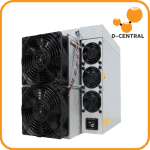
The Antminer S21 Pro: Industrial Power, Home Mining Potential
The Bitmain Antminer S21 Pro is one of the most efficient SHA-256 ASIC miners ever produced. At 234 TH/s and 15 J/TH, it sits at the intersection of raw hashrate and energy efficiency that makes serious miners pay attention. Whether you are deploying this unit in a dedicated mining closet, a garage setup, or a ventilated basement, this guide covers every step from unboxing to your first accepted shares.
D-Central Technologies has been repairing, configuring, and deploying Antminer hardware since 2016. We have seen every generation from the S9 to the S21 series, and we have repaired thousands of hashboards across every model Bitmain has produced. This guide is written from that hands-on experience — not from reading spec sheets in a marketing department. We know what goes wrong, what matters, and what does not.
If you are still deciding whether the S21 Pro is the right miner for you, read our Antminer S21 Pro Review first. If you have already made your decision and the unit is sitting in front of you, let’s get it hashing.
This guide is written for home miners and small-scale operators setting up one or a few S21 Pro units. If you are deploying racks of these machines at scale, the fundamentals apply, but you will want professional electrical and ventilation engineering. For a single unit or small setup, this guide has you covered from start to finish.
Technical Specifications
Before touching a single cable, know what you are working with. The S21 Pro is a serious piece of industrial mining hardware — not a plug-and-play consumer device. Every specification below has implications for your setup decisions.
Antminer S21 Pro — Full Specifications
| Algorithm | SHA-256 (Bitcoin / Bitcoin Cash) |
|---|---|
| ASIC Chip | Bitmain BM1370 |
| Hashrate (Normal Mode) | 234 TH/s |
| Power Consumption | 3,510 W (wall, +/- 5%) |
| Energy Efficiency | 15 J/TH |
| Hashboards | 3 hashboards, 65 chips each (195 total) |
| Input Voltage | 220–277V AC |
| Power Connector | C14 inlet (C13 power cord) |
| Fans | 4 x high-speed 14038 fans (front intake, rear exhaust) |
| Noise Level | ~76 dB |
| Dimensions | 400 x 195 x 290 mm (15.7 x 7.7 x 11.4 in) |
| Weight | ~15.4 kg (34 lbs) |
| Operating Temperature | -20 to 45 °C (-4 to 113 °F) |
| Connectivity | Ethernet (RJ45) — no WiFi |
| Network Interface | Web-based management interface via browser |
| Default Credentials | Username: root / Password: root |
Those numbers have real consequences. 3,510W means this machine draws roughly 14.6 amps at 240V — you need a dedicated circuit. 76 dB means it is loud enough that you will not want it in a living space without serious noise reduction measures. And 15.4 kg means you need a solid shelf or rack, not a flimsy card table.
What’s in the Box
Bitmain ships the S21 Pro in a double-box configuration with foam inserts. When you open the outer shipping box, here is what you should find:
- Antminer S21 Pro unit — The main miner with 3 hashboards and 4 fans pre-installed
- C13 power cord — Regional variant depending on your shipping destination (North America receives a NEMA 6-15P or 6-20P to C13 cord)
- Ethernet cable — Standard Cat5e patch cable (short, typically 1–2 meters)
- Quick start guide — Basic setup card with QR code to Bitmain’s documentation
- Warranty card — 365-day limited warranty registration
Before connecting anything, inspect the unit carefully. Look for dents, bent fan blades, loose screws, or any signs of shipping damage. Gently shake the unit — if you hear anything rattling inside, do not power it on. Contact your seller for a return or replacement. Check that all four fans spin freely by rotating them gently with your finger. Inspect the power inlet and Ethernet port for bent pins or debris.
The Antminer S21 Pro has an integrated power supply. Unlike older Antminer models (S9, S17) that required a separate APW power supply unit, the S21 Pro’s PSU is built into the chassis. You just need a C13 power cord connected to an appropriate 220–277V outlet. No external PSU to configure or mount.
Pre-Setup Requirements
Do not plug in this miner until you have confirmed every item on this checklist. The S21 Pro pulls 3,510 watts — that is the equivalent of running a large electric oven at full blast, 24 hours a day, 7 days a week. Preparation is not optional.
Step 1: Electrical Setup
This is the most critical step and the one most commonly done wrong by home miners. Getting the electrical infrastructure right protects your equipment, your home, and your family. If you are not comfortable working with 240V circuits, hire a licensed electrician. This is not the place to save money.
Circuit Requirements
The Antminer S21 Pro draws approximately 14.6 amps at 240V. The National Electrical Code (NEC) and Canadian Electrical Code (CEC) both mandate that continuous loads (anything running more than 3 hours, which obviously includes a miner) should not exceed 80% of the circuit breaker rating.
- 20A circuit: Maximum continuous load = 16A. The S21 Pro at 14.6A fits within this limit, but leaves minimal headroom. Acceptable for a single unit.
- 30A circuit: Maximum continuous load = 24A. This gives you comfortable headroom and is the recommended configuration. Allows for future expansion or running a single S21 Pro without stress on the circuit.
Outlet Types
You need a 240V outlet. Standard 120V household outlets (NEMA 5-15R) will not work — the S21 Pro requires 220–277V input. Common 240V outlet configurations for home mining in North America:
- NEMA 6-20R — 240V / 20A receptacle. Suitable for a single S21 Pro. Common in home workshops and laundry rooms.
- NEMA 6-30R — 240V / 30A receptacle. Recommended for headroom. Often used for electric dryers. You will need an adapter or a matching C13 cord.
- NEMA L6-30R — 240V / 30A locking receptacle. Twist-lock design prevents accidental disconnection. Ideal for mining setups.
- NEMA 14-30R — 240V / 30A with neutral (dryer outlet). Can work with a proper adapter, but NEMA 6-series is preferable for dedicated mining circuits.
- Never use extension cords or power strips for 240V ASIC mining equipment. Run a direct cord from the outlet to the miner.
- Never bypass the ground connection. Proper grounding protects you from electrical shock and protects the miner from voltage surges.
- Never run multiple high-power miners on one circuit unless the circuit is rated for the combined load.
- Check your wiring gauge. A 20A/240V circuit requires minimum 12 AWG copper wire. A 30A/240V circuit requires minimum 10 AWG. Undersized wiring is a fire hazard.
- If you smell burning, see sparking, or the outlet/cord feels hot, disconnect immediately and call an electrician.
Step 2: Physical Installation
The S21 Pro is a directional airflow machine. Air enters through the front intake fans and exits through the rear exhaust. Every placement decision should support this airflow path.
Placement Guidelines
- Choose a dedicated space. A mining closet, garage, basement, or utility room. The S21 Pro produces approximately 3,510 watts of heat continuously — equivalent to a small space heater at full blast. A bedroom or living room is not appropriate unless you have engineered ventilation.
- Place on a sturdy surface. The unit weighs 15.4 kg (34 lbs) and vibrates during operation. Use a metal shelf, server rack, or heavy-duty shelving unit. Avoid wood surfaces that could resonate and amplify noise.
- Maintain clearance. Leave at least 30 cm (12 inches) of open space in front of the intake fans and behind the exhaust. Placing the exhaust against a wall will recirculate hot air back into the intake, causing thermal throttling.
- Orient the airflow. Ideally, position the intake facing toward a source of cool air (an open window, a vent, or a fresh air intake) and the exhaust pointing toward an exit path (a vent, a duct, or a window). If you are building a mining closet, design the airflow path with baffles to separate hot and cold air.
- Keep it off the floor. Dust, pet hair, and debris accumulate near floor level. Elevating the miner at least 30–60 cm reduces intake contamination and extends the life of your hashboards.
Heat Management
At 3,510W, the S21 Pro produces approximately 12,000 BTU/hr of heat. For perspective, a typical window air conditioning unit handles 5,000–8,000 BTU. In a small enclosed room, temperatures will rise rapidly without exhaust ventilation.
Solutions for home miners:
- Ducted exhaust: Use 6-inch or 8-inch flexible duct from the exhaust side to a window or exterior vent. This is the most effective solution for single-unit setups.
- Winter heating: In cold climates (hello, Canada), the S21 Pro’s heat output can supplement or replace space heating. D-Central’s Bitcoin Space Heater program is built on exactly this concept — turning waste heat into home heating while earning Bitcoin.
- Inline exhaust fan: For longer duct runs, add an inline booster fan to maintain airflow velocity.
- Intake filtration: A simple furnace filter over the intake side reduces dust ingestion significantly. Replace monthly.
Step 3: Network Connection
The Antminer S21 Pro connects to your network exclusively via Ethernet. There is no WiFi radio in this unit. This is by design — wired connections are more reliable for 24/7 mining operations where every disconnection costs you hashrate.
Connect the Ethernet Cable
- Plug one end of a Cat5e or Cat6 Ethernet cable into the RJ45 port on the S21 Pro. The port is located on the front panel of the unit near the control board.
- Plug the other end into your router, switch, or network hub.
- Verify the link lights illuminate on both the miner’s Ethernet port and your router/switch port. You should see a solid green or amber light indicating a connection.
Find the Miner’s IP Address
Once connected to your network and powered on, the S21 Pro will request an IP address from your router via DHCP. You need this IP to access the web configuration interface. There are several ways to find it:
Method 1: Bitmain IP Reporter Tool (Recommended)
- Download the IP Reporter tool from Bitmain’s official support page (available for Windows).
- Run the tool as administrator on a computer connected to the same network.
- Press the IP Report button on the S21 Pro’s control board (small recessed button near the Ethernet port — use a paperclip or pen tip).
- The IP Reporter tool will display the miner’s IP address, MAC address, and hostname.
Method 2: Router Admin Panel
- Log into your router’s admin interface (typically at 192.168.1.1 or 192.168.0.1).
- Navigate to the connected devices or DHCP client list.
- Look for a device named “Antminer” or with a MAC address starting with the Bitmain OUI prefix.
- Note the assigned IP address.
Method 3: Network Scanner App
- Install a network scanner such as Advanced IP Scanner (Windows), Angry IP Scanner (cross-platform), or Fing (iOS/Android).
- Scan your local network range (e.g., 192.168.1.1–254).
- Identify the miner by its hostname or MAC address vendor (Bitmain).
Once you find the miner’s IP, log into your router and create a DHCP reservation (also called a static IP lease) for the miner’s MAC address. This ensures the miner always gets the same IP address, even after router reboots. This matters for monitoring — you do not want to hunt for a new IP every time your router cycles.
Step 4: Web Interface Configuration
With the IP address in hand, you can access the S21 Pro’s built-in web management interface from any browser on the same network.
First Login
- Open your web browser and navigate to the miner’s IP address:
http://192.168.1.XXX- Enter the default credentials:
- Username: root
- Password: root
- Click Login.
After your first login, navigate to System > Administration and change the password. Any device on your local network can access the miner’s interface with default credentials. While this may seem low-risk on a home network, it is poor security practice. Use a strong, unique password.
Dashboard Overview
Once logged in, you will see the S21 Pro’s main dashboard. Here is what the key sections mean:
- Miner Status: Shows overall operational status — whether the miner is running, in sleep mode, or reporting an error.
- Hashrate (Real-time / Average): Displays current and average hashrate across all three hashboards. On a healthy S21 Pro in Normal mode, expect to see approximately 234 TH/s after a 10–15 minute warm-up period.
- Hash Board Status: Individual hashboard temperatures, chip counts, and per-board hashrates. All three boards should show similar numbers. A board showing zero hashrate or significantly fewer chips indicates a hardware issue.
- Fan Speed: RPM readings for all four fans. All fans should spin within 10% of each other. A fan reading zero or significantly lower than the others needs replacement.
- Temperature: Chip temperature and PCB temperature. Normal operating chip temperature range is 60–80 °C. If chip temps consistently exceed 85 °C, your ambient temperature is too high or airflow is restricted.
- Pool Status: Shows which pool(s) are configured, the active connection, and accepted/rejected share counts.
Firmware Version Check
Navigate to System > Firmware to check your current firmware version. Bitmain periodically releases firmware updates that improve stability, efficiency, and add features. If you are running stock firmware, check Bitmain’s support portal for the latest version for the S21 Pro. Always back up your current configuration before updating firmware.
Step 5: Mining Pool Configuration
This is where your S21 Pro starts earning Bitcoin. The miner connects to a mining pool using the Stratum protocol. The pool assigns work, your miner computes hashes, and you earn rewards proportional to your contributed hashrate. For a deep comparison of pool options, see our Best Bitcoin Mining Pools guide.
Configure Pool Settings
In the web interface, navigate to Miner Configuration > General Settings (or simply Configuration depending on firmware version). You will see three pool slots:
- Pool 1 — Your primary pool (where 100% of work goes when the connection is healthy)
- Pool 2 — First fallback (activates only if Pool 1 is unreachable)
- Pool 3 — Second fallback (activates only if Pools 1 and 2 are both unreachable)
For each pool, you need to enter three fields:
- URL: The pool’s stratum address including protocol and port number
- Worker: Your worker name (format varies by pool — see examples below)
- Password: Usually x or left blank (most pools do not use password authentication)
Pool Configuration Examples
Below are step-by-step configurations for four popular mining pools. We recommend setting up at least two different pools (Pool 1 and Pool 2) so you never have idle hashrate due to a pool outage.
Braiins Pool (formerly Slush Pool)
| Pool URL | stratum+tcp://stratum.braiins.com:3333 |
|---|---|
| Backup URL | stratum+tcp://us.stratum.braiins.com:3333 |
| Worker Name | YourUsername.S21Pro |
| Password | x |
| Fee | 2% (FPPS payout scheme) |
| Account Needed | Yes — register at braiins.com/pool |
Braiins is the oldest mining pool in Bitcoin’s history (formerly Slush Pool, est. 2010). They also develop Braiins OS+ — an alternative firmware for Antminers that enables autotuning and Stratum V2 support. An excellent choice for miners who value decentralization and technical innovation. See our Braiins OS+ Setup Guide for firmware installation instructions.
Foundry USA Pool
| Pool URL | stratum+tcp://stratum.foundryusapool.com:3333 |
|---|---|
| Backup URL | stratum+tcp://stratum.foundryusapool.com:25 |
| Worker Name | YourUsername.S21Pro |
| Password | x |
| Fee | 0% (FPPS payout scheme) |
| Account Needed | Yes — register at foundrydigital.com |
Foundry USA is currently the largest Bitcoin mining pool by hashrate share. The 0% fee structure makes it attractive for cost-conscious miners. However, being the largest pool means more centralized block production. If decentralization matters to you (and as Mining Hackers, it should), consider diversifying.
OCEAN
| Pool URL | stratum+tcp://mine.ocean.xyz:3334 |
|---|---|
| Backup URL | stratum+tcp://mine.ocean.xyz:3333 |
| Worker Name | YourBitcoinAddress.S21Pro |
| Password | x |
| Fee | 0% base + 2% BOLT reward share |
| Account Needed | No — payout goes directly to the Bitcoin address in your worker name |
OCEAN is a non-custodial, transparent mining pool focused on Bitcoin decentralization. No account registration required — you mine directly to your Bitcoin wallet address. OCEAN also supports DATUM, their custom protocol for decentralized block template construction. This is the pool of choice for cypherpunks and decentralization maximalists. It aligns perfectly with the Mining Hacker ethos.
F2Pool
| Pool URL | stratum+tcp://btc.f2pool.com:3333 |
|---|---|
| Backup URL (N. America) | stratum+tcp://btc-na.f2pool.com:3333 |
| Backup URL (Europe) | stratum+tcp://btc-euro.f2pool.com:3333 |
| Worker Name | YourAccountName.S21Pro |
| Password | x |
| Fee | 2.5% (PPS+ payout scheme) |
| Account Needed | Yes — register at f2pool.com |
F2Pool is one of the oldest and largest global mining pools, with servers distributed worldwide. Their regional endpoints help minimize latency. The 2.5% fee is higher than some competitors, but the infrastructure reliability is solid.
Save and Apply Pool Settings
- After entering your pool URLs, worker names, and passwords, click Save & Apply.
- The miner will restart its mining process and connect to Pool 1.
- Wait 2–5 minutes for the miner to establish a connection and begin submitting shares.
- Check the Pool Status section on the dashboard — you should see “Active” next to Pool 1 with accepted shares incrementing.
- Verify on your pool’s web dashboard that the worker appears and hashrate is registering. Pool dashboards typically take 5–15 minutes to reflect a new miner’s hashrate accurately.
Step 6: Performance Optimization
The S21 Pro ships with conservative default settings that prioritize stability. Once you have confirmed the miner is running, hashing, and submitting shares successfully, you can fine-tune its performance.
Working Modes
The S21 Pro offers multiple operating modes accessible under Miner Configuration > Working Mode or Advanced Settings:
S21 Pro Operating Modes
| Normal Mode (Default) | 234 TH/s at 3,510W — 15 J/TH. The factory-tuned sweet spot between hashrate and efficiency. Recommended for most operators. |
|---|---|
| High Performance Mode | ~245–250 TH/s at ~3,800W — ~15.5 J/TH. Pushes chips harder for extra hashrate. Higher power draw, more heat, louder fans. Only use if your electrical and cooling infrastructure can handle the increased load. |
| Low Power Mode | ~215–220 TH/s at ~3,200W — ~14.5 J/TH. Undervolts the chips for better efficiency. Lower noise, lower heat, longer chip lifespan. Ideal for high electricity cost environments or when cooling is limited. |
| Sleep Mode | Miner idles with no hashing. Fans run at minimum speed. Use this when you need to stop mining temporarily without powering off the unit. |
Start with Normal Mode. Run the miner for 24–48 hours and observe temperatures, hashrate stability, and rejected share rates before experimenting with High Performance mode. If your electricity cost is above $0.08/kWh, Low Power mode often yields better profitability per dollar spent on electricity. Run the numbers with a mining calculator before deciding.
Fan Speed Configuration
By default, the S21 Pro uses automatic fan speed control — the firmware adjusts fan RPM based on chip temperature targets. This is the recommended setting for most users. The auto mode keeps chips at their optimal temperature range while minimizing unnecessary noise.
If you need manual fan control (for example, to maintain a specific noise level during certain hours), some firmware versions allow setting a fixed fan speed percentage. However, be cautious: setting fan speed too low can cause thermal throttling or emergency shutdown if chip temperatures exceed safe limits.
Temperature Targets
- Optimal chip temperature: 60–75 °C — Longest chip lifespan, best efficiency
- Acceptable range: 75–85 °C — Normal under high ambient temps or high performance mode
- Warning zone: 85–95 °C — Thermal throttling begins, hashrate drops
- Shutdown threshold: 95+ °C — Automatic emergency shutdown to protect chips
Step 7: Monitoring Your Miner
A healthy miner is a profitable miner. Monitoring is not a “set and forget” activity — especially in the first week of operation. Here is what to watch and what the numbers should look like.
Key Dashboard Metrics
| Real-time Hashrate | Should fluctuate between 220–250 TH/s in Normal mode. Real-time hashrate is inherently noisy — look at the 1-hour and 24-hour averages instead. |
|---|---|
| Average Hashrate (1hr/24hr) | Should stabilize around 234 TH/s (+/- 3%) in Normal mode. Consistently below 220 TH/s indicates a problem. |
| Hash Board Status | All 3 boards should show approximately 78 TH/s each. If one board shows zero or significantly less, it needs attention. |
| Chip Count | 65 chips per board, 195 total. Missing chips mean dead ASIC components — contact D-Central for repair. |
| Chip Temperature | Normal: 60–80 °C. Concerning: above 85 °C consistently. |
| Fan Speed | All 4 fans should report within 10% of each other. Typical range: 3,000–6,000 RPM depending on thermal load. |
| Accepted Shares | Should continuously increment. If this number stops increasing, the pool connection is broken. |
| Rejected Shares | Should be less than 1% of accepted shares. High rejection rates (>2%) indicate network latency or a pool configuration error. |
| Hardware Errors (HW) | Should be zero or very close to zero. Hardware errors indicate chip-level failures — monitor closely. |
Monitoring Schedule
- First 24 hours: Check every few hours. Watch for temperature trends, share acceptance, and any error codes.
- First week: Check once or twice daily. Verify 24-hour average hashrate matches expected performance.
- Ongoing: Check daily or set up automated monitoring via your pool’s dashboard email alerts. Most pools can email you when a worker goes offline or hashrate drops below a threshold.
Most mining pools offer mobile apps or web dashboards with real-time worker monitoring and push notifications. Braiins Pool, F2Pool, and Foundry all have worker alert systems. Set up alerts for: worker offline, hashrate below threshold, and high rejection rate. This way you find out about problems before they cost you significant mining revenue.
Troubleshooting Common Issues
Even well-set-up miners encounter problems. Here are the most common issues D-Central’s repair team sees with the S21 Pro and how to resolve them.
Cannot Find the Miner’s IP Address
- Confirm the Ethernet cable is securely connected at both ends and the link lights are active.
- Try a different Ethernet cable — cables can fail, especially the thin patch cables included in the box.
- Try a different port on your router or switch.
- Power cycle both the miner and your router.
- Check if your router has a “device limit” or MAC filtering enabled that might block new devices.
- Connect the miner directly to your computer with an Ethernet cable (set your computer to DHCP) and use an IP scanner.
Miner Shows Zero Hashrate
- Just powered on? The S21 Pro takes 3–10 minutes to initialize all hashboards and begin reporting hashrate. Wait at least 15 minutes before investigating.
- Check pool configuration. Verify the stratum URL, worker name, and password are entered correctly. A single typo will prevent the miner from submitting work.
- Check internet connectivity. Can the miner reach the internet? Try pinging the pool URL from a computer on the same network.
- Check hash board status. If one or more boards show zero chips or zero hashrate, the board may have a hardware fault. Try rebooting the miner. If the issue persists, contact D-Central for ASIC repair.
- Check for firmware corruption. If the miner behaves erratically, reflash the firmware from Bitmain’s support page using the SD card recovery method.
Overheating / Thermal Throttling
- Check ambient temperature. If the room is above 35 °C (95 °F), the miner will struggle. Improve ventilation or cool the space.
- Check airflow path. Is the intake or exhaust blocked? Is hot exhaust air recirculating back into the intake?
- Check for dust. Dust buildup on fans and heatsinks is the number one cause of thermal issues in miners running for more than a few months. Use compressed air to clean the intake and exhaust.
- Switch to Low Power mode. Reduces heat output by ~300W, which can be enough to bring temps below the throttling threshold.
- Verify fan operation. If a fan has failed, the remaining fans cannot compensate adequately. Replace the failed fan immediately.
Fan Errors or High Fan Speed
- Fan reporting zero RPM: The fan has either failed or its cable has come loose. Open the unit (after powering off and unplugging), check the fan connector, and replace the fan if necessary.
- Fans constantly at maximum speed: This indicates the temperature sensors are reading high values. Check for airflow obstructions, high ambient temperature, or a malfunctioning temperature sensor.
- Unusual fan noise (grinding, clicking): The fan bearings are wearing out. Replace the fan before it fails completely — a failed fan can cause cascading thermal damage.
High Rejected Share Rate
- Check your internet connection. High latency or intermittent connectivity causes stale shares.
- Verify pool URL. Make sure you are using the geographically closest pool server for lowest latency.
- Check for duplicate workers. If two miners use the same worker name, some pools may reject shares from one.
- Time synchronization: If the miner’s clock is significantly off, shares may be rejected as stale. A firmware update or reboot usually resolves this.
Alternative Firmware Options
The stock Bitmain firmware works well for most users. However, third-party firmware options can unlock additional features like autotuning, undervolting, Stratum V2 support, and per-chip performance optimization. Here is a brief overview of your options:
Firmware Comparison
| Stock (Bitmain) | Default firmware. Stable, reliable, no additional fees. Limited tuning options. Basic web interface. Best for: Users who want plug-and-play simplicity. |
|---|---|
| Braiins OS+ | Open-source autotuning firmware. Dynamically optimizes each chip for maximum efficiency. Supports Stratum V2. Requires mining at least partially on Braiins Pool to avoid devfee. Best for: Efficiency-focused miners. Read our Braiins OS+ Setup Guide. |
| VNish | Third-party firmware with aggressive tuning profiles, undervolting, and overclocking options. Per-chip tuning. License-based pricing. Best for: Advanced miners who want maximum control. Read our VNish Setup Guide. |
| LuxOS | Firmware focused on fleet management, remote monitoring, and curtailment features. Supports dynamic power adjustment based on electricity pricing. Best for: Operators managing multiple units or participating in demand response programs. Read our LuxOS Guide. |
Installing third-party firmware may void your Bitmain warranty. Most third-party firmware can be reverted to stock, but proceed at your own risk. We recommend running stock firmware for at least the first 30 days to ensure your hardware is functioning correctly before experimenting with alternatives. If any issues arise under warranty, stock firmware simplifies the RMA process.
Heat Recovery: Turning Your S21 Pro Into a Space Heater
Here is a fact that changes the mining profitability equation: every watt your S21 Pro consumes is converted into heat. At 3,510W, your miner is producing roughly the same heat output as three full-size space heaters. In cold climates — and Canada has no shortage of those — this heat is not waste. It is a resource.
D-Central has pioneered the Bitcoin Space Heater concept: purpose-built enclosures that channel ASIC miner exhaust heat into living or working spaces. The math is simple: if you would have spent money heating your home with electric heaters anyway, the electricity cost of mining is partially or fully offset by displaced heating costs. You mine Bitcoin and heat your home, with the same electricity.
For the S21 Pro specifically, the heat recovery potential is significant:
- Heat output: ~12,000 BTU/hr — enough to heat a 400–600 square foot space in moderate cold
- Ducting: Use insulated 6″ or 8″ duct to channel exhaust heat from the miner’s rear to the heated space
- Noise management: Route through a muffler box or sound-attenuated duct to reduce the 76 dB to livable levels
- Summer bypass: Install a damper or Y-junction to vent heat outdoors during warm months
This is the Mining Hacker way: take industrial hardware and make it serve double duty. Your miner is not just earning sats — it is keeping your family warm. For complete build instructions and compatible enclosures, visit our Bitcoin Space Heater collection.
Ongoing Maintenance
The S21 Pro is designed for continuous operation, but it is not maintenance-free. A simple schedule keeps your miner running at peak efficiency:
- Weekly: Check dashboard for temperature trends, hashrate average, and rejected shares. Quick visual inspection for warning lights or unusual noise.
- Monthly: Blow compressed air through the intake and exhaust to clear dust. Inspect the Ethernet cable connection. Check that all fans are spinning at consistent speeds.
- Quarterly: Thorough cleaning with compressed air. Inspect power cord for heat damage or discoloration at the plug end. Check the outlet and plug connection for any signs of arcing or discoloration. Verify firmware is current.
- Annually: Deep cleaning — remove fans if possible and clean individually. Inspect hashboard connectors. Consider thermal paste replacement on heat sinks for units running in dusty or high-temperature environments. Check your electrical panel for any breaker issues.
Frequently Asked Questions
What power supply do I need for the Antminer S21 Pro?
The S21 Pro has an integrated power supply. You do not need an external PSU like the APW units required by older models (S9, S17). You only need a C13 power cord plugged into a 220–277V outlet on a dedicated 20A+ circuit. The included C13 cord works — just make sure your outlet matches the voltage and amperage requirements.
Can I run the S21 Pro on a standard 120V household outlet?
No. The S21 Pro requires 220–277V input. Plugging it into a standard North American 120V/15A outlet will not work — the miner simply will not turn on. You need a dedicated 240V circuit. If you do not have one, hire a licensed electrician to install a NEMA 6-20R or 6-30R outlet.
How much electricity does the S21 Pro use per month?
At 3,510W running 24/7, the S21 Pro consumes approximately 2,527 kWh per month (3.51 kW x 24 hours x 30.4 days). At $0.10/kWh, that is approximately $253/month in electricity. At $0.06/kWh (common in parts of Canada), that drops to roughly $152/month. Always calculate your exact cost before deploying.
How loud is the S21 Pro?
The S21 Pro operates at approximately 76 dB — comparable to a vacuum cleaner or a loud conversation. It is not suitable for living spaces without noise reduction measures. Dedicated mining rooms, garages, basements, or purpose-built mining closets with sound insulation are recommended.
What is the expected lifespan of the S21 Pro?
With proper cooling, clean power, and regular maintenance, Antminer units typically operate reliably for 3–5+ years. Fans are the most common point of failure and are inexpensive to replace. Hashboard failures are less common but can be repaired — D-Central’s ASIC repair service handles all Antminer models.
Should I use stock firmware or install third-party firmware?
Start with stock firmware. Run the miner for at least 30 days to confirm all hardware is functioning correctly. After that, consider Braiins OS+ if you want autotuning and better efficiency, VNish for maximum tuning control, or LuxOS for fleet management and power curtailment. Third-party firmware may void your Bitmain warranty.
Which mining pool should I choose?
It depends on your priorities. OCEAN for decentralization and non-custodial payouts. Braiins Pool for technical innovation and Stratum V2. Foundry USA for zero fees and maximum payout consistency. F2Pool for global infrastructure. Read our complete Best Bitcoin Mining Pools comparison for detailed analysis.
Can I mine other cryptocurrencies with the S21 Pro?
The S21 Pro is a SHA-256 ASIC. It can mine Bitcoin (BTC) and Bitcoin Cash (BCH), as both use the SHA-256 algorithm. It cannot mine Ethereum, Litecoin, Monero, or other cryptocurrencies that use different hashing algorithms. For those, you would need algorithm-specific ASIC miners or GPU rigs.
How do I update the firmware on my S21 Pro?
In the web interface, navigate to System > Upgrade. Download the latest firmware file (.tar.gz) from Bitmain’s support portal. Upload the file through the web interface and click “Flash Image.” The miner will reboot with the new firmware. Do not power off the unit during the update process — interrupted firmware flashes can brick the control board.
What should I do if one hashboard shows zero hashrate?
First, reboot the miner and wait 15 minutes. If the board still shows zero, check the firmware log for error codes. Common causes include loose hashboard cable connections, a failed voltage regulator, or dead ASIC chips. If a reboot does not resolve it, contact D-Central for professional ASIC repair. Attempting to repair hashboards without proper equipment and training can cause further damage.
Next Steps
Your S21 Pro is now hashing, submitting shares, and earning Bitcoin. But setting up the miner is just the beginning. Here is where to go from here:
- Antminer S21 Pro Review — Our comprehensive performance analysis, efficiency benchmarks, and ROI calculations
- Best Bitcoin Mining Pools 2026 — Detailed comparison of fees, payout schemes, and decentralization metrics
- Braiins OS+ Setup Guide — Unlock autotuning and Stratum V2 on your S21 Pro
- VNish Firmware Guide — Advanced tuning and overclocking firmware
- LuxOS Guide — Fleet management and power curtailment firmware
- ASIC Noise Reduction Guide — Tame the 76 dB roar for home environments
- Bitcoin Mining Closet Guide — Build a purpose-built mining space with proper ventilation
- Bitcoin Space Heaters — Turn mining heat into home heating
- ASIC Repair Services — When something goes wrong, D-Central has been fixing miners since 2016
Welcome to the Mining Hacker life. Your hashrate is online. Your sats are stacking. And if you are in Canada, your home just got a little warmer too. Stack sats, stay sovereign.