You have your Bitaxe running. AxeOS is flashed, your pool is configured, shares are flowing, and the OLED is flickering with hashrate numbers. The basic AxeOS guide got you here. This guide takes you deeper.
This is the reference for power users who want to script their miners with the HTTP API, manually tune voltage-frequency curves per ASIC chip, harden their network configuration, automate OTA firmware updates across a fleet, and debug problems at the serial console level. If you have ever wanted to treat your Bitaxe less like an appliance and more like a Linux server you SSH into, this is your document.
Everything here assumes you have a working Bitaxe on your local network running AxeOS v2.x or later. If you are not there yet, start with our AxeOS complete guide and come back when you are ready to go further.
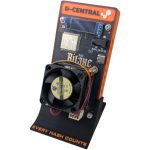
D-Central Technologies has been a pioneer in the Bitaxe ecosystem since its earliest days. We created the original Bitaxe Mesh Stand, developed custom heatsinks for Bitaxe and Bitaxe Hex, and stock every Bitaxe variant and accessory. The knowledge in this guide comes from thousands of hours of hands-on firmware testing, overclocking, and repair work across every Bitaxe model. Visit our Bitaxe Hub for the complete ecosystem.
Web Interface Deep Dive: Every Tab, Every Setting
The AxeOS web dashboard looks simple on the surface. Below the real-time stats on the main page, the settings interface is organized into tabs that control every aspect of your miner’s behavior. Most users only touch the Mining tab during initial setup. Power users live in all of them.
System Tab
The System tab controls device identity and update infrastructure.
Hostname sets the mDNS name your Bitaxe advertises on the local network. The default is bitaxe, which means you can reach it at http://bitaxe.local from any mDNS-capable device. If you run multiple units, change each hostname to something unique: bitaxe-gamma-01, bitaxe-hex-garage, or whatever naming scheme fits your fleet. The hostname is also reported to your mining pool as part of the device identifier, so descriptive names make fleet monitoring easier.
OTA Update URL is the URL AxeOS checks when you trigger a firmware update from the web interface. By default, this points to the official ESP-Miner GitHub releases. You can change it to point to a custom firmware server, a local HTTP server on your LAN, or a specific release branch if you are testing pre-release firmware. The format is a direct URL to a .bin firmware file. We cover custom OTA URLs in detail in the OTA Firmware Updates section below.
Board Version is read-only and shows the hardware revision AxeOS detected during boot. This value determines which ASIC driver loads and which frequency/voltage ranges are available in the Performance tab.
Mining Tab
The Mining tab is where your hashrate meets the Bitcoin network.
Pool URL uses the Stratum protocol format: stratum+tcp://hostname:port. AxeOS supports Stratum V1 natively. As of recent firmware versions, experimental Stratum V2 support is available for compatible pools. Stratum V2 offers encrypted connections between your miner and the pool, reducing the ability for network intermediaries to observe or manipulate your mining traffic. To use Stratum V2, the pool must support it and the URL format changes to stratum+tcp:// with the V2-specific port. Check your pool’s documentation for the correct endpoint.
Fallback Pool URL is the backup. If your primary pool becomes unreachable, AxeOS will automatically attempt to connect to the fallback. This is not just a nice-to-have for serious miners — if your primary pool goes down for maintenance and you have no fallback, your Bitaxe sits idle burning power and hashing nothing. Always configure a fallback. A common pattern is primary on Public Pool and fallback on Solo CK Pool, or vice versa.
Worker Name / BTC Address is your Bitcoin wallet address for solo mining pools, or your pool account credentials for pooled mining. For solo pools, the full format is bc1qYOURADDRESS.workername where the worker name after the dot is optional but recommended for multi-device setups.
Performance Tab
This is where the overclocking happens. The Performance tab exposes the raw knobs that control ASIC chip behavior.
Core Voltage (mV) controls the voltage delivered to the ASIC chip by the onboard voltage regulator. Higher voltage allows higher stable frequencies but increases power consumption and heat exponentially. The relationship is not linear — a 10% voltage increase can produce a 20-30% increase in power draw. AxeOS presents voltage in millivolts, and the available range depends on your board’s hardware. Typical ranges: 1000-1300 mV for BM1366/BM1368 chips, 1000-1300 mV for BM1370.
Frequency (MHz) is the ASIC clock speed. Higher frequency means more hashes per second, but only if the voltage supports it. Push frequency too high for the configured voltage and you get rejected shares, hashrate instability, or outright crashes. AxeOS provides a dropdown of supported frequencies in 25 MHz increments. To access extended ranges beyond stock limits, append ?oc to the settings URL — this unlocks overclock mode with wider frequency and voltage ranges. Handle with care.
Auto Fan Control toggles automatic fan speed management. When enabled, AxeOS adjusts the PWM fan signal to maintain the Target Temperature you set. When disabled, the fan runs at whatever fixed percentage you specify. Auto fan is strongly recommended for 24/7 operation — it handles ambient temperature swings automatically. The target temperature defaults to 60°C, which is a solid middle ground for longevity and performance.
Fan Speed (%) is the manual override when auto fan is disabled. 100% means full speed (loudest, coolest). Useful during overclock testing when you want maximum thermal headroom and do not care about noise.
Access extended voltage and frequency ranges by navigating to http://BITAXE_IP/?oc in your browser. This unlocks settings beyond the stock conservative limits. The extended ranges are hidden by default to protect inexperienced users from damaging their hardware. If you are reading this guide, you are ready for it — but always increase values incrementally and monitor thermals closely. See our complete overclocking guide for detailed per-model tuning procedures.
Advanced Tab
The Advanced tab contains settings most users never touch — and power users configure once and forget.
API Access — The AxeOS HTTP API is always active on the same port as the web interface (port 80). There is no separate API toggle. However, understanding that the API exists and is unauthenticated is critical for network security planning, which we cover in the Network & Security section.
WiFi SSID and Password — Your current WiFi credentials. Changing these triggers a reboot and reconnection attempt to the new network. If the new credentials are wrong, the Bitaxe falls back to AP mode after failing to connect, so you can recover by connecting to the Bitaxe WiFi network directly.
Fallback WiFi — Some AxeOS builds support a secondary WiFi SSID. If the primary WiFi goes down, the Bitaxe attempts the fallback. This is particularly useful if you run a dedicated mining VLAN and want the device to fall back to your main network, or if you have a backup access point.
The HTTP API: Scripting Your Bitaxe
The AxeOS HTTP API is the real power interface. Everything the web dashboard does, the API does — and more. Every auto-tuning script, fleet management tool, and monitoring dashboard in the Bitaxe ecosystem communicates through this API. It runs on the same HTTP server as the web interface, requires no authentication, and speaks JSON.
Core Endpoints
Here are the primary endpoints exposed by the ESP-Miner firmware:
# Full system status — hashrate, temperature, shares, power, uptime, everything
GET /api/system/info

# ASIC-specific configuration and detected hardware
GET /api/system/asic

# Historical mining statistics (if data logging is enabled)
GET /api/system/statistics

# Dashboard summary data
GET /api/system/statistics/dashboard

# Update any writable setting — frequency, voltage, pool, fan, hostname, etc.
PATCH /api/system

# Reboot the device
POST /api/system/restart

# Flash the status LED for physical identification
POST /api/system/identify

# Trigger OTA firmware update from configured URL
POST /api/system/OTA

# Factory reset — wipes all settings back to defaults
POST /api/system/factoryreset
Reading System Info with curl
The GET /api/system/info endpoint returns a JSON object with every metric the dashboard displays. Here is how to query it from the command line:
# Fetch full system info
curl -s http://192.168.1.100/api/system/info | python3 -m json.tool

# Extract just the hashrate and temperature with jq
curl -s http://192.168.1.100/api/system/info | jq '{hashRate, temp, power, frequency, coreVoltage}'

# Example response:
{
  "hashRate": 1187.45,
  "temp": 52,
  "power": 12.8,
  "frequency": 525,
  "coreVoltage": 1200
}
The full /api/system/info response includes dozens of fields. The most critical for monitoring and automation:
| Field | Type | Description |
|---|---|---|
| hashRate | float | Current hashrate in GH/s |
| temp | int | ASIC chip temperature in Celsius |
| vrTemp | int | Voltage regulator temperature in Celsius |
| frequency | int | Current ASIC clock frequency in MHz |
| coreVoltage | int | Core voltage in millivolts |
| power | float | Estimated power consumption in watts |
| sharesAccepted | int | Total accepted shares since boot |
| sharesRejected | int | Total rejected shares since boot |
| bestDiff | string | Best difficulty share found this session |
| uptimeSeconds | int | Seconds since last reboot |
| fanrpm | int | Current fan speed in RPM |
| fanspeed | int | Fan duty cycle percentage (0-100) |
| freeHeap | int | Free ESP32 memory in bytes (debug metric) |
| ASICModel | string | Detected ASIC chip model (BM1366, BM1370, etc.) |
Updating Settings with PATCH
The PATCH /api/system endpoint accepts a JSON body with any writable settings. You only need to include the fields you want to change — unspecified fields remain untouched.
# Change frequency and voltage
curl -X PATCH http://192.168.1.100/api/system
  -H "Content-Type: application/json"
  -d '{"frequency": 550, "coreVoltage": 1200}'

# Change pool configuration
curl -X PATCH http://192.168.1.100/api/system
  -H "Content-Type: application/json"
  -d '{"stratumURL": "stratum+tcp://public-pool.io:21496", "stratumUser": "bc1qYOURADDRESS.worker01"}'

# Set fan to 100% manual
curl -X PATCH http://192.168.1.100/api/system
  -H "Content-Type: application/json"
  -d '{"fanspeed": 100, "autofanspeed": 0}'

# Enable auto-fan targeting 55C
curl -X PATCH http://192.168.1.100/api/system
  -H "Content-Type: application/json"
  -d '{"autofanspeed": 1, "invertfanpolarity": 0}'

# Reboot after settings change
curl -X POST http://192.168.1.100/api/system/restartFrequency, voltage, and pool changes take effect after a reboot. WiFi changes trigger an automatic reboot. You can trigger a manual reboot via POST /api/system/restart. Always wait at least 30 seconds after a reboot before polling for stable readings — the ASIC needs time to initialize and the hashrate needs a few cycles to stabilize.
Python Automation: Fleet Monitoring Script
Here is a practical Python script that monitors multiple Bitaxe units and logs their performance to CSV. This is the foundation for building your own fleet dashboard or alerting system.
#!/usr/bin/env python3
"""Bitaxe Fleet Monitor — polls multiple AxeOS devices and logs to CSV."""
import requests
import csv
import time
from datetime import datetime

# Define your fleet — add as many as you have
FLEET = [
    {"name": "gamma-desk",   "ip": "192.168.1.100"},
    {"name": "gamma-garage", "ip": "192.168.1.101"},
    {"name": "hex-basement", "ip": "192.168.1.102"},
]

LOG_FILE = "bitaxe_fleet_log.csv"
POLL_INTERVAL = 60  # seconds between polls

def poll_device(device):
    """Query a single Bitaxe and return its metrics."""
    try:
        resp = requests.get(
            f"http://{device['ip']}/api/system/info",
            timeout=5
        )
        resp.raise_for_status()
        data = resp.json()
        return {
            "timestamp": datetime.now().isoformat(),
            "name": device["name"],
            "ip": device["ip"],
            "hashrate_ghs": data.get("hashRate", 0),
            "temp_c": data.get("temp", 0),
            "vr_temp_c": data.get("vrTemp", 0),
            "power_w": data.get("power", 0),
            "frequency_mhz": data.get("frequency", 0),
            "voltage_mv": data.get("coreVoltage", 0),
            "fan_rpm": data.get("fanrpm", 0),
            "accepted": data.get("sharesAccepted", 0),
            "rejected": data.get("sharesRejected", 0),
            "best_diff": data.get("bestDiff", "0"),
            "uptime_s": data.get("uptimeSeconds", 0),
            "efficiency_jth": round(
                data.get("power", 0) / (data.get("hashRate", 1) / 1000), 2
            ) if data.get("hashRate", 0) > 0 else 0,
            "status": "online",
        }
    except Exception as e:
        return {
            "timestamp": datetime.now().isoformat(),
            "name": device["name"],
            "ip": device["ip"],
            "status": f"offline: {e}",
        }

def main():
    # Write CSV header
    fieldnames = [
        "timestamp", "name", "ip", "hashrate_ghs", "temp_c",
        "vr_temp_c", "power_w", "frequency_mhz", "voltage_mv",
        "fan_rpm", "accepted", "rejected", "best_diff",
        "uptime_s", "efficiency_jth", "status"
    ]
    with open(LOG_FILE, "w", newline="") as f:
        writer = csv.DictWriter(f, fieldnames=fieldnames)
        writer.writeheader()

    print(f"Monitoring {len(FLEET)} devices every {POLL_INTERVAL}s...")
    print(f"Logging to {LOG_FILE}")

    while True:
        for device in FLEET:
            metrics = poll_device(device)
            # Append to CSV
            with open(LOG_FILE, "a", newline="") as f:
                writer = csv.DictWriter(f, fieldnames=fieldnames)
                writer.writerow(metrics)
            # Console output
            if metrics.get("status") == "online":
                print(
                    f"[{metrics['timestamp']}] {metrics['name']}: "
                    f"{metrics['hashrate_ghs']:.0f} GH/s | "
                    f"{metrics['temp_c']}C | "
                    f"{metrics['power_w']:.1f}W | "
                    f"{metrics['efficiency_jth']} J/TH"
                )
            else:
                print(
                    f"[{metrics['timestamp']}] {metrics['name']}: "
                    f"{metrics['status']}"
                )
        time.sleep(POLL_INTERVAL)

if __name__ == "__main__":
    main()
To push settings to an entire fleet — for example, switching all devices to a new pool:
#!/usr/bin/env python3
"""Push a configuration change to all Bitaxe units in the fleet."""
import requests

FLEET_IPS = ["192.168.1.100", "192.168.1.101", "192.168.1.102"]

NEW_CONFIG = {
    "stratumURL": "stratum+tcp://public-pool.io:21496",
    "stratumUser": "bc1qYOURADDRESS.fleet",
}

for ip in FLEET_IPS:
    try:
        resp = requests.patch(
            f"http://{ip}/api/system",
            json=NEW_CONFIG,
            timeout=5,
        )
        print(f"{ip}: config updated ({resp.status_code})")
        # Reboot to apply
        requests.post(f"http://{ip}/api/system/restart", timeout=5)
        print(f"{ip}: rebooting...")
    except Exception as e:
        print(f"{ip}: FAILED — {e}")
For more advanced automation including PID-controlled auto-tuning and sweep scripts, see our dedicated Bitaxe auto-tuning scripts guide.
Multi-Pool Configuration: Redundancy and Strategy
A Bitaxe with a single pool configured is a Bitaxe that stops mining when that pool has an outage. For a device meant to run 24/7, downtime is lost lottery tickets. AxeOS supports primary and fallback pool configurations, and understanding how to use them strategically matters.
Primary + Fallback Setup
In the AxeOS Mining tab, configure your primary pool URL and a fallback pool URL. The behavior is straightforward: if the Stratum connection to the primary pool fails or times out, AxeOS switches to the fallback. When the primary becomes reachable again, the device switches back automatically.
Recommended configurations for solo miners:
| Strategy | Primary | Fallback | Rationale |
|---|---|---|---|
| Solo + Solo | public-pool.io:21496 | solo.ckpool.org:3333 | Maximum solo coverage — always lottery mining regardless of which pool is active |
| Solo + Pooled | public-pool.io:21496 | mine.ocean.xyz:3334 | Solo primary with pooled fallback — earn sats during outages instead of idling |
| Decentralization | mine.ocean.xyz:3334 | public-pool.io:21496 | OCEAN for non-custodial pooled mining with solo fallback — supports decentralization |
Rotation Strategies via API
AxeOS does not natively support pool rotation on a schedule. But with the API, you can build it. Here is a script that rotates pools on a timer — useful if you want to split hashrate between solo and pooled mining, or distribute across multiple solo pools:
#!/usr/bin/env python3
"""Rotate Bitaxe between pools on a schedule."""
import requests
import time

BITAXE_IP = "192.168.1.100"
ROTATION_HOURS = 12  # Switch every 12 hours

POOLS = [
    {
        "stratumURL": "stratum+tcp://public-pool.io:21496",
        "stratumUser": "bc1qYOURADDRESS.publicpool",
    },
    {
        "stratumURL": "stratum+tcp://solo.ckpool.org:3333",
        "stratumUser": "bc1qYOURADDRESS.ckpool",
    },
]

pool_index = 0
while True:
    pool = POOLS[pool_index % len(POOLS)]
    print(f"Switching to: {pool['stratumURL']}")
    requests.patch(
        f"http://{BITAXE_IP}/api/system",
        json=pool,
        timeout=5,
    )
    requests.post(f"http://{BITAXE_IP}/api/system/restart", timeout=5)
    pool_index += 1
time.sleep(ROTATION_HOURS * 3600)Choosing diverse pools is not just about uptime — it is about Bitcoin’s health. Every Bitaxe pointed at a different pool contributes to hash rate decentralization. This is core to what we do at D-Central. Choose pools that align with the cypherpunk ethos: OCEAN, Public Pool, and Solo CK Pool are all excellent choices. For a deep comparison, see our best mining pools for Bitaxe guide.
Advanced Overclocking via AxeOS: Voltage-Frequency Curves by Chip
Every ASIC chip is unique. Two BM1370 chips from the same wafer will have different optimal voltage-frequency characteristics due to silicon manufacturing variance — the silicon lottery. Understanding the voltage-frequency (V/F) curve for your specific chip is the difference between guessing and knowing your miner’s limits.
This section covers manual overclocking through the AxeOS interface and API. For automated approaches using PID controllers and sweep scripts, see our auto-tuning scripts guide. For a broader overclocking methodology across all models, see the complete Bitaxe overclocking guide.
Voltage-Frequency Reference Ranges by ASIC Model
These ranges represent the safe operating envelope for each ASIC chip used across the Bitaxe lineup. Your individual chip may differ — these are community-validated ranges, not absolute guarantees.
| ASIC | Models | Stock Freq | OC Range | Voltage Range | Typical Max Stable |
|---|---|---|---|---|---|
| BM1366 | Supra, Ultra, Hex | 485 MHz | 400–600 MHz | 1100–1300 mV | ~575 MHz @ 1250 mV |
| BM1368 | Various | 490 MHz | 400–625 MHz | 1100–1300 mV | ~590 MHz @ 1260 mV |
| BM1370 | Gamma, GT | 500 MHz | 400–650 MHz | 1000–1300 mV | ~600 MHz @ 1250 mV |
Manual Tuning Methodology
The systematic approach to finding your chip’s optimal point, whether you are optimizing for maximum hashrate or maximum efficiency:
Step 1: Establish a baseline. Set your Bitaxe to stock frequency and voltage. Run for 30 minutes. Record average hashrate, temperature, power draw, and rejection rate. This is your baseline.
Step 2: Fix voltage, sweep frequency. Pick a voltage (start at 1200 mV for BM1366/BM1370). Increase frequency by 25 MHz. Wait 10 minutes for stabilization. Record metrics. Repeat until you see instability — rising rejections, hashrate drops, or temperature exceeding 65°C. Note the highest stable frequency at this voltage.
Step 3: Increase voltage, repeat sweep. Bump voltage by 10-20 mV. Repeat the frequency sweep. Each voltage step allows slightly higher stable frequencies — until you hit thermal limits or diminishing returns.
Step 4: Map the curve. After sweeping 4-5 voltage points, you have a voltage-frequency curve specific to your chip. Plot it. The curve shows the maximum stable frequency at each voltage, and the efficiency (J/TH) at each point.
Step 5: Choose your operating point.
- Maximum efficiency: The point on the curve with the lowest J/TH. This is typically at moderate frequency and lower voltage — your chip produces the most hashes per watt.
- Maximum hashrate: The highest stable frequency point, regardless of efficiency. Uses the most power and produces the most heat.
- Balanced: A point between the two — good hashrate without extreme power draw. This is where most 24/7 operators settle.
AxeOS Auto-Tune Internals
AxeOS itself does not continuously auto-tune in the traditional sense. What it does have is an overheat recovery mechanism built into the POWER_MANAGEMENT_task. Here is how it works internally:
- If the ASIC temperature exceeds the critical threshold, AxeOS shuts down the ASIC by setting voltage to 0.
- A cooling period of at least 30 seconds begins. The fan runs at maximum.
- After the cooling period, AxeOS restarts the ASIC with reduced frequency and voltage — typically stepping down by one increment from the pre-overheat settings.
- These reduced “recovery” settings are persisted to NVS (non-volatile storage on the ESP32), so they survive a power cycle.
This is a safety mechanism, not an optimizer. It prevents thermal damage but does not seek optimal performance. For true continuous optimization, use external tools like BitaxePID or AxeBench — both communicate with AxeOS through the HTTP API to dynamically adjust settings in real time. See our auto-tuning scripts guide for detailed setup instructions.
Pushing voltage and frequency beyond stock settings increases power consumption, heat, and the risk of chip degradation over time. There is no warranty coverage for damage caused by overclocking. Always increase in small increments, monitor thermals, and ensure adequate cooling. If your Bitaxe crashes or reboots frequently, you have gone too far — back off by one or two frequency steps. For cooling solutions to support aggressive overclocking, see our Bitaxe cooling guide.
Network & Security Hardening
The AxeOS web interface and API have no authentication. Anyone on your local network can access the dashboard, change settings, or reboot your miner. On a trusted home network, this is fine. On a shared network, a dorm, or a co-working space, this is a problem. Here is how to lock things down.
Static IP Assignment
DHCP-assigned addresses can change after a router reboot, breaking your monitoring scripts, bookmarks, and automation. Assign a static IP to each Bitaxe via your router’s DHCP reservation feature:
- Log into your router’s admin panel.
- Find the DHCP or LAN settings section.
- Locate your Bitaxe by its current IP or MAC address (shown in the AxeOS System tab or on the OLED display).
- Create a DHCP reservation that binds the Bitaxe’s MAC address to a fixed IP.
- Reboot the Bitaxe. It will receive the same IP every time.
Use a consistent IP scheme for your fleet. For example: 192.168.1.100–109 for Bitaxe devices, 192.168.1.110–119 for NerdAxe devices. Document the mapping.
mDNS: Finding Devices by Name
AxeOS broadcasts its hostname via mDNS (multicast DNS), which means you can access it at http://hostname.local instead of remembering IP addresses. This works natively on macOS and Linux. On Windows, install Apple’s Bonjour service (included with iTunes) or use a third-party mDNS resolver.
If you set the hostname to gamma-desk in the System tab, the device becomes reachable at http://gamma-desk.local. For fleets, this is enormously convenient — your monitoring script can use hostnames instead of IPs, making it resilient to IP changes.
Network Isolation: VLAN or Separate Subnet
The most robust approach to securing unauthenticated IoT devices is network isolation. If your router supports VLANs or guest networks:
- Create a dedicated “mining” VLAN or subnet (e.g., 192.168.10.0/24).
- Connect all Bitaxe devices to this network’s WiFi SSID.
- Configure firewall rules: allow mining traffic outbound to the internet (Stratum ports), allow your management machine inbound to the mining VLAN on port 80 (for the web interface and API), block everything else between VLANs.
- This prevents any compromised device on your main network from accessing or modifying your miners, and prevents your miners from accessing devices on your main network.
VPN and Remote Access with Tailscale
You want to check on your Bitaxe from your phone while you are away from home. Do not port-forward the AxeOS web interface to the internet. It has no authentication — anyone who finds it can control your miner and change your payout address.
Instead, use a VPN or overlay network. Tailscale is the simplest option:
- Install Tailscale on a device on your home network — a Raspberry Pi, a NAS, or any always-on machine. This acts as your “bridge” into the local network.
- Enable Tailscale’s subnet routing feature to advertise your Bitaxe subnet (e.g., 192.168.1.0/24).
- Install Tailscale on your phone or laptop.
- When connected to your Tailscale network, you can access http://192.168.1.100 from anywhere in the world, encrypted and authenticated through Tailscale’s WireGuard tunnel.
WireGuard is another option if you prefer a self-hosted VPN. Set it up on your router (if supported — many OpenWrt and pfSense routers support it natively) or on a Raspberry Pi, and connect from anywhere.
Standard Stratum V1 connections are unencrypted. Your ISP or network intermediaries can see which pool you are connected to and your worker name (which may include your Bitcoin address). Stratum V2 adds encryption to address this. If privacy is a priority, use a V2-compatible pool or run Stratum through a VPN tunnel. Every layer of your mining stack should resist surveillance — that is the decentralization ethos.
OTA Firmware Updates: Web, Custom URLs, Rollback & Building from Source
AxeOS is actively developed. New releases bring performance improvements, bug fixes, new pool support, and feature additions. Keeping your firmware current is important — but so is understanding how the update mechanism works and how to recover if something goes wrong.
Updating via the Web Interface
The simplest method. Navigate to your Bitaxe’s dashboard, go to the System tab, and click the firmware update button. AxeOS will:
- Fetch the firmware binary from the configured OTA URL (default: the latest ESP-Miner GitHub release).
- Verify the binary integrity.
- Write the new firmware to the inactive OTA partition on the ESP32’s flash.
- Reboot into the new firmware.
The ESP32 uses an A/B partition scheme — two firmware slots. The running firmware occupies slot A; the update writes to slot B. On reboot, the bootloader switches to slot B. If the new firmware fails to boot, the ESP32 can roll back to slot A automatically. This dual-partition design means a bad OTA update should not brick your device.
For the web flasher method and detailed step-by-step instructions, see our Bitaxe firmware update guide.
Custom OTA URLs
By default, AxeOS checks the official ESP-Miner GitHub releases for updates. You can change the OTA URL in the System tab to point to:
- A specific release: Point to a direct .bin URL if you want to pin a known-good version instead of always pulling the latest.
- A pre-release branch: Use a development branch URL if you are testing new features before they hit stable.
- A local HTTP server: Host firmware on your LAN for fast updates across a fleet without depending on internet connectivity. Set up a simple HTTP server (python3 -m http.server 8080) serving the firmware binary and point all your Bitaxe units at http://192.168.1.50:8080/esp-miner.bin.
To push OTA updates to an entire fleet via the API:
#!/usr/bin/env python3
"""Push OTA firmware update to all Bitaxe units."""
import requests
import time

FLEET_IPS = ["192.168.1.100", "192.168.1.101", "192.168.1.102"]
OTA_URL = "http://192.168.1.50:8080/esp-miner-v2.5.0.bin"

for ip in FLEET_IPS:
    try:
        # Set OTA URL
        requests.patch(
            f"http://{ip}/api/system",
            json={"otaURL": OTA_URL},
            timeout=5,
        )
        # Trigger OTA
        requests.post(f"http://{ip}/api/system/OTA", timeout=5)
        print(f"{ip}: OTA triggered")
        time.sleep(5)  # Stagger to avoid network congestion
    except Exception as e:
        print(f"{ip}: FAILED — {e}")

print("Wait 2-3 minutes for all devices to update and reboot.")
Rollback and Recovery
If a firmware update causes problems — hashrate drops, crashes, or connectivity issues — you have several recovery paths:
- Automatic rollback: If the new firmware fails to boot completely, the ESP32 bootloader may automatically revert to the previous partition. This happens at the hardware level.
- OTA to a previous version: Set the OTA URL to the specific .bin of the version you want to revert to and trigger an update. The ESP-Miner GitHub releases page archives all previous versions.
- Web flasher: The Bitaxe web flasher at esp.bitaxe.org can reflash firmware via USB-serial connection from a Chrome browser. No tools to install.
- esptool.py: The nuclear option. Connect via USB, erase flash, and write a clean firmware image. Covered in the ESP32 Developer Tips section below.
Building AxeOS from Source
AxeOS (ESP-Miner) is open-source, and you can build it yourself. This is useful for contributing patches, testing unreleased features, or creating custom builds.
# Clone the ESP-Miner repository
git clone https://github.com/skot/ESP-Miner.git
cd ESP-Miner

# Install ESP-IDF (Espressif's development framework)
# Follow Espressif's official docs for your OS:
# https://docs.espressif.com/projects/esp-idf/en/latest/esp32s3/get-started/

# Set up the ESP-IDF environment
. ~/esp/esp-idf/export.sh

# Configure for your target board
idf.py set-target esp32s3

# Build the firmware
idf.py build

# The output binary will be in build/esp-miner.bin
# Flash directly via USB:
idf.py -p /dev/ttyUSB0 flash

# Or host the .bin file for OTA deployment
Building from source requires the ESP-IDF toolchain (version 5.x), Python 3.8+, and a fair amount of disk space for the toolchain. The build process takes 2-5 minutes depending on your machine. The ESP-Miner repository’s README has up-to-date build instructions.
Advanced Troubleshooting
When the web interface is not enough — when your Bitaxe will not connect to WiFi, when it is crashing during boot, or when you need to understand exactly what the ASIC chip is doing at the register level — you need deeper tools. For common issues like WiFi connectivity, pool connection failures, and thermal problems, start with our Bitaxe troubleshooting guide. This section covers the advanced diagnostics.
Serial Console via USB
The Bitaxe’s USB-C port is not just for power — it also provides a serial console connection to the ESP32. This is the most direct window into the firmware’s real-time operation. You can watch boot logs, see WiFi connection attempts, monitor ASIC initialization, and catch crash stack traces that the web interface never shows.
Connect your Bitaxe to a computer via USB-C and open a serial terminal:
# Linux/macOS — find the serial port
ls /dev/tty.usb*   # macOS
ls /dev/ttyUSB*    # Linux

# Connect at 115200 baud (the default for ESP32)
screen /dev/ttyUSB0 115200

# On Windows, use PuTTY or the Arduino Serial Monitor
# Set COM port (check Device Manager) and baud rate 115200

# Alternative: use the ESP-IDF monitor tool for crash decode
idf.py -p /dev/ttyUSB0 monitor
The serial output shows:
- Boot sequence: ESP32 initialization, partition table, firmware version, hardware detection.
- WiFi events: Connection attempts, DHCP lease, disconnections, signal strength.
- ASIC initialization: Chip detection, register writes, initial frequency/voltage configuration.
- Mining events: Job receipts from the pool, nonce submissions, accepted/rejected shares.
- Error conditions: Stack traces on crashes, watchdog timer resets, memory allocation failures.
If your Bitaxe is crashing and printing stack traces to the serial console, the raw output is hexadecimal memory addresses — not human-readable. The idf.py monitor tool from the ESP-IDF toolchain can decode these addresses into function names and line numbers if you have the matching firmware ELF file from the build. This is the fastest path to identifying crash causes.
ASIC Job and Nonce Counters
The /api/system/info endpoint exposes lower-level ASIC metrics beyond what the dashboard shows. Key diagnostic counters:
- Job count: The number of mining jobs received from the pool. If this is not incrementing, the Stratum connection is stale or broken.
- Nonce count: The number of valid nonces the ASIC has returned. Compare this against accepted shares — a large gap between nonces found and shares accepted could indicate Stratum communication problems.
- Rejected share reasons: Stale shares (arrived too late), duplicate shares, or invalid difficulty. A rising stale share count points to network latency or WiFi instability rather than overclocking issues.
Diagnosing Frequency Instability
If your Bitaxe’s hashrate is swinging wildly — not the normal +/- 10-15% variance, but dramatic drops followed by recovery — the likely cause is voltage-frequency mismatch. The ASIC chip is failing to compute valid hashes at the configured frequency and voltage combination.
Symptoms:
- Hashrate drops to near zero periodically then recovers.
- Rejection rate exceeds 5%.
- The device reboots itself every few hours (AxeOS overheat recovery kicking in).
- Serial console shows ASIC timeout errors or “no valid nonce” messages.
Fix: Drop frequency by 25-50 MHz from your current setting. If that stabilizes things, the previous frequency was beyond your chip’s stable limit at the current voltage. Either stay at the lower frequency or increase voltage by 10-20 mV and try the higher frequency again. Always change one variable at a time.
WiFi Diagnostics
WiFi is the most common source of Bitaxe problems. The ESP32’s WiFi radio is adequate but not enterprise-grade. Common issues and their solutions:
| Symptom | Likely Cause | Solution |
|---|---|---|
| Cannot find Bitaxe AP mode network | Power issue or firmware corruption | Verify power supply (5V 2A+), try USB reflash |
| Connects to WiFi but drops every few hours | Weak signal, channel congestion, or router DHCP timeout | Move closer to AP, change router WiFi channel, set DHCP lease to 24h+ |
| High stale share rate (>3%) | WiFi latency or packet loss | Check signal strength via serial logs, consider a WiFi repeater near the miner |
| Cannot access dashboard but miner is mining | IP changed (DHCP) or mDNS not working | Set DHCP reservation, use a network scanner to find new IP |
| Fails to connect to 5 GHz WiFi | ESP32 only supports 2.4 GHz | Ensure your router broadcasts a 2.4 GHz SSID (not 5 GHz only) |
Factory Reset
When all else fails — corrupted settings, wrong WiFi credentials with no way to access the device, or unexplainable behavior — a factory reset returns the Bitaxe to its default state.
Via the web interface: Navigate to the System tab and click Factory Reset. The device wipes all stored settings (WiFi, pool, frequency, voltage) from NVS and reboots into AP mode.
Via the API:
curl -X POST http://192.168.1.100/api/system/factoryresetVia the serial console: If you cannot access the web interface or API, connect via USB and use esptool to erase the NVS partition. This is the last resort before a full reflash.
After a factory reset, the Bitaxe boots into AP mode. Connect to the “Bitaxe” WiFi network, navigate to http://192.168.4.1, and reconfigure from scratch. Keep a backup of your settings — save a copy of the /api/system/info JSON output periodically so you have your configuration documented.
ESP32 Developer Tips: Beyond End-User Territory
This section is for developers and tinkerers who want to modify AxeOS, flash custom firmware, or contribute to the ESP-Miner project. If you have never used a serial flasher or compiled C code, this section might be aspirational — but the open-source ethos means the door is always open.
esptool.py: Direct Flash Access
esptool.py is the official Espressif tool for flashing ESP32 chips over serial. It can erase flash, write firmware, read chip info, and more.
# Install esptool
pip install esptool

# Read chip information
esptool.py --port /dev/ttyUSB0 chip_id

# Erase the entire flash (nuclear option — wipes firmware + all settings)
esptool.py --port /dev/ttyUSB0 erase_flash

# Flash a firmware binary (after erase or for clean install)
esptool.py --port /dev/ttyUSB0
  --baud 460800
  --chip esp32s3
  write_flash 0x0 esp-miner.bin

# On Windows, replace /dev/ttyUSB0 with COM3 (or whatever port
# shows up in Device Manager under "Ports")
The Bitaxe must be in download mode for esptool to connect. On most Bitaxe boards, this happens automatically when esptool asserts the DTR/RTS lines. If it does not, hold the BOOT button while pressing RESET to manually enter download mode.
Debug Output and Logging
ESP-Miner uses the ESP-IDF logging framework. Build-time log verbosity can be configured in sdkconfig:
# In the ESP-Miner project directory
idf.py menuconfig
# Navigate to: Component config → Log output → Default log verbosity
# Options: None, Error, Warn, Info, Debug, Verbose

# Or set it directly in sdkconfig:
CONFIG_LOG_DEFAULT_LEVEL=4  # Debug level
At Debug or Verbose levels, the serial console outputs detailed information about ASIC register operations, Stratum protocol messages, WiFi events, and memory usage. This level of detail is essential for diagnosing firmware bugs or understanding chip initialization sequences.
Contributing to ESP-Miner
ESP-Miner is community-driven. Contributions are welcome — bug fixes, feature additions, documentation improvements, or new ASIC driver support. The process:
- Fork the ESP-Miner repository on GitHub.
- Clone your fork and set up the ESP-IDF development environment.
- Create a feature branch: git checkout -b feature/my-improvement.
- Make your changes. Follow the existing code style — the project uses C for firmware and React for the web dashboard.
- Test on real hardware. Simulator testing is not sufficient for mining firmware.
- Submit a pull request with a clear description of what changed and why.
Common areas where contributions are needed: new ASIC chip drivers (as new Bitaxe models emerge), Stratum V2 protocol improvements, web dashboard UX enhancements, and documentation for the API and configuration options.
The Bitaxe and ESP-Miner ecosystem embodies what open-source Bitcoin mining should be: transparent, community-driven, and continuously improving. Contributing is not just coding — it is advancing the decentralization mission. Every improvement to AxeOS makes home mining more accessible, more efficient, and more robust.
D-Central’s support team has hands-on experience with every Bitaxe model and AxeOS version. Whether you are debugging a firmware issue, need help with overclocking, or want guidance on fleet management — we are here. Visit our Bitaxe Hub for guides, comparisons, and product listings, or contact our team directly. We also stock replacement parts, accessories, and every Bitaxe variant at our shop.