What Is AxeOS?
AxeOS is the open-source firmware that powers every Bitaxe device. It is the brain of your solo miner — the software running on the ESP32-S3 microcontroller that controls the ASIC chip, manages your mining configuration, connects to your pool, and reports real-time performance data. Without AxeOS, your Bitaxe is just a PCB with a heatsink. With it, you have a fully autonomous Bitcoin mining node that runs 24/7 without any external software or applications.
Built on Espressif’s ESP-IDF framework (the official development framework for ESP32 chips), AxeOS is developed and maintained by the open-source Bitaxe community with significant contributions from Skot, the original Bitaxe creator, and a growing roster of developers worldwide. The firmware is released under an open-source license, which means anyone can inspect the code, contribute improvements, or fork it for custom builds. This is Bitcoin mining firmware that embodies Bitcoin’s own ethos: open, transparent, and verifiable.
What makes AxeOS particularly elegant is its web-based interface. The firmware runs a lightweight HTTP server directly on the ESP32, serving a dashboard that you access from any browser on your local network. No mobile app to download. No cloud account to create. No telemetry phoning home to a corporate server. You type your Bitaxe’s IP address into a browser, and you are in — full control over every parameter that matters. Frequency, voltage, pool configuration, WiFi settings, firmware updates — it is all right there in one clean interface.
AxeOS is the same firmware across all Bitaxe models: Supra, Ultra, Hex, Gamma, and GT. The firmware automatically detects your board’s hardware configuration and adjusts its interface accordingly. One firmware, every Bitaxe. That consistency is one of the reasons the Bitaxe ecosystem is so accessible for home miners.
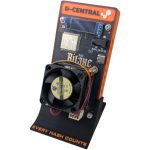
D-Central Technologies has been a pioneer in the Bitaxe ecosystem since its earliest days. We created the original Bitaxe Mesh Stand, developed custom heatsinks and accessories, and stock every Bitaxe variant alongside the full open-source miner lineup. When you need help with AxeOS, you are getting support from a team that knows this firmware inside and out.
Accessing the AxeOS Dashboard
AxeOS provides two ways to access its web interface, depending on whether your Bitaxe has been configured with WiFi credentials yet.
First-Time Setup: AP Mode
When your Bitaxe powers on for the first time — or after a factory reset — it has no WiFi credentials stored. It cannot connect to your home network because it does not know your SSID or password yet. So AxeOS does something clever: it creates its own WiFi network.
- Power on your Bitaxe. Connect the power supply and wait approximately 10–15 seconds for the device to boot.
- Look for the WiFi network named Bitaxe on your phone, laptop, or tablet. This is the Bitaxe broadcasting its own access point (AP mode).
- Connect to the “Bitaxe” network. No password is required by default.
- Open a browser and navigate to http://192.168.4.1 — this is the default gateway address for AP mode.
- The AxeOS dashboard loads. From here, you will enter your home WiFi credentials (SSID and password) in the WiFi settings section.
- Save and reboot. The Bitaxe will disconnect from AP mode, connect to your home WiFi, and obtain an IP address via DHCP.
Normal Access: Local Network
Once your Bitaxe is connected to your WiFi network, you access the dashboard using the device’s local IP address. There are several ways to find it:
- Router admin page — Log into your router and look for connected devices. The Bitaxe typically shows up with a hostname like bitaxe or its model name.
- Network scanner — Tools like Fing (mobile), Advanced IP Scanner (Windows), or nmap (command line) will find the device on your subnet.
- mDNS / Bonjour — Many Bitaxe units respond to http://bitaxe.local if your operating system supports mDNS (macOS does natively; Windows needs Bonjour installed).
- OLED display — If your Bitaxe has an OLED screen, it typically scrolls through stats including its current IP address.
Once you have the IP, type http://[IP-ADDRESS] into any browser on the same network. The AxeOS dashboard loads instantly — no login, no credentials. This is local-only access; the dashboard is not exposed to the internet unless you specifically configure port forwarding (which we do not recommend for security reasons).
If you run multiple Bitaxe units, assign each one a static IP or a DHCP reservation in your router settings. This prevents the IP from changing after a reboot or power cycle. Bookmark each device’s dashboard for quick access. Most routers let you set DHCP reservations by MAC address — find it in your router’s LAN/DHCP settings.
Dashboard Overview
The AxeOS dashboard is a single-page interface that presents everything you need to know about your Bitaxe’s current state. It refreshes in real time, updating values every few seconds. Here is what each section displays and what the numbers actually mean.
Hashrate
The dashboard shows two hashrate values. Real-time hashrate is the instantaneous measurement — how many hashes per second your ASIC chip is computing right now. This number fluctuates constantly; that is normal behavior for any mining device. The average hashrate (sometimes labeled “Session Average”) is the rolling average since the device last booted or since the mining session began. The average is the number that matters for comparing performance and evaluating overclocking results. Expect fluctuations of +/- 10–15% on the real-time reading.
Best Difficulty
This is the highest difficulty share your Bitaxe has found during the current session. In solo mining, you are searching for a hash that meets Bitcoin’s current network difficulty — roughly 100T+ as of 2026. Every hash your device computes has a difficulty value. The higher the best difficulty you have found, the “closer” that share was to being a valid block. For solo miners, this metric is a badge of honor. Best difficulty does not affect your mining performance; it is simply the most impressive share your device has discovered so far.
Shares Accepted / Rejected
Accepted shares are valid proof-of-work submissions that your mining pool acknowledged. Rejected shares are submissions the pool rejected — usually because they arrived too late (stale) or were invalid. A healthy Bitaxe should have a rejection rate below 1–2%. If your rejection rate is climbing higher, it usually indicates an overclocking issue (frequency too high for the voltage), WiFi instability, or a pool connection problem. The AxeOS dashboard shows both counters and sometimes a percentage.
Temperature
The ASIC chip temperature in degrees Celsius, read directly from the chip’s built-in thermal sensor. This is the single most important number to monitor during overclocking. Target operating ranges by zone:
| Zone | Range | Status |
|---|---|---|
| Optimal | 40–55 °C | Full performance, maximum chip longevity |
| Acceptable | 55–65 °C | Safe for continuous 24/7 operation |
| Caution | 65–75 °C | Reduce frequency or improve cooling |
| Danger | 75+ °C | Thermal throttling, chip degradation risk |
Frequency & Voltage
Frequency is displayed in MHz — this is the clock speed at which the ASIC chip is currently hashing. Core voltage is shown in millivolts (mV) — the electrical potential driving the chip. These two values together determine your hashrate and power consumption. The dashboard shows both the current configured values and, on some firmware versions, the actual measured values. We cover tuning these in detail in the Performance Tuning section below.
Power Consumption
An estimated wattage based on voltage and current measurements from the onboard sensors. On single-chip models (Supra, Ultra, Gamma), expect 10–20W at stock settings. The Hex runs at 65–80W, and the GT at 40–50W. This reading is useful for monitoring efficiency and detecting anomalies — a sudden spike in power without a corresponding frequency change could indicate a problem.
Uptime
How long the Bitaxe has been running since its last reboot, displayed in days, hours, and minutes. A stable Bitaxe should accumulate days of uptime without interruption. Frequent reboots suggest WiFi instability, power supply issues, or overclocking settings that push the chip past its limits. If your uptime keeps resetting every few hours, check the Troubleshooting section.
Mining Configuration
The mining configuration section in AxeOS is where you tell your Bitaxe where to send its hashrate and how to identify itself to the pool. These settings determine whether you are solo mining, pool mining, or not mining at all. Get these right, and your device starts earning. Get them wrong, and it hashes into the void.
Pool URL (Stratum Address)
The pool URL tells your Bitaxe which mining pool to connect to. The format is always:
stratum+tcp://[pool-hostname]:[port]
AxeOS uses the Stratum V1 protocol. Most pools support this. Here are the most common pools for Bitaxe solo mining and pool mining:
| Pool | Type | Stratum URL | Port |
|---|---|---|---|
| Public Pool | Solo | public-pool.io | 21496 |
| Ocean | Non-custodial pooled | mine.ocean.xyz | 3334 |
| Solo CK Pool | Solo | solo.ckpool.org | 3333 |
| Braiins Pool | Pooled (FPPS) | stratum.braiins.com | 3333 |
For example, to connect to Public Pool for solo mining, you would enter:
stratum+tcp://public-pool.io:21496
With a single-chip Bitaxe, pool mining payouts are measured in fractions of a cent per day. The realistic play for Bitaxe devices is solo (lottery) mining — every hash is a ticket for the full block reward of 3.125 BTC. The odds are small but never zero. Bitaxe miners have found blocks. Every hash counts.
Worker Name
The worker name identifies your device to the pool. For most solo mining pools like Public Pool and Solo CK Pool, the worker name is your Bitcoin wallet address. This is where the block reward goes if your device finds a valid block. The format is typically:
bc1q…youraddress.workername
The part after the dot is an optional worker identifier — useful if you run multiple Bitaxe units so you can distinguish them on the pool dashboard. For example: bc1qyouraddress.supra01 and bc1qyouraddress.gamma01.
For pooled mining (Braiins Pool, etc.), the worker name follows the pool’s account format — usually your pool username and worker name separated by a dot.
Never use an exchange deposit address for solo mining. If your Bitaxe finds a block, you want that 3.125 BTC reward in a wallet where you control the keys. Use a hardware wallet (Coldcard, Trezor, BitKey) or a self-custody software wallet (Sparrow, Electrum, BlueWallet). Your keys, your Bitcoin.
Fallback Pool
AxeOS supports a secondary pool configuration. If the primary pool goes offline or becomes unreachable, the Bitaxe automatically switches to the fallback pool. This prevents your device from sitting idle during pool outages. Configure it with the same format — Stratum URL, port, and worker name. A common setup is to use Public Pool as primary and Solo CK Pool as fallback (or vice versa).
Solo Mining vs. Pool Mining Setup
The only difference in AxeOS configuration between solo and pool mining is which pool URL and worker name format you use. There is no separate “solo mode” toggle. Solo mining pools like Public Pool simply forward your work to the Bitcoin network as an individual miner rather than aggregating it with others. Here is a quick reference:
| Setting | Solo Mining | Pool Mining |
|---|---|---|
| Pool URL | stratum+tcp://public-pool.io:21496 | stratum+tcp://stratum.braiins.com:3333 |
| Worker Name | bc1q…youraddress.workername | username.workername |
| Payout | Full block reward (3.125 BTC) if you find a block | Small regular payouts proportional to hashrate |
| Best For | Bitaxe, lottery mining, sovereignty | High-hashrate ASICs, predictable income |
For Bitaxe devices, solo mining is almost always the right choice. Pool payouts for a single-chip miner are negligible — pennies per week. Solo mining gives you a shot at the full block reward. It is the entire reason the Bitaxe exists.
Performance Tuning
This is where AxeOS becomes a power tool. The performance tuning section lets you control the two variables that directly determine your hashrate: core frequency and core voltage. These settings are the difference between a stock Bitaxe and an overclocked beast running at peak performance. But they also carry risk — push too far and you get instability, rejected shares, or excessive heat.
Core Frequency (MHz)
Frequency controls how fast the ASIC chip cycles through SHA-256 computations. Higher frequency equals more hashes per second — more lottery tickets. The relationship is roughly linear: a 20% increase in frequency yields approximately 20% more hashrate. Stock settings vary by model:
| Model | ASIC Chip | Stock Frequency | Typical OC Range | Stock Hashrate |
|---|---|---|---|---|
| Ultra | BM1366 | 485 MHz | 525–600 MHz | 400–500 GH/s |
| Supra | BM1368 | 490 MHz | 525–625 MHz | 400–600 GH/s |
| Gamma | BM1370 | 525 MHz | 575–725 MHz | 1.0–1.2 TH/s |
| Hex | BM1366 | 485 MHz | 525–575 MHz | ~3 TH/s |
| GT | BM1370 | 525 MHz | 575–700 MHz | ~2.5 TH/s |
Core Voltage (mV)
Core voltage — labeled vCore in AxeOS — is the electrical potential supplied to the ASIC die. Higher voltage allows higher stable frequencies, but power consumption scales with the square of voltage. Doubling voltage quadruples power draw and heat output. Most Bitaxe models operate safely between 1100 mV and 1300 mV. Going above 1300 mV significantly increases chip degradation risk. Stock voltage is typically around 1150–1200 mV.
Voltage and frequency are inseparable. If you raise the frequency without raising voltage, the chip may not have enough electrical headroom to switch its transistors reliably — you get hash errors and rejected shares. If you raise voltage without raising frequency, you generate unnecessary heat for no performance gain. The art of tuning is finding the sweet spot where both values work in harmony.
Fan Speed Control
Fan speed configuration depends on your Bitaxe model. The Hex and some newer models have PWM fan headers with full speed control in AxeOS — you can set a target temperature and let AxeOS auto-adjust fan speed, or set a manual percentage. Single-chip models (Supra, Ultra, Gamma) use a small onboard fan that typically runs at a fixed speed. If your model supports fan control, you will see the option in the AxeOS settings page. Auto mode is recommended — it ramps the fan as temperature climbs and reduces it when temps are low, reducing noise during cooler ambient conditions.
The Tuning Process
Overclocking is an iterative process. Every ASIC chip is unique due to silicon lottery — manufacturing variations mean your specific chip may overclock better or worse than identical models. Here is the proven method:
- Start at stock settings. Let your Bitaxe run for at least 30 minutes at factory defaults. Record the hashrate, temperature, and rejection rate as your baseline.
- Increase frequency by 25 MHz. Save, let it stabilize for 15–20 minutes. Check temperature and rejection rate.
- If temperature is below 65 °C and rejections are under 2%, increase frequency by another 25 MHz. Repeat.
- If you see instability (rising rejections, ASIC errors, reboots), bump the core voltage up by 10–20 mV to give the chip more headroom. Then re-test.
- When temperature hits 65 °C or rejections climb above 2%, you have found your practical ceiling. Back off the last frequency step.
- Let the final settings run for 24+ hours. Short-term stability does not guarantee long-term stability. Monitor overnight before declaring success.
Pushing frequency and voltage beyond manufacturer specifications can reduce chip lifespan, cause instability, and increase power consumption. Proceed incrementally, monitor temperatures, and never exceed 1300 mV core voltage for sustained operation. If in doubt, run stock settings — your Bitaxe will still mine 24/7 and every hash still counts.
For a complete deep-dive into overclocking every Bitaxe model with specific voltage/frequency targets and community-tested presets, see our dedicated Bitaxe Overclocking Manual.
WiFi & Network Settings
The WiFi & Network section in AxeOS controls how your Bitaxe connects to your local network. A stable network connection is essential — every time WiFi drops, mining stops and your device has to reconnect to the pool, costing you uptime and potentially missing shares.
WiFi Configuration
The core WiFi settings are straightforward:
- SSID — Your WiFi network name. Case-sensitive. The Bitaxe ESP32 only supports 2.4 GHz networks. It cannot see or connect to 5 GHz networks. If your router broadcasts both bands under the same SSID, the Bitaxe should automatically connect to the 2.4 GHz band, but some routers handle this poorly. Creating a dedicated 2.4 GHz SSID for your mining devices eliminates this ambiguity.
- Password — Your WiFi password. Supports WPA2 and WPA3 (transition mode). The password is stored encrypted on the ESP32’s flash memory.
- Hostname — The name your Bitaxe broadcasts on the network. Defaults to something like bitaxe. Change it to something descriptive if you run multiple units: bitaxe-gamma-desk, bitaxe-supra-shelf, etc. The hostname is used for mDNS resolution (hostname.local).
Static IP vs. DHCP
By default, AxeOS uses DHCP — your router assigns an IP address automatically. This works fine for a single Bitaxe, but if you run multiple units, DHCP-assigned IPs can change after a router reboot, making it hard to find your devices. Two solutions:
- DHCP reservation (recommended) — Configure your router to always assign the same IP to your Bitaxe based on its MAC address. The Bitaxe still uses DHCP, but the router reserves its address. This is the cleanest approach.
- Static IP in AxeOS — Some AxeOS versions allow you to configure a static IP directly. Enter the IP, subnet mask (255.255.255.0), gateway (your router IP), and DNS server. Make sure the static IP is outside your router’s DHCP range to avoid address conflicts.
Tips for Reliable WiFi
- Signal strength matters. The ESP32’s WiFi antenna is small. Place your Bitaxe within reasonable range of your router — ideally same room, or one room away with line of sight. Walls, metal shelves, and other electronics degrade signal.
- Avoid channel congestion. If you live in an apartment building with dozens of WiFi networks, use a WiFi analyzer app to find the least congested 2.4 GHz channel and set your router to use it.
- Disable band steering. Some routers aggressively push devices to 5 GHz. Since the Bitaxe only supports 2.4 GHz, this can cause connection loops. Disable band steering or create a separate SSID.
- Power cycle does not erase WiFi settings. Your credentials are stored in non-volatile flash memory. If your Bitaxe reboots, it will automatically reconnect to the saved network.
System Settings
The system settings section houses the administrative controls for your Bitaxe — firmware management, device information, and configuration options that you typically set once and rarely touch again.
Firmware Version & Information
The dashboard displays the currently running AxeOS firmware version (e.g., v2.4.0) along with the ESP-IDF version, board type, and hardware revision. This information is critical when reporting bugs or checking compatibility with new features. The Bitaxe community releases firmware updates regularly — each version brings bug fixes, performance improvements, and new features.
OTA Firmware Updates
AxeOS supports Over-The-Air (OTA) updates — you can flash new firmware directly from the web dashboard without opening the case or connecting USB cables. The process is simple:
- Download the latest firmware binary (.bin file) from the official Bitaxe GitHub releases page.
- Open the AxeOS dashboard and navigate to the firmware/system section.
- Click the upload/update button and select the downloaded .bin file.
- Wait for the upload and flash process to complete. The device will reboot automatically.
- Verify the new version is displayed on the dashboard after reboot.
For a comprehensive walkthrough covering OTA, web flasher, CLI flashing, and building from source, see our full Bitaxe Firmware Update Guide.
Never power off your Bitaxe or close the browser during a firmware update. An interrupted flash can brick the device, requiring USB recovery. The process typically takes 30–60 seconds. Keep the device powered and your browser open until you see the reboot confirmation.
Factory Reset
If you need to start fresh — wrong WiFi credentials locked you out, settings are unstable, or you are selling/giving away the device — AxeOS provides a factory reset option. This erases all stored settings (WiFi credentials, pool configuration, tuning values) and returns the device to its default AP mode state. After a factory reset, you will need to reconnect via the Bitaxe WiFi network and reconfigure from scratch.
On most Bitaxe models, factory reset can be triggered from the AxeOS dashboard under system settings. If you cannot access the dashboard (for example, if the device is connected to a WiFi network you can no longer reach), some boards have a physical reset button or a boot-mode pin sequence. Check your specific model’s documentation.
Board Configuration
AxeOS includes model-specific hardware settings that tell the firmware which ASIC chip is on the board, what the voltage regulator configuration is, and other hardware parameters. These are typically set correctly at the factory and should not be modified unless you are building a Bitaxe from a DIY kit or have replaced hardware components. Changing board configuration values incorrectly can prevent the device from mining or even damage components by sending wrong voltages.
Monitoring & API
AxeOS exposes a REST API that returns your Bitaxe’s complete status in JSON format. This is invaluable if you run multiple Bitaxe units and want centralized monitoring, custom dashboards, or automated alerting without manually checking each device’s web interface.
The System Info Endpoint
The primary API endpoint is:
http://[BITAXE-IP]/api/system/info
Hit this URL from any device on your local network (browser, curl, a script) and you get a JSON response containing all operational data:
{
  "power": 12.4,
  "voltage": 1200,
  "current": 2480,
  "temp": 52,
  "vrTemp": 45,
  "hashRate": 625.4,
  "bestDiff": "4.29G",
  "bestSessionDiff": "2.15G",
  "freeHeap": 118504,
  "coreVoltage": 1200,
  "coreVoltageActual": 1193,
  "frequency": 575,
  "ssid": "HomeNetwork",
  "wifiStatus": "Connected",
  "sharesAccepted": 1842,
  "sharesRejected": 3,
  "uptimeSeconds": 259200,
  "ASICModel": "BM1368",
  "stratumURL": "public-pool.io",
  "stratumPort": 21496,
  "stratumUser": "bc1q...address",
  "version": "v2.4.0",
  "boardVersion": "402",
  "flipscreen": true,
  "overheat_mode": 0
}
Common Monitoring Setups
The API opens up several monitoring possibilities:
- Grafana + InfluxDB / Prometheus — The most popular setup for serious operators. A script polls each Bitaxe’s API on a schedule (every 30–60 seconds), pushes the data into a time-series database, and Grafana renders dashboards with graphs for hashrate, temperature, power, and uptime across all your devices.
- Home Assistant — If you use Home Assistant for home automation, there are community integrations that pull Bitaxe data via the API. You can create automations like “send a notification if Bitaxe temperature exceeds 70 °C” or “log hashrate to a dashboard.”
- Simple scripts — A basic curl command piped through jq in a cron job can monitor your fleet. For example: curl -s http://192.168.1.100/api/system/info | jq ‘.hashRate, .temp’ gives you the two most important numbers in one line.
- Bitaxe Display / Telegram bots — Community-built tools that poll the API and send status updates to a Telegram channel or display stats on an external screen.
The API is read-only for system info and does not require authentication. It is accessible only from your local network unless you set up port forwarding (not recommended). For managing multiple Bitaxe units, the API is the right approach — it scales from 2 devices to 200 with the same polling logic.
Troubleshooting AxeOS
Even well-configured Bitaxe devices encounter issues. Most problems fall into a handful of common categories with straightforward fixes. Work through these before reaching out for support.
WiFi Keeps Disconnecting
The most common Bitaxe complaint. The ESP32’s WiFi radio is functional but not enterprise-grade. If your device keeps losing connection:
- Check signal strength. Move the Bitaxe closer to your router or add a WiFi extender/mesh node. The ESP32 antenna is small — it needs a reasonable signal.
- Confirm you are on 2.4 GHz. The Bitaxe cannot connect to 5 GHz networks. If your router uses a combined SSID, create a separate 2.4 GHz-only network.
- Reduce channel congestion. Use a WiFi analyzer to find a clear channel. Channels 1, 6, and 11 are non-overlapping on 2.4 GHz — pick the one with the least traffic.
- Update firmware. Some AxeOS versions improved WiFi reconnection logic. Ensure you are on the latest release via the Firmware Update Guide.
- Check your power supply. An underpowered or noisy PSU can cause the ESP32 to reset or behave erratically, which looks like WiFi drops.
High Rejection Rate
If your rejected shares climb above 2–3%:
- Lower the frequency. This is the most common cause. Your chip is hashing faster than it can produce valid results at the current voltage. Drop frequency by 25 MHz and re-test.
- Increase core voltage slightly. If you want to maintain the higher frequency, bump voltage by 10–20 mV to give the chip more headroom. Watch temperature.
- Check WiFi stability. Stale shares (valid work submitted too late due to network lag) also count as rejections. A reliable WiFi connection reduces stale share rate.
- Monitor pool-side. Check your pool’s dashboard for your worker. Some rejections are pool-side issues, not device issues.
Overheating / Thermal Throttling
If temperature readings exceed 70 °C consistently or you notice AxeOS auto-reducing frequency:
- Check heatsink contact. Remove and reseat the heatsink with a fresh thermal pad. Poor thermal contact is the number one cause of overheating on Bitaxe devices.
- Improve airflow. Do not run a Bitaxe in an enclosed shelf or pressed against a wall. It needs open air around the heatsink. A proper stand or case with ventilation helps significantly.
- Reduce ambient temperature. A Bitaxe in a 30 °C room will run hotter than one in a 20 °C room. Consider placement near a window or in a cooler area.
- Reduce overclock. If you are pushing aggressive settings, back off frequency and voltage. The goal is stable 24/7 operation, not peak benchmark scores.
Cannot Access the Dashboard
If you cannot reach the AxeOS web interface:
- Verify the IP address. Check your router’s connected devices list. The Bitaxe may have received a different IP after a reboot.
- Try mDNS. Open http://bitaxe.local in your browser (or whatever hostname you configured).
- Confirm same network. Your computer/phone must be on the same WiFi network as the Bitaxe. If you are on 5 GHz and the Bitaxe is on 2.4 GHz with separate SSIDs, they may be on different subnets.
- Power cycle. Unplug the Bitaxe, wait 10 seconds, plug it back in. Give it 30 seconds to boot and connect.
- AP mode recovery. If the Bitaxe cannot connect to any saved WiFi network, it will fall back to AP mode after several failed attempts. Look for the Bitaxe WiFi network on your device list and connect to it, then access http://192.168.4.1 to reconfigure.
For a comprehensive list of every known Bitaxe issue with detailed solutions, see our dedicated Bitaxe Troubleshooting Guide.
Frequently Asked Questions
Does AxeOS work on all Bitaxe models?
Yes. AxeOS is the standard firmware for every Bitaxe variant — Ultra, Supra, Gamma, Hex, and GT. The firmware auto-detects your board’s hardware configuration and adjusts the interface and default settings accordingly. You use the same firmware binary across all models; AxeOS reads the board type from the hardware and configures itself. Download the correct binary for your board version from the GitHub releases page.
Can I run AxeOS on non-Bitaxe devices like NerdAxe or NerdQAxe?
AxeOS is specifically designed for the Bitaxe hardware platform. Other open-source miners like the NerdAxe, NerdQAxe++, and NerdNOS use their own dedicated firmware. While the ESP32 microcontroller is common across many of these devices, the firmware is hardware-specific because each board has different ASIC chips, voltage regulators, and pin configurations. Do not flash AxeOS onto non-Bitaxe hardware.
How do I update AxeOS firmware?
The easiest method is OTA (Over-The-Air): download the latest .bin file from the official GitHub releases, open the AxeOS dashboard, navigate to the system/firmware section, and upload the file. The device flashes and reboots automatically. Your mining configuration (pool, wallet, WiFi) is preserved across updates. For alternative methods including USB flashing and building from source, see our complete Bitaxe Firmware Update Guide.
Is AxeOS secure? Can someone hack my Bitaxe?
AxeOS runs entirely on your local network. The web dashboard is not exposed to the internet unless you explicitly set up port forwarding on your router (which we strongly advise against). On your local network, the dashboard has no authentication — anyone on the same WiFi can access it. For most home networks this is fine. If you are concerned about local access, ensure your WiFi network uses a strong WPA2/WPA3 password. The firmware itself is open-source and auditable — there is no hidden telemetry, no cloud dependencies, and no phone-home behavior.
What happens to my settings after a power outage?
All AxeOS settings — WiFi credentials, pool configuration, frequency, voltage, and other parameters — are stored in the ESP32’s non-volatile flash memory. When power returns, the Bitaxe boots up, reconnects to WiFi, and resumes mining with your saved settings automatically. No manual intervention required. This is one of the reasons Bitaxe devices are ideal for set-and-forget solo mining. Uptime will reset to zero, but mining resumes within 30–60 seconds of power restoration.
Can I mine coins other than Bitcoin with AxeOS?
No. The Bitaxe uses SHA-256 ASIC chips (BM1366, BM1368, BM1370) that are purpose-built for Bitcoin’s proof-of-work algorithm. These chips can only compute SHA-256 hashes — they cannot run other algorithms like Scrypt, Ethash, or RandomX. AxeOS is designed exclusively for Bitcoin mining. This is a feature, not a limitation: purpose-built silicon is orders of magnitude more efficient than general-purpose hardware for Bitcoin mining.
My best difficulty keeps resetting. Is that normal?
Yes. Best difficulty resets every time the Bitaxe reboots or the mining session restarts. It is a session-level metric, not an all-time record (though some firmware versions track an all-time best as well). If your best difficulty is resetting frequently without you intentionally rebooting, it means your device is crashing and restarting — check power supply quality, temperature, and overclock stability. A stable device should accumulate uptime for days or weeks.
Where can I get help with AxeOS issues?
Several resources are available. The D-Central Bitaxe Hub hosts comprehensive guides covering every aspect of Bitaxe ownership. The official Bitaxe Discord server has an active community of developers and users. D-Central’s support team can assist with hardware and firmware issues on units purchased from us — reach out via our contact page. For firmware bugs, the GitHub issues page is the appropriate place to report and track technical problems.
Master Your Bitaxe with AxeOS
AxeOS is deceptively simple on the surface — a clean web interface with a handful of settings. But under that simplicity sits a powerful, open-source firmware stack that gives you complete sovereignty over your mining hardware. No cloud accounts, no corporate dashboards, no telemetry. Just you, your Bitaxe, and the Bitcoin network.
Whether you are running a single Bitaxe Supra on your desk or managing a fleet of Gamma and Hex units across your home, AxeOS provides the same consistent, reliable interface. Configure your pool, tune your performance, monitor your stats, update your firmware — all from a browser on your local network. This is what decentralized mining looks like at the individual level.
D-Central Technologies has been at the forefront of the Bitaxe ecosystem since the beginning — pioneering accessories, stocking every variant, and building the most comprehensive library of Bitaxe guides anywhere on the web. If you are ready to go deeper, explore the resources below:
- Bitaxe Hub — The complete resource center for everything Bitaxe
- Bitaxe Overclocking Manual — Detailed tuning targets for every model
- Bitaxe Firmware Update Guide — OTA, web flasher, CLI, and building from source
- Bitaxe Troubleshooting Guide — Every common issue and how to fix it
- Bitaxe Accessories Guide — Power, cooling, cases, and stands
- Solo Bitcoin Mining Guide — The complete guide to lottery mining
Every hash counts. Your Bitaxe is running, AxeOS is configured, and your hashrate is live on the Bitcoin network. That is sovereignty in silicon.
Browse All Bitaxe & Open-Source Miners
D-Central stocks every Bitaxe variant — Supra, Ultra, Hex, Gamma, GT — plus the full lineup of open-source miners, accessories, heatsinks, cases, stands, and power supplies. Pioneer-tested, ready to mine.
Does AxeOS work on all Bitaxe models?
Yes. AxeOS is the standard firmware for every Bitaxe variant — Ultra, Supra, Gamma, Hex, and GT. The firmware auto-detects your board’s hardware configuration and adjusts the interface and default settings accordingly. You use the same firmware binary across all models; AxeOS reads the board type from the hardware and configures itself. Download the correct binary for your board version from the GitHub releases page.
Can I run AxeOS on non-Bitaxe devices like NerdAxe or NerdQAxe?
AxeOS is specifically designed for the Bitaxe hardware platform. Other open-source miners like the NerdAxe, NerdQAxe++, and NerdNOS use their own dedicated firmware. While the ESP32 microcontroller is common across many of these devices, the firmware is hardware-specific because each board has different ASIC chips, voltage regulators, and pin configurations. Do not flash AxeOS onto non-Bitaxe hardware.
How do I update AxeOS firmware?
The easiest method is OTA (Over-The-Air): download the latest .bin file from the official GitHub releases, open the AxeOS dashboard, navigate to the system/firmware section, and upload the file. The device flashes and reboots automatically. Your mining configuration (pool, wallet, WiFi) is preserved across updates. For alternative methods including USB flashing and building from source, see our complete Bitaxe Firmware Update Guide.
Is AxeOS secure? Can someone hack my Bitaxe?
AxeOS runs entirely on your local network. The web dashboard is not exposed to the internet unless you explicitly set up port forwarding on your router (which we strongly advise against). On your local network, the dashboard has no authentication — anyone on the same WiFi can access it. For most home networks this is fine. If you are concerned about local access, ensure your WiFi network uses a strong WPA2/WPA3 password. The firmware itself is open-source and auditable — there is no…
What happens to my settings after a power outage?
All AxeOS settings — WiFi credentials, pool configuration, frequency, voltage, and other parameters — are stored in the ESP32’s non-volatile flash memory. When power returns, the Bitaxe boots up, reconnects to WiFi, and resumes mining with your saved settings automatically. No manual intervention required. This is one of the reasons Bitaxe devices are ideal for set-and-forget solo mining. Uptime will reset to zero, but mining resumes within 30–60 seconds of power restoration.
Can I mine coins other than Bitcoin with AxeOS?
No. The Bitaxe uses SHA-256 ASIC chips (BM1366, BM1368, BM1370) that are purpose-built for Bitcoin’s proof-of-work algorithm. These chips can only compute SHA-256 hashes — they cannot run other algorithms like Scrypt, Ethash, or RandomX. AxeOS is designed exclusively for Bitcoin mining. This is a feature, not a limitation: purpose-built silicon is orders of magnitude more efficient than general-purpose hardware for Bitcoin mining.
My best difficulty keeps resetting. Is that normal?
Yes. Best difficulty resets every time the Bitaxe reboots or the mining session restarts. It is a session-level metric, not an all-time record (though some firmware versions track an all-time best as well). If your best difficulty is resetting frequently without you intentionally rebooting, it means your device is crashing and restarting — check power supply quality, temperature, and overclock stability. A stable device should accumulate uptime for days or weeks.
Where can I get help with AxeOS issues?
Several resources are available. The D-Central Bitaxe Hub hosts comprehensive guides covering every aspect of Bitaxe ownership. The official Bitaxe Discord server has an active community of developers and users. D-Central’s support team can assist with hardware and firmware issues on units purchased from us — reach out via our contact page. For firmware bugs, the GitHub issues page is the appropriate place to report and track technical problems.