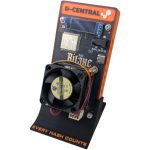
Why Thermal Management Matters for Your Bitaxe
Every ASIC chip is a furnace in miniature. The BM1366 and BM1370 chips inside your Bitaxe are computing trillions of SHA-256 hashes per second, and every single hash generates heat. That heat is the enemy of performance, longevity, and stability. Let it build up unchecked and your Bitaxe will throttle itself, crash, or — in the worst case — suffer permanent silicon damage.
This is the complete guide to Bitaxe thermal management. Whether you are running a stock Bitaxe Supra at default settings or pushing a Bitaxe Gamma to its absolute limits with an aggressive overclock, the principles here will keep your miner running cold, stable, and at peak hashrate. We designed many of the cooling solutions discussed in this guide — D-Central has been a pioneer in the Bitaxe ecosystem since the beginning — so we know exactly what works and why.
Understanding Bitaxe Thermals: What Generates Heat and Where
The ASIC Chip: Primary Heat Source
The single largest heat source in any Bitaxe is the ASIC chip itself. On models like the Bitaxe Supra and Ultra, the BM1366 chip draws roughly 12-15W at stock settings. The BM1370 in the Bitaxe Gamma pushes that to 15-18W. On the Bitaxe Hex, six BM1366 chips combined generate 70-90W of thermal load. All of that energy becomes heat that must be dissipated.
The VRM (Voltage Regulator Module)
On the back of the Bitaxe PCB, the VRM converts your input voltage down to the precise core voltage the ASIC needs. This conversion is not perfectly efficient — typically 85-92% — and the remaining energy becomes heat. The VRM MOSFETs can reach 100-120°C before damage occurs, making them a secondary but important thermal concern. This is especially true when overclocking, because higher core voltages push more current through these components.
Temperature Thresholds You Need to Know
| Zone | Temperature | Status |
|---|---|---|
| Optimal | 35-55°C | Maximum efficiency, no throttling, longest chip lifespan |
| Acceptable | 55-65°C | Safe for continuous operation, slight efficiency reduction |
| Warning | 65-70°C | Approaching limits — consider cooling improvements |
| Throttle Zone | 70-75°C | AxeOS begins automatic frequency reduction to protect the chip |
| Danger | 75°C+ | Risk of instability, hash errors, and potential silicon degradation |
The ASIC chip itself can technically survive brief spikes above 75°C, but sustained operation in this range dramatically shortens its lifespan. Every degree above 65°C accelerates electromigration — the gradual displacement of metal atoms in the chip’s interconnects. Running 10°C cooler can roughly double the operational lifespan of the silicon.
Stock Cooling Performance: What Ships with Your Bitaxe
Every Bitaxe ships with a basic cooling solution: a small aluminum heatsink bonded to the ASIC chip with thermal paste or a thermal pad, and a 40mm fan pushing air across it. This setup works — but it works at the minimum viable level.
Stock Heatsink Limitations
The stock heatsink is designed to dissipate approximately 10-12W of thermal energy. At factory-default settings, this is sufficient to keep the chip in the 55-65°C range in a typical room-temperature environment (20-25°C ambient). But the margins are thin:
- Any overclock immediately pushes heat output beyond what the stock heatsink can comfortably handle
- Warm environments (above 25°C ambient) eat into the thermal headroom
- Poor airflow — such as placing the Bitaxe in a cabinet or shelf without ventilation — traps hot air and raises effective ambient temperature
- Dust accumulation on heatsink fins reduces thermal dissipation over time
If you are running stock settings in a well-ventilated room at 20-22°C, the factory cooling is adequate. The moment you want to push performance — and every serious miner does — an upgrade is essential.
D-Central Heatsink Upgrades: Engineered for Maximum Performance
D-Central designed and manufactures purpose-built heatsink solutions for every Bitaxe model. These are not generic aftermarket parts — they are engineered specifically for the Bitaxe form factor, thermal profile, and mounting system.
Bitaxe Modern Heatsink
The Bitaxe Modern Heatsink is a high-surface-area aluminum cooler designed for the single-chip Bitaxe models (Supra, Ultra, Gamma). Key specifications:
- Material: CNC-machined aluminum with optimized fin spacing
- Thermal capacity: Handles up to 20-24W of heat dissipation — roughly double the stock heatsink
- Temperature reduction: 8-12°C lower ASIC temperatures compared to stock
- Compatibility: Bitaxe Supra, Ultra, Gamma, and NerdAxe Gamma
- Noise: Improved thermal capacity means the fan can run at lower RPM for the same temperature target, reducing noise
For most miners running moderate overclocks, the Modern Heatsink is the single most impactful upgrade you can make. It unlocks 15-25% more hashrate headroom by keeping temperatures well within safe limits.
Premium Bitaxe Heatsink
The Premium Bitaxe Heatsink takes performance further with a larger thermal mass and increased fin density. This is the choice for aggressive overclocking scenarios where every degree matters. It delivers:
- Maximum thermal dissipation for sustained high-power operation
- Silent operation compatibility — enough passive cooling capacity that fan noise can be minimized
- Stable overclocking support — maintains safe temperatures even at peak voltage and frequency settings
Bitaxe Hex Heatsink
The Bitaxe Hex Heatsink is purpose-built for the six-chip Bitaxe Hex. The Hex generates significantly more heat than single-chip models — 70-90W at stock, over 100W when overclocked — requiring a proportionally larger cooling solution. This heatsink covers the full chip array with optimized thermal contact across all six BM1366 ASICs.
Specialty Cooling Sockets
For miners who want to push even further, D-Central stocks a range of advanced cooling solutions:
- Bitaxe Argon THRML Socket — Premium thermal socket with superior heat transfer characteristics
- Bitaxe Argon THRML Noctua Socket — Pairs the Argon thermal interface with a whisper-quiet Noctua fan for the ultimate low-noise, high-performance setup
- Ice Cooler Low-Profile Tower Socket — Tower-style cooler with heat pipes for maximum dissipation in a compact form factor
- Bitaxe Ice Cooler Tower 52pi Socket — Full tower cooler with 52pi heat pipe design for extreme cooling needs
Thermal Paste: The Critical Interface
The thermal paste between your ASIC chip and heatsink is the most underrated component in the entire cooling chain. A poor thermal paste application can cost you 5-10°C — the difference between a stable overclock and thermal throttling.
Choosing the Right Thermal Paste
For Bitaxe applications, use a high-quality non-conductive thermal compound with a thermal conductivity of at least 8 W/mK. Popular choices in the mining community include:
- Noctua NT-H1 / NT-H2 — Excellent performance, easy application, non-conductive
- Thermal Grizzly Kryonaut — Top-tier performance, ideal for overclockers
- Arctic MX-6 — Great value with solid thermal conductivity
Avoid liquid metal compounds on Bitaxe — the risk of shorting components on the densely-packed PCB is not worth the marginal improvement, and aluminum heatsinks react chemically with liquid metal (gallium).
Application Technique
- Clean the surfaces: Use 90%+ isopropyl alcohol and a lint-free cloth to remove all old thermal paste from both the ASIC chip die and the heatsink base
- Apply the right amount: Place a pea-sized dot (approximately 3-4mm diameter) directly on the center of the ASIC chip. The chip die is small — you need less paste than you think
- Mount the heatsink: Press the heatsink straight down with firm, even pressure. The paste will spread naturally to fill microscopic gaps between the chip and heatsink surfaces
- Secure and verify: Tighten mounting hardware evenly. After powering on, monitor temperatures for the first 30 minutes — thermal paste needs a brief curing period under heat to reach optimal performance
When to Reapply
Thermal paste degrades over time as solvents evaporate and the compound dries out. Plan to reapply every 12-18 months for optimal performance. Signs that your thermal paste needs replacement:
- Gradual temperature increase of 5°C or more over weeks/months with no other changes
- Temperature spikes that were not present when the paste was fresh
- After any heatsink removal — never remount a heatsink on old paste
Fan Upgrades and Airflow Optimization
Stock Fan Performance
The stock 40mm fan on most Bitaxe models provides adequate airflow for stock settings but becomes the limiting factor when paired with an upgraded heatsink. A better heatsink with more fin surface area needs more air moving across those fins to realize its full potential.
Upgrade Options
The 4020 5V PWM Cooling Fan with Aluminum Heatsink is a direct upgrade that delivers higher CFM (cubic feet per minute) while maintaining PWM speed control through AxeOS. Key advantages:
- PWM control: AxeOS dynamically adjusts fan speed based on ASIC temperature — lower temps mean lower fan speed and less noise
- Higher maximum airflow: When the chip is under heavy load, the fan can push more air than stock
- Better bearing: Upgraded fans typically use ball bearings or fluid dynamic bearings instead of sleeve bearings, extending fan lifespan from approximately 20,000 hours to 50,000+ hours
Fan Orientation
Mount your fan so that it pushes air down through the heatsink fins (intake orientation). This forces cool ambient air directly into the fin array and pushes hot air out the sides and bottom. Avoid flipping the fan to exhaust configuration — pulling air through fins is less efficient than pushing it through.
Noctua Option for Silent Operation
For miners prioritizing silence — especially those running Bitaxe in living spaces, bedrooms, or offices — the Argon THRML Noctua Socket pairs premium thermal contact with a Noctua fan renowned for virtually inaudible operation. At idle and low-load scenarios, you may not hear it at all.
The D-Central Mesh Stand: Airflow by Design
D-Central created the original Bitaxe Mesh Stand — the first company to manufacture one — and it remains one of the most effective passive cooling upgrades available. The mesh design serves a dual purpose: it protects your Bitaxe while maximizing airflow from every direction.
How the Mesh Stand Improves Cooling
- 360-degree ventilation: Unlike solid cases that trap heat, the mesh pattern allows air to flow freely around the entire board
- Elevated mounting: Lifts the Bitaxe off the desk surface, preventing heat pooling underneath the PCB where the VRM components sit
- Vertical orientation: The standing design leverages natural convection — hot air rises away from the board, drawing cooler air in from below
- No airflow restriction: The fan can pull ambient air without fighting against case walls or tight enclosures
In our testing, the Mesh Stand alone reduces ambient-side board temperatures by 3-5°C compared to laying the Bitaxe flat on a desk. Combined with a heatsink upgrade, the compounding effect is significant.
D-Central also offers the Bitaxe Mesh Standing Case and the Bitaxe Modern Stand for miners who prefer different aesthetics while maintaining the same airflow principles.
Passive vs. Active Cooling: When Each Strategy Wins
Passive Cooling (No Fan)
Passive cooling relies entirely on the heatsink’s ability to dissipate heat through natural convection and radiation. This works when:
- Running at stock or underclocked settings with reduced power draw
- Ambient temperature is consistently below 22°C
- The Bitaxe has excellent open airflow — not enclosed in any case or cabinet
- Using a large, high-performance heatsink with significant thermal mass
Passive cooling produces zero noise, making it ideal for bedroom or office placement. However, it provides no safety margin — if ambient temperature rises or the Bitaxe encounters a sustained high-difficulty period, temperatures climb with no active cooling to compensate.
Active Cooling (Fan)
Active cooling with a PWM-controlled fan is the recommended approach for any Bitaxe running at stock or above. The fan provides:
- Dynamic response: AxeOS adjusts fan speed in real-time based on chip temperature
- Thermal headroom: Even if ambient temperature spikes, the fan compensates
- Overclock enablement: Aggressive overclocks are simply not possible without active cooling
- Dust management: Moving air prevents dust from settling and insulating the heatsink
The power draw of a 40mm fan is negligible — typically 0.5-1.5W — so the energy cost of active cooling is effectively zero relative to the performance it enables.
Hybrid Approach
The best strategy for most miners: install a premium heatsink that could technically handle the thermal load passively, then add a fan running at low RPM for insurance. The oversized heatsink means the fan rarely needs to spin up, keeping noise minimal while maintaining the safety net of active cooling during thermal spikes.
Ambient Temperature: The Variable You Cannot Ignore
Your Bitaxe does not operate in a vacuum. The ASIC temperature you see in AxeOS is always ambient temperature plus the thermal delta created by the chip’s power consumption. If your room is 30°C instead of 20°C, your chip temperature is 10°C higher with identical hardware and settings.
Seasonal Considerations
| Season / Environment | Typical Ambient | Strategy |
|---|---|---|
| Canadian winter (heated home) | 20-22°C | Ideal conditions — maximum overclock headroom |
| Spring / Fall | 22-25°C | Standard operation, moderate overclock safe |
| Summer (no AC) | 28-35°C | Reduce overclock or improve cooling — monitor closely |
| Garage / shed (winter) | 5-15°C | Extreme headroom — push overclocks aggressively, but watch for condensation |
| Server closet / cabinet | 30-40°C | Danger zone — add ventilation or relocate the Bitaxe |
Placement Best Practices
- Open air: Keep the Bitaxe in open space with at least 10cm of clearance on all sides
- Away from heat sources: Do not place near other electronics, heaters, direct sunlight, or above warm appliances
- Low in the room: Heat rises — the floor level of a room is typically the coolest zone
- Near air circulation: A ceiling fan, open window, or room fan dramatically reduces local ambient temperature around the miner
- Avoid enclosed spaces: Bookshelves, cabinets, desk drawers, and closets all trap heat
Overclocking Thermal Limits: How Far Can You Push?
Overclocking your Bitaxe means increasing the core frequency and/or voltage, which directly increases power consumption and heat output. The relationship is not linear — a 20% frequency increase can result in a 30-40% increase in heat due to the voltage curve. For full overclocking instructions, see our Definitive Bitaxe Overclocking Manual.
Thermal Budget by Model
| Model | ASIC Chip | Stock Power | Overclock Power | Recommended Cooling |
|---|---|---|---|---|
| Bitaxe Supra | BM1366 | ~12W | 15-18W | Upgraded heatsink + active fan |
| Bitaxe Ultra | BM1366 | ~12W | 15-18W | Upgraded heatsink + active fan |
| Bitaxe Gamma | BM1370 | ~15-18W | 20-25W | Premium heatsink + active fan (mandatory) |
| Bitaxe GT | 2x BM1370 | ~30-36W | 40-50W | Dedicated cooling solution required |
| Bitaxe Hex | 6x BM1366 | ~70-90W | 100-120W | Hex Heatsink + high-CFM fan (mandatory) |
The Golden Rule of Overclocking Thermals
Never overclock on stock cooling. Period. The stock heatsink has almost zero headroom above factory settings. Any overclock attempt on the stock cooler will push the chip into the throttle zone, negating the overclock entirely — or worse, causing instability and hash errors that actually reduce your effective hashrate below stock.
The correct sequence is always: upgrade cooling first, then overclock. Get your temperatures down to 45-50°C at stock settings with your new cooling solution, then incrementally increase frequency and voltage while watching temperatures stabilize at each step. Our overclocking guide walks through this process step by step.
Temperature Monitoring in AxeOS
AxeOS, the firmware running on your Bitaxe, provides real-time thermal monitoring directly in the web interface. For a full walkthrough of all AxeOS settings, see our AxeOS Complete Guide.
Key Thermal Metrics
- ASIC Temperature: The primary metric — this is the on-die temperature sensor reading from the BM1366/BM1370 chip itself
- Fan Speed (RPM): Current fan rotation speed. If this is at maximum and temperature is still high, your heatsink is the bottleneck
- Fan Speed (%): The PWM duty cycle. 100% means the fan is running flat out — you need better cooling
- Board Temperature: Some Bitaxe models report a secondary sensor for ambient/board temperature
Setting Up Temperature Targets
In AxeOS, you can configure the thermal throttle point. We recommend:
- Target temperature: Set to 65°C — this gives the PWM controller a target to aim for, adjusting fan speed dynamically
- Maximum temperature: 70°C — AxeOS will reduce frequency above this point to protect the chip
- Fan minimum: Set to 20-30% to ensure some airflow even at cool temperatures, preventing dust accumulation
Logging and Long-Term Monitoring
For miners who want historical data, AxeOS exposes metrics via its API that can be logged to external monitoring tools. Tracking temperature trends over weeks and months helps you identify:
- Seasonal ambient temperature changes affecting performance
- Gradual thermal paste degradation
- Dust buildup reducing heatsink efficiency
- Fan bearing wear (manifesting as increased RPM for the same temperature)
Symptoms of Overheating: What to Watch For
Your Bitaxe will tell you when it is running too hot — if you know what to look for. These are the warning signs, in order of severity:
Early Warning Signs
- Fan running at 100% constantly: The cooling system is maxed out and cannot maintain the target temperature
- Temperature above 65°C at stock settings: Your cooling or ambient environment needs attention
- Hashrate slightly below expected: AxeOS may be quietly reducing frequency to manage heat
- Increased hash errors / rejected shares: Thermal instability causes computation errors before full throttling kicks in
Critical Symptoms
- Visible thermal throttling: AxeOS reports reduced frequency and hashrate drops significantly
- Intermittent disconnections: The ASIC chip becomes unstable at high temperatures, causing the mining process to restart
- OLED display showing warning indicators: Some Bitaxe models display temperature warnings on the built-in screen
- Complete shutdown: The Bitaxe halts mining entirely as a thermal protection measure
Post-Damage Indicators
If your Bitaxe has been running too hot for extended periods, you may observe permanent degradation:
- Lower maximum stable frequency than when the unit was new
- Higher error rate at settings that previously worked fine
- Inability to maintain stock hashrate without throttling
If you suspect thermal damage, refer to our Bitaxe Troubleshooting Guide for diagnostic steps, or contact D-Central’s ASIC repair team for professional assessment.
VRM and MOSFET Cooling: The Often-Overlooked Component
While most miners focus exclusively on the ASIC chip temperature, the VRM components on the back of the PCB deserve attention — especially when overclocking. The MOSFETs that regulate voltage to the ASIC run hot under high current loads, and their failure mode is often sudden rather than gradual.
Adding MOSFET Heatsinks
Small copper or aluminum adhesive heatsinks applied to the VRM MOSFETs can reduce their operating temperature by 10-15°C. This is particularly important for:
- Bitaxe Gamma at high voltage: The BM1370 draws more current than the BM1366, putting greater stress on the VRM
- Bitaxe Hex: Six chips fed by the VRM means sustained high current draw
- Any overclocked configuration: Higher voltage settings increase VRM heat proportionally
The Mesh Stand design helps here too — elevating the board ensures airflow reaches both sides of the PCB, cooling the VRM passively.
Building the Ultimate Cooling Setup: Component by Component
Here is the recommended cooling configuration for each use case, using D-Central components:
Stock Settings, Quiet Operation
- Bitaxe Modern Heatsink (upgrade from stock)
- Stock fan at reduced PWM (40-60%)
- D-Central Mesh Stand for ventilation
- Result: 45-55°C, near-silent operation
Moderate Overclock, Balanced
- Premium Bitaxe Heatsink
- 4020 PWM Cooling Fan upgrade
- D-Central Mesh Stand
- Quality thermal paste (Noctua NT-H2 or equivalent)
- Result: 50-60°C under sustained overclock, moderate noise
Maximum Overclock, Performance Priority
- Ice Cooler Tower Socket or Argon THRML Socket
- High-performance thermal paste (Thermal Grizzly Kryonaut)
- MOSFET heatsinks on VRM components
- Open-air mounting with directed airflow
- Result: 45-55°C at maximum overclock, full stability
Silent Build, Living Space
- Argon THRML Noctua Socket
- D-Central Mesh Stand
- AxeOS fan curve set to prioritize low RPM
- Stock or slight underclock settings
- Result: 50-60°C, virtually inaudible
Bitaxe Hex Build
- Bitaxe Hex Heatsink (mandatory upgrade)
- Bitaxe Hex Case with ventilation
- High-CFM fan at full PWM authority
- Well-ventilated location with low ambient temperature
- Result: 55-65°C under full load across all six chips
Maintenance Schedule: Keeping Thermals Optimal Long-Term
| Interval | Task | Impact |
|---|---|---|
| Monthly | Visual inspection — check for dust on heatsink fins and fan blades | Prevents gradual thermal degradation |
| Quarterly | Compressed air cleaning — blow dust out of heatsink fins and fan | Maintains full airflow and heat dissipation |
| Every 6 months | Check fan RPM vs. temperature — compare to baseline | Detects fan bearing wear early |
| Every 12-18 months | Reapply thermal paste | Restores optimal thermal interface performance |
| Annually | Inspect mounting hardware — ensure heatsink is firmly seated | Prevents air gaps from vibration loosening |
Cooling for Multi-Bitaxe Setups
Running multiple Bitaxe units in close proximity compounds thermal challenges. Each unit’s exhaust heat becomes the intake air for its neighbors.
Spacing Rules
- Minimum 15cm between units to prevent exhaust recirculation
- Stagger vertically if possible — each unit’s hot air rises away from the next
- Use individual Mesh Stands for each unit to ensure 360-degree airflow
- Add a room fan if running 3+ units in the same space — the ambient temperature will climb measurably
Temperature Differential Monitoring
With multiple units, compare temperatures between them. All units with identical hardware and settings should read within 2-3°C of each other. If one unit consistently runs hotter, it likely has a cooling issue (poor thermal paste, partially blocked fan, or unfavorable placement).
Frequently Asked Questions
What temperature should my Bitaxe run at?
For optimal performance and longevity, aim for 45-60°C under normal operation. Below 55°C is ideal. Above 65°C warrants a cooling upgrade, and above 70°C indicates an immediate need for intervention — either reduce overclock settings or improve your cooling solution.
Can I run a Bitaxe without a fan (passive cooling only)?
It is possible at stock or underclocked settings with a high-quality heatsink and cool ambient temperature (below 22°C). However, we recommend at least a low-speed fan for safety margin. Without a fan, any ambient temperature increase — summer heat, nearby electronics — can push you into the throttle zone with no active cooling to compensate.
How much cooler does a heatsink upgrade make the Bitaxe?
Upgrading from the stock heatsink to the D-Central Modern or Premium heatsink typically reduces ASIC temperatures by 8-12°C. Combined with improved thermal paste and a Mesh Stand, total improvements of 12-18°C are achievable. This is often the difference between thermal throttling and stable overclocking.
Does the Bitaxe Mesh Stand really improve temperatures?
Yes. The Mesh Stand alone typically reduces board-side temperatures by 3-5°C by enabling 360-degree airflow and elevating the board for natural convection. It also prevents the common problem of heat pooling under the PCB when the Bitaxe is laid flat. D-Central created the original Mesh Stand design specifically for this purpose.
How often should I replace thermal paste on my Bitaxe?
Every 12-18 months for optimal performance. If you notice temperatures creeping up by 5°C or more over several months with no changes to overclock settings or ambient conditions, it is likely time for a reapplication. Always use fresh thermal paste whenever you remove the heatsink for any reason.
What is the best thermal paste for Bitaxe?
We recommend Noctua NT-H2, Thermal Grizzly Kryonaut, or Arctic MX-6. All three offer excellent thermal conductivity (8-12+ W/mK) and are non-conductive, making them safe for the densely-packed Bitaxe PCB. Avoid liquid metal — it reacts with aluminum heatsinks and risks short-circuiting components.
My Bitaxe fan is running at 100% all the time. What should I do?
A fan running at maximum speed continuously means your cooling solution cannot maintain the target temperature. Solutions, in order of priority: (1) Ensure the Bitaxe is in open air with good ventilation, not enclosed. (2) Check that the heatsink is properly seated with good thermal paste contact. (3) Reduce any overclock settings. (4) Upgrade to a better heatsink — the stock heatsink is likely inadequate for your settings and environment.
Can high temperatures damage my Bitaxe permanently?
Yes. Sustained operation above 75°C accelerates electromigration in the ASIC chip, gradually degrading its ability to hash at high frequencies. This manifests as a chip that can no longer hold stable overclocks it previously handled, or even struggles at stock settings. The damage is cumulative and irreversible. Proper cooling is an investment in the longevity of your hardware.
Is it worth upgrading cooling if I only run stock settings?
Yes, for two reasons. First, cooler chips last longer — running at 50°C instead of 65°C significantly extends the operational lifespan of the ASIC. Second, improved cooling gives you the option to overclock in the future when you are ready, without needing another hardware change. The Modern Heatsink and Mesh Stand are low-cost upgrades with immediate and long-term benefits.
How do I check my Bitaxe temperature?
Open the AxeOS web interface by navigating to your Bitaxe’s IP address in a browser. The main dashboard displays ASIC temperature, fan speed (RPM and percentage), and hashrate in real-time. For detailed monitoring guidance, see our AxeOS Complete Guide.
Keep It Cool, Keep Hashing
Thermal management is not glamorous. It does not show up in your hashrate stats or on your AxeOS dashboard in a way that draws attention. But it is the invisible foundation that everything else depends on. A well-cooled Bitaxe runs at peak efficiency, maintains stable hashrates, and will still be hashing years from now when poorly-cooled units have degraded or failed.
D-Central has been a pioneer in the Bitaxe ecosystem from the very beginning — we created the original Mesh Stand, developed leading heatsink solutions for every Bitaxe model, and stock the complete range of cooling accessories because we know that thermal management is what separates a hobby from a serious mining operation.
Every hash counts. Make sure your cooling lets you count every one.
Browse the full selection of Bitaxe accessories and cooling solutions at D-Central, or explore our Complete Bitaxe Accessories Guide for more upgrade options.
What temperature should my Bitaxe run at?
For optimal performance and longevity, aim for 45-60°C under normal operation. Below 55°C is ideal. Above 65°C warrants a cooling upgrade, and above 70°C indicates an immediate need for intervention — either reduce overclock settings or improve your cooling solution.
Can I run a Bitaxe without a fan (passive cooling only)?
It is possible at stock or underclocked settings with a high-quality heatsink and cool ambient temperature (below 22°C). However, we recommend at least a low-speed fan for safety margin. Without a fan, any ambient temperature increase — summer heat, nearby electronics — can push you into the throttle zone with no active cooling to compensate.
How much cooler does a heatsink upgrade make the Bitaxe?
Upgrading from the stock heatsink to the D-Central Modern or Premium heatsink typically reduces ASIC temperatures by 8-12°C. Combined with improved thermal paste and a Mesh Stand, total improvements of 12-18°C are achievable. This is often the difference between thermal throttling and stable overclocking.
Does the Bitaxe Mesh Stand really improve temperatures?
Yes. The Mesh Stand alone typically reduces board-side temperatures by 3-5°C by enabling 360-degree airflow and elevating the board for natural convection. It also prevents the common problem of heat pooling under the PCB when the Bitaxe is laid flat. D-Central created the original Mesh Stand design specifically for this purpose.
How often should I replace thermal paste on my Bitaxe?
Every 12-18 months for optimal performance. If you notice temperatures creeping up by 5°C or more over several months with no changes to overclock settings or ambient conditions, it is likely time for a reapplication. Always use fresh thermal paste whenever you remove the heatsink for any reason.
What is the best thermal paste for Bitaxe?
We recommend Noctua NT-H2, Thermal Grizzly Kryonaut, or Arctic MX-6. All three offer excellent thermal conductivity (8-12+ W/mK) and are non-conductive, making them safe for the densely-packed Bitaxe PCB. Avoid liquid metal — it reacts with aluminum heatsinks and risks short-circuiting components.
My Bitaxe fan is running at 100% all the time. What should I do?
A fan running at maximum speed continuously means your cooling solution cannot maintain the target temperature. Solutions, in order of priority: (1) Ensure the Bitaxe is in open air with good ventilation, not enclosed. (2) Check that the heatsink is properly seated with good thermal paste contact. (3) Reduce any overclock settings. (4) Upgrade to a better heatsink — the stock heatsink is likely inadequate for your settings and environment.
Can high temperatures damage my Bitaxe permanently?
Yes. Sustained operation above 75°C accelerates electromigration in the ASIC chip, gradually degrading its ability to hash at high frequencies. This manifests as a chip that can no longer hold stable overclocks it previously handled, or even struggles at stock settings. The damage is cumulative and irreversible. Proper cooling is an investment in the longevity of your hardware.
Is it worth upgrading cooling if I only run stock settings?
Yes, for two reasons. First, cooler chips last longer — running at 50°C instead of 65°C significantly extends the operational lifespan of the ASIC. Second, improved cooling gives you the option to overclock in the future when you are ready, without needing another hardware change. The Modern Heatsink and Mesh Stand are low-cost upgrades with immediate and long-term benefits.
How do I check my Bitaxe temperature?
Open the AxeOS web interface by navigating to your Bitaxe’s IP address in a browser. The main dashboard displays ASIC temperature, fan speed (RPM and percentage), and hashrate in real-time. For detailed monitoring guidance, see our AxeOS Complete Guide.