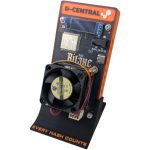
What Is the NerdQAxe++?
The NerdQAxe++ is a quad-chip open-source Bitcoin solo miner built around four BM1370 ASIC chips — the same silicon powering Bitmain’s flagship Antminer S21 Pro. With four chips working in parallel, the NerdQAxe++ delivers 4.8 TH/s at stock and up to 6.0 TH/s on the current Rev 6.1 default settings, all from a device that fits in the palm of your hand and draws roughly 100W. This is not a toy. This is a serious solo mining machine.
How serious? On January 2025, a solo miner running six NerdQAxe++ units found Block #920,440 — a full Bitcoin block worth 3.15 BTC (~$342,000 USD) at the time. One person, six open-source miners on a desk, and the entire block reward. That is the promise of solo mining made real. That is what the NerdQAxe++ is built for.
The NerdQAxe++ runs AxeOS (ESP-Miner firmware) on an ESP32-S3 controller, features a LILYGO T-Display S3 color LCD for real-time stats, and connects over WiFi for completely standalone operation. No computer needed, no cloud accounts, no middlemen — just plug in power, configure your pool and Bitcoin address, and start hashing. Every unit D-Central sells is hand-assembled and tested in our workshop in Laval, Quebec. We do not dropship from anonymous factories. We build these, we test these, and we stand behind every one.
This guide walks you through complete setup of your NerdQAxe++ from unboxing to your first submitted share. Whether this is your first open-source miner (see our Getting Started guide) or you are expanding a fleet, we cover every detail specific to the NerdQAxe++ Rev 6.1.
AxeOS (ESP-Miner) is the open-source firmware that runs on the NerdQAxe++ and the entire Bitaxe/Nerd family of miners (including the NerdAxe). It provides a web-based dashboard for configuration, monitoring, and tuning — all accessible from any browser on your local network. No apps to install, no accounts to create. The NerdQAxe++ also has a built-in LILYGO T-Display S3 color screen that shows real-time hashrate, temperature, and share count without needing to open a browser.
Technical Specifications
The NerdQAxe++ Rev 6.1 is a significant step up from single-chip Bitaxe devices. Four BM1370 chips working together deliver terahash-class performance in a compact, quiet, power-efficient package.
NerdQAxe++ Rev 6.1 — Full Specifications
| Model | NerdQAxe++ (Revision 6.1) |
|---|---|
| ASIC Chips | 4x Bitmain BM1370 (Antminer S21 Pro generation) |
| Algorithm | SHA-256 (Bitcoin) |
| Hashrate (Stock, 600 MHz) | 4.8 TH/s |
| Hashrate (Rev 6.1 Default) | 6.0 TH/s |
| Power Consumption | ~100W |
| Efficiency | 16.5 J/TH |
| Power Input | 12V DC via XT30 connector |
| Recommended PSU | 12V / 10A (120W) minimum |
| Connectivity | WiFi 2.4 GHz (802.11 b/g/n) via ESP32-S3 |
| Display | LILYGO T-Display S3 (1.9″ color LCD, 2 programmable buttons) |
| Firmware | AxeOS / ESP-Miner (open-source, OTA-updatable) |
| Cooling | Dual-fan system with spring-mounted heatsink |
| ASIC Temperature (Stock) | ~48 °C |
| ASIC Temperature (Full Speed) | ~57 °C |
| Noise Level | ~40 dB (quiet conversation level) |
| Dimensions | Approximately 90 x 120 x 40 mm |
| Mining Mode | Solo mining (lottery) or pool mining via Stratum |
| Open Source | Fully open-source hardware and software |
NerdQAxe++ vs. Bitaxe Variants
The NerdQAxe++ occupies a unique position in the open-source miner landscape — far more powerful than any single-chip Bitaxe, but still compact and quiet enough for your desk. Here is how it compares:
Open-Source Miner Comparison
| Device | Bitaxe Supra | Bitaxe Gamma | NerdQAxe++ |
|---|---|---|---|
| ASIC Chips | 1x BM1368 | 1x BM1370 | 4x BM1370 |
| Stock Hashrate | ~500 GH/s | ~1.2 TH/s | 4.8–6.0 TH/s |
| Power Draw | ~12W | ~20W | ~100W |
| Power Input | 5V barrel jack | 5V barrel jack | XT30 12V DC |
| Efficiency | ~25 J/TH | ~18 J/TH | ~16.5 J/TH |
| Display | None | None | 1.9″ color LCD |
| Solo Mining Odds (relative) | 1x | ~2.4x | ~10–12x |
At 6.0 TH/s, the NerdQAxe++ gives you roughly 10 to 12 times the solo mining odds of a Bitaxe Supra — and it proved those odds are real with Block #920,440. More chips, more hashrate, more lottery tickets every second.
What’s in the Box
When your NerdQAxe++ arrives from D-Central, inspect the package contents carefully before powering on.
- NerdQAxe++ Rev 6.1 board — Main PCB with four BM1370 ASIC chips, ESP32-S3 controller, and LILYGO T-Display S3 screen
- Spring-mounted heatsink assembly — Pre-installed or included, with spring-tension mounting for even pressure across all four ASIC chips
- Dual-fan cooling system — Two fans for active cooling across the heatsink assembly
- XT30 power cable — For connecting to your 12V DC power supply (verify connector compatibility with your PSU)
The NerdQAxe++ requires a 12V DC power supply with XT30 connector rated for at least 10A (120W). This is NOT a 5V barrel jack device like the single-chip Bitaxe — it draws significantly more power. Use a quality 12V server-grade PSU or a bench power supply. A laptop-style 12V adapter rated for 10A+ also works. Do not use an undersized or low-quality power supply — at 100W, power delivery matters.
If anything is missing or appears damaged during shipping, contact D-Central support immediately. Every unit is individually tested before shipping, and we stand behind our work.
What You’ll Need
The NerdQAxe++ only supports 2.4 GHz WiFi networks. If your router broadcasts both 2.4 GHz and 5 GHz under the same network name (SSID), the ESP32-S3 may have trouble connecting. Check your router settings and make sure a dedicated 2.4 GHz network is available. If your router uses band steering or a combined SSID, create a separate 2.4 GHz-only network for your mining devices.
A note on Bitcoin wallet addresses: You need a valid Bitcoin address to receive mining rewards. This must be an address you fully control — from a hardware wallet like a Coldcard, Trezor, or BitBox, or a self-custody software wallet like Sparrow, Electrum, or BlueWallet. Do not use an exchange deposit address. If your NerdQAxe++ finds a block — and they have — you want that 3.125 BTC in a wallet where you hold the keys. Not your keys, not your coins.
Safety Warnings
The NerdQAxe++ draws approximately 100W at 12V — that is over 8 amps of current through the XT30 connector. This is a fundamentally different class of device than 5V barrel jack-powered Bitaxe units. Follow these safety guidelines:
- Use a properly rated PSU — A 12V / 10A (120W) power supply is the minimum. Using an underpowered supply risks overheating the PSU, voltage sag, or fire.
- Inspect the XT30 connector — Before every connection, check the XT30 pins for damage, bent contacts, or discoloration. A poor connection at 8+ amps generates heat.
- Ensure adequate ventilation — The dual-fan system needs clear airflow intake and exhaust. Never operate the NerdQAxe++ in a sealed enclosure, inside a drawer, or buried under objects.
- Do not daisy-chain power strips — Connect your PSU directly to a wall outlet or a quality surge protector. Chaining multiple power strips creates fire hazards under sustained 100W load.
- Never operate with a damaged heatsink or fan — At 100W, thermal runaway without cooling is a real concern. If a fan stops spinning or the heatsink is detached, power down immediately.
- Keep away from flammable materials — Hot exhaust air exits through the fans. Maintain clearance from paper, fabric, and other combustible items.
Hardware Setup
The NerdQAxe++ arrives largely pre-assembled from D-Central. Your primary tasks are inspecting the unit, verifying the cooling system, and connecting power.
Step 1: Unboxing & Inspection
- Remove the NerdQAxe++ from its packaging carefully. Hold the board by its edges — avoid touching the ASIC chips, heatsink thermal interface, or display connector directly.
- Visually inspect the PCB — Look for any signs of shipping damage: bent components, cracked solder joints, or loose connectors. Pay special attention to the XT30 power connector and the display ribbon cable.
- Check the LILYGO T-Display S3 — The 1.9″ color LCD should be securely mounted. Verify the ribbon cable is fully seated in its connector.
- Verify all four ASIC chips are seated — You should see four BM1370 chips on the board, evenly spaced under the heatsink assembly.
Step 2: Inspect the Spring-Mounted Heatsink
The NerdQAxe++ uses a spring-mounted heatsink system that applies even pressure across all four BM1370 chips simultaneously. This is critical — uneven contact on a quad-chip board means some chips overheat while others stay cool, causing instability and reduced hashrate.
- Check the spring tension — Gently press each corner of the heatsink. The springs should compress evenly and the heatsink should return to its resting position smoothly. If any spring feels loose or a mounting post is bent, contact D-Central support before powering on.
- Verify thermal pad alignment — If you can see the edges of the thermal pad(s) between the heatsink and the ASIC chips, confirm they are centered and not folded or displaced. Each chip needs full thermal pad coverage.
- Check the dual fans — Both fans should spin freely when rotated by hand (gentle finger push). Verify both fan cables are connected to their headers on the PCB. A disconnected fan means half your cooling is offline.
Every NerdQAxe++ sold by D-Central is hand-assembled and tested in our Laval, Quebec workshop. The heatsink, thermal pads, and fans are installed and verified before shipping. You should not need to disassemble anything for initial setup. If you notice any component that appears loose or improperly seated, contact us — do not attempt repairs before your first power-on.
Step 3: Power Connection (XT30)
The NerdQAxe++ uses an XT30 connector for 12V DC power input — a significant departure from the 5V barrel jack used by single-chip Bitaxe devices. The XT30 is a compact, high-current connector commonly used in the RC hobby and 3D printing communities, rated for up to 30A continuous.
- Verify your PSU output — Confirm your power supply outputs 12V DC at a minimum of 10A (120W). Check the label on your PSU for rated output specifications.
- Inspect both XT30 connectors — Check the male connector on the NerdQAxe++ and the female connector on your power cable. Pins should be clean, straight, and free of corrosion.
- Connect the XT30 plug firmly — The XT30 has a keyed design that only inserts one way. Push until you feel a solid click. A loose connection at 8+ amps will generate heat at the junction and potentially damage the connector.
- Plug your PSU into a wall outlet — Use a surge protector rated for at least 150W. The NerdQAxe++ powers on automatically — there is no power button.
While the XT30 connector is physically keyed to prevent reverse insertion, always verify your PSU’s polarity matches the NerdQAxe++ input. Positive (+) to positive, negative (-) to negative. If you are using a bench power supply or wiring your own XT30 cable, double-check polarity with a multimeter before connecting. Reverse polarity will instantly damage the board.
12V DC Power Supplies for Open-Source Miners
D-Central stocks tested, reliable 12V power supplies with XT30 connectors specifically rated for high-current open-source miners like the NerdQAxe++. Skip the guesswork and get a PSU that delivers clean, stable 12V power at the amperage your miner demands.
Step 4: Positioning
At 100W with active dual-fan cooling, placement matters. The NerdQAxe++ generates significantly more heat than a single-chip Bitaxe and needs proper airflow to maintain optimal temperatures.
- Flat, stable surface — Place the NerdQAxe++ on a hard, flat surface (desk, shelf, table). Avoid soft surfaces like carpet, fabric, or bedding that can block airflow underneath.
- Clear fan intake and exhaust — Leave at least 5 cm (2 inches) of clearance on the fan sides. The dual fans pull air across the heatsink — obstructed airflow leads to recirculation and rising temperatures.
- Away from heat sources — Do not place next to other miners, space heaters, or in direct sunlight. Ambient air temperature directly affects ASIC temperatures.
- Near your WiFi router — A strong 2.4 GHz signal means fewer disconnections. Walls and distance degrade WiFi quality for the ESP32-S3.
- Consider noise — At ~40 dB, the NerdQAxe++ is about the volume of a quiet conversation or a running refrigerator. Comfortable for a home office, but you may notice it in a silent bedroom. If noise is a concern, place it in a well-ventilated closet or utility room.
Initial Setup & WiFi Configuration
With the NerdQAxe++ powered on and the fans spinning, it is time to bring it online. The entire configuration process happens through your web browser via the AxeOS dashboard.
First Boot
When you connect the XT30 power cable and your PSU is plugged in, the NerdQAxe++ powers on immediately:
- Both fans spin up — you should hear them engage within a second. If one or both fans do not spin, disconnect power immediately and inspect the fan connections.
- The LILYGO T-Display S3 screen illuminates and shows the AxeOS boot sequence. After a few seconds, it will display basic status information (firmware version, WiFi status, etc.).
- The ESP32-S3 LED on the controller module lights up, confirming the firmware is running.
- After 15–30 seconds, AxeOS begins broadcasting its own WiFi access point for initial configuration.
The LILYGO T-Display S3 shows real-time mining data without needing a browser: hashrate, ASIC temperature, share count, best difficulty, and WiFi status. The two programmable buttons on the display let you cycle through different information screens. Use the display for quick health checks — save the browser dashboard for configuration and deep monitoring.
Connect to AxeOS WiFi Access Point
On first boot (or when the NerdQAxe++ cannot connect to a saved WiFi network), AxeOS creates its own WiFi hotspot for configuration.
- On your phone, laptop, or tablet, open your WiFi settings.
- Look for a network named “AxeOS” or “AxeOS_XXXX” (where XXXX is a unique identifier). This is your NerdQAxe++ broadcasting its configuration network.
- Connect to this network. No password is required on initial setup (some firmware versions may use “password” or “12345678” as the default — the display screen may show the password if one is set).
- Your device may show a “no internet” warning — this is normal. You are connected directly to the NerdQAxe++, not to the internet.
Once connected, open your web browser and navigate to:
http://192.168.4.1The AxeOS dashboard should load, showing the main configuration interface. You will see status panels for hashrate, temperature, pool connection, and system information.
If the page does not load: (1) Confirm you are connected to the AxeOS WiFi network, not your home network. (2) Disable mobile data on your phone — some devices prefer cellular over a WiFi connection with no internet. (3) Try a different browser or clear your cache. (4) Check the T-Display screen — it may show the correct AP IP if it differs from the default. (5) Power cycle the NerdQAxe++ by disconnecting and reconnecting the XT30 connector.
Configure Your Home WiFi
Connect the NerdQAxe++ to your home WiFi network so it can reach the internet and communicate with your mining pool.
- In the AxeOS dashboard, navigate to the WiFi / Network settings section.
- Enter your WiFi network name (SSID) exactly as it appears — this is case-sensitive.
- Enter your WiFi password.
- Click Save. The NerdQAxe++ will reboot and attempt to connect to your home WiFi.
After rebooting, the NerdQAxe++ will stop broadcasting the AxeOS access point and join your home network. The T-Display screen will show “WiFi: Connected” with the assigned IP address once connected.
To access the AxeOS dashboard after WiFi configuration, find the NerdQAxe++ on your network:
- Check the T-Display screen — The easiest method. The screen shows the assigned IP address directly. No need to hunt through router settings.
- Check your router’s admin page — Look for a device named “AxeOS” or “ESP32” in the connected devices list.
- Use mDNS — Try navigating to:
http://axeos.local- Use a network scanner — Apps like Fing (iOS/Android) or Advanced IP Scanner (Windows) will show all devices on your network.
Your router assigns IP addresses dynamically, which means the NerdQAxe++ could get a different address after a router reboot. Log into your router and assign a static IP reservation (DHCP reservation) to the NerdQAxe++’s MAC address. This way it always gets the same IP, making remote monitoring and multi-unit management much easier.
Configure Mining Settings
Your NerdQAxe++ is connected to your WiFi network and you can reach the AxeOS dashboard. Now configure it to mine Bitcoin. This is where 6 TH/s starts working for you.
Choose Your Mining Pool
The NerdQAxe++ communicates with a mining pool using the Stratum protocol. Even for solo mining, you connect to a pool server that handles communication with the Bitcoin network.
Solo Mining (Lottery Mining) — Connect to a solo mining pool where every hash is your individual attempt at finding a full Bitcoin block. If your NerdQAxe++ finds a valid block, you keep the entire reward: 3.125 BTC. This is the most popular approach for NerdQAxe++ owners and the approach that found Block #920,440.
Pool Mining — Connect to a traditional pool where your hashrate is combined with other miners for small, regular payouts. At 6 TH/s, pool mining generates more meaningful payouts than a single-chip Bitaxe — roughly a few hundred satoshis per day depending on network difficulty and pool fees. Still small, but measurable.
For this guide, we set up solo mining — the reason most people buy a NerdQAxe++.
Enter Pool Settings
In the AxeOS dashboard, navigate to the Mining / Stratum configuration section. Enter the settings for your chosen solo mining pool:
Recommended Solo Mining Pools
| Pool | Public Pool | Solo CKPool | Ocean (TIDES) |
|---|---|---|---|
| URL | public-pool.io | solo.ckpool.org | mine.ocean.xyz |
| Port | 21496 | 3333 | 3334 |
| Fee | 0% | 2% | 0% |
| Full Stratum | stratum+tcp://public-pool.io:21496 | stratum+tcp://solo.ckpool.org:3333 | stratum+tcp://mine.ocean.xyz:3334 |
| Password | x | x | x |
Public Pool is the community standard — zero fees, open-source, built for small solo miners. It is our default recommendation.
Set Your Bitcoin Address
The Worker Name / Username field is where you enter your Bitcoin wallet address. On solo mining pools, your worker name IS your Bitcoin address — this is where the entire block reward goes if your NerdQAxe++ finds a block.
- Open your Bitcoin wallet and copy a receive address. Use a bc1q (native SegWit) address for the lowest fees.
- Paste the address into the Worker Name or Username field in AxeOS.
- Optionally append a device identifier: bc1qyouraddresshere.nerdqaxe1 — this helps identify the device on the pool dashboard.
- Set the Password field to x (or leave blank).
- Click Save. The NerdQAxe++ will reboot and start mining within 30–60 seconds.
Block #920,440 was found by NerdQAxe++ units. If your miner finds a block, 3.125 BTC goes directly to whatever address you configured. A single wrong character means the reward goes to a non-existent address and is lost forever. Copy-paste carefully. Verify the first and last 6 characters match your wallet. Use self-custody only — never an exchange deposit address. Not your keys, not your Bitcoin.
Fan Speed Tuning
The NerdQAxe++ dual-fan system is managed through AxeOS. You can adjust fan behavior to balance cooling performance against noise.
- In the AxeOS dashboard, navigate to the Fans / Cooling settings.
- Auto mode (recommended) — AxeOS adjusts fan speed dynamically based on ASIC temperature. Fans ramp up as temperature rises and slow down as it cools. This is the best setting for most users.
- Manual mode — You can set a fixed fan speed percentage. Useful if you want to prioritize silence (lower speed) or maximum cooling (100% speed).
- Temperature target — Some AxeOS versions let you set a target ASIC temperature. The firmware then adjusts fan speed to maintain that target. A target of 50–55 °C is a good balance between cooling and noise.
At stock settings (~48 °C ASIC temperature), the fans will run at moderate speed — quiet enough for a home office. At full speed overclocked settings (~57 °C), fans will ramp higher but stay under 40 dB.
Frequency Tuning
The NerdQAxe++ Rev 6.1 ships with a default frequency that targets 6.0 TH/s. You can adjust the core frequency in AxeOS to dial in your preferred balance of hashrate, power consumption, and heat.
Understanding Frequency and Voltage
- Core Frequency (MHz) — Controls the clock speed of all four BM1370 chips. Higher frequency = more hashes per second = more power and heat. The stock baseline is 600 MHz (4.8 TH/s). The Rev 6.1 default runs higher for ~6.0 TH/s.
- Core Voltage (mV) — Controls how much electrical potential is supplied to each ASIC core. Higher voltage provides stability at higher frequencies but increases power and heat. These two settings are interdependent — you cannot push frequency indefinitely without also raising voltage.
In the AxeOS dashboard, navigate to the Tuning / ASIC settings to adjust these values. Changes require a save and reboot.
Frequency / Performance Reference
| Setting | Conservative | Stock (600 MHz) | Rev 6.1 Default | Aggressive OC |
|---|---|---|---|---|
| Frequency | 525 MHz | 600 MHz | ~700 MHz | 750+ MHz |
| Hashrate | ~4.0 TH/s | 4.8 TH/s | ~6.0 TH/s | 6.5+ TH/s |
| Power | ~70W | ~100W | ~100W | ~120W+ |
| ASIC Temp | ~42 °C | ~48 °C | ~55 °C | ~60+ °C |
| Best For | Silent operation, hot climates | Balanced efficiency | Daily driver | Maximum hashrate |
Monitoring & Optimization
The NerdQAxe++ gives you two monitoring interfaces: the built-in T-Display screen for at-a-glance checks, and the AxeOS web dashboard for detailed metrics and configuration.
AxeOS Dashboard Metrics
- Hashrate — Displayed in TH/s. At Rev 6.1 defaults, expect 5.5–6.0 TH/s as the rolling average. Momentary spikes and dips are normal — judge performance over 15–30 minute intervals.
- ASIC Temperature — Average temperature across all four BM1370 chips. Target 45–55 °C for 24/7 operation.
- Fan Speed — Both fans’ RPM or percentage. If one reads 0, that fan may be disconnected or failed.
- Shares Accepted — Valid shares submitted to your pool. This should steadily increase. Stagnation means a pool connection issue.
- Shares Rejected — Shares the pool rejected (stale or invalid). Under 2% is normal. Higher rejection rates indicate network latency or overclock instability.
- Best Difficulty — Your highest-difficulty share ever found. This is your personal record — your closest approach to finding a block. The NerdQAxe++’s 6 TH/s produces higher-difficulty shares more frequently than single-chip devices.
- Uptime — Time since last reboot. Longer is better. Frequent reboots suggest power or thermal issues.
- Power Consumption — Estimated wattage. Useful for tracking your electricity cost (at 100W, about $7–10 per month at typical North American rates).
T-Display Screen Info
The LILYGO T-Display S3 cycles through information screens using the two programmable buttons:
- Main screen — Real-time hashrate, ASIC temperature, and WiFi status
- Pool screen — Connected pool, share count, best difficulty
- System screen — Firmware version, IP address, uptime
The display eliminates the need to open a browser for routine checks. Walk by your NerdQAxe++, glance at the screen, and confirm everything is green.
Expected Performance Targets
Healthy NerdQAxe++ Operating Ranges
| Metric | Normal Range | Investigate If |
|---|---|---|
| Hashrate (Rev 6.1 default) | 5.5–6.2 TH/s | Below 4.5 TH/s sustained |
| ASIC Temperature | 45–57 °C | Above 65 °C or below 35 °C |
| Rejection Rate | Under 2% | Above 5% |
| Both Fans | Spinning | One or both stopped |
| Power Draw | 90–110W | Below 60W (chip not initializing) or above 130W (overclock too high) |
Overclocking Guide
The NerdQAxe++ has meaningful overclocking headroom. With four BM1370 chips and a dual-fan cooling system, you can push significantly beyond stock — but you are also pushing 100W+ power draw higher, so respect the thermal and electrical limits.
Aggressive overclocking increases power draw, heat output, and stress on both the ASIC chips and your power supply. Pushing voltage and frequency too high can cause instability, component degradation, or permanent damage. Start with small increments, monitor temperatures obsessively, and always prioritize 24/7 stability over peak benchmark numbers. A NerdQAxe++ that hashes reliably at 6.0 TH/s around the clock is more productive than one that crashes every two hours at 7.0 TH/s.
Safe Overclocking Procedure
- Baseline first — Run at the Rev 6.1 default settings for at least 1 hour. Record hashrate, temperature, power draw, and rejection rate. This is your reference point.
- Increase frequency by 25 MHz — In AxeOS tuning settings, bump the core frequency up one increment. Save and let the NerdQAxe++ restart.
- Monitor for 30 minutes — Watch hashrate stability, ASIC temperature, fan speeds, and rejected shares. If stable, temperature is under 60 °C, and rejection rate is under 2%, the overclock is stable.
- Repeat in 25 MHz steps — Continue stepping up until you observe instability: crashes, reboots, rising rejection rates, or temperatures above 65 °C.
- If unstable, increase voltage by 10–20 mV — More voltage gives the chips electrical headroom at higher frequencies, but increases heat and power draw. Watch your PSU — if your 120W supply is at its limit, you need a bigger PSU before pushing further.
- Back off one step — Once you find the instability threshold, drop frequency back by 25 MHz. This margin accounts for summer heat, voltage fluctuations, and long-term component aging.
- Run a 24-hour stability test — Leave the overclock running for a full day. Check uptime, average hashrate, and that no unexpected reboots occurred. Only after 24 hours of clean operation should you consider the overclock final.
Thermal Limits
Temperature Ranges — NerdQAxe++
| Below 40 °C | Cool — Significant headroom for overclocking |
|---|---|
| 40–50 °C | Optimal — Ideal 24/7 range, chips are happy |
| 50–60 °C | Warm — Acceptable for overclocked operation, monitor in summer |
| 60–68 °C | Hot — Consider reducing frequency or improving airflow |
| Above 68 °C | Critical — Reduce overclock immediately. Risk of throttling and chip damage |
Efficiency Tradeoffs
The NerdQAxe++ achieves 16.5 J/TH at stock — extremely efficient. As you overclock, efficiency degrades because power consumption scales faster than hashrate at higher frequencies. Here is the rough curve:
- Stock (600 MHz, 4.8 TH/s) — ~100W, ~20.8 J/TH
- Rev 6.1 default (~6.0 TH/s) — ~100W, ~16.5 J/TH
- Moderate OC (~6.5 TH/s) — ~120W, ~18.5 J/TH
- Aggressive OC (~7.0+ TH/s) — ~140W+, ~20+ J/TH
For solo mining, raw hashrate matters more than efficiency — every extra hash is another lottery ticket. But if you are paying attention to electricity costs, the Rev 6.1 default is the sweet spot: maximum hashrate per watt.
Running Multiple NerdQAxe++ Units
One NerdQAxe++ at 6 TH/s is formidable. A fleet of them is how Block #920,440 was found — six units running together on the same pool and Bitcoin address.
Multi-Unit Setup
- Each unit is independent — Every NerdQAxe++ has its own WiFi connection, its own AxeOS instance, and its own pool configuration. They do not communicate with each other.
- Use the same Bitcoin address — Configure all units with the same Bitcoin wallet address. On Public Pool, your combined hashrate from all devices appears as one total under your address.
- Use worker identifiers — Append unique device names: bc1q…address.nqaxe1, bc1q…address.nqaxe2, etc. This lets you identify individual units on the pool dashboard.
- Power planning — Each unit draws ~100W. Six units draw ~600W. Plan your power delivery: use dedicated circuits, quality power strips rated for the total wattage, and adequate ventilation for the combined heat output.
- WiFi bandwidth — Stratum protocol uses minimal bandwidth (kilobytes per minute), so even 10+ units on one WiFi network is fine. The limiting factor is WiFi client count — most home routers support 20–30 simultaneous clients without issues.
- Static IPs for all — Assign a static IP to each unit in your router. Managing 6+ miners is much easier when you know exactly which IP belongs to which device.
The Math: Stacking the Odds
Fleet Hashrate Scaling
| Units | 1 | 3 | 6 | 10 |
|---|---|---|---|---|
| Total Hashrate | 6 TH/s | 18 TH/s | 36 TH/s | 60 TH/s |
| Total Power | ~100W | ~300W | ~600W | ~1,000W |
| Monthly Electricity (~$0.12/kWh) | ~$9 | ~$26 | ~$52 | ~$86 |
| Relative Solo Odds | 1x | 3x | 6x | 10x |
Six NerdQAxe++ units at 36 TH/s — approximately the setup that found Block #920,440. At ~$52/month in electricity for a shot at 3.125 BTC, the economics speak for themselves. This is not a guarantee — it is a probability game. But the probability is not zero, and Block #920,440 proved it.
NerdQAxe++ — Quad-Chip Solo Bitcoin Miner
More NerdQAxe++ units mean more terahashes, more lottery tickets, and better solo mining odds. Every unit D-Central sells is hand-assembled and tested in our Laval workshop. Stack your fleet — Block #920,440 was found with six of these.
Troubleshooting
For additional troubleshooting steps that apply across all AxeOS-powered devices, see our Bitaxe Troubleshooting Guide.
Most NerdQAxe++ issues have straightforward solutions. Work through these in order before contacting support.
WiFi Connection Issues
Symptoms: The NerdQAxe++ keeps broadcasting the AxeOS access point, or the T-Display shows “WiFi: Disconnected.”
- Confirm 2.4 GHz — The ESP32-S3 does not support 5 GHz WiFi. This is the number one cause of WiFi failures. Create a dedicated 2.4 GHz SSID if your router uses band steering.
- Verify SSID and password — Reconnect to the AxeOS hotspot (192.168.4.1) and re-enter credentials. SSIDs are case-sensitive; passwords must be exact.
- Check for special characters — Characters like ‘ ” & # $ in your SSID or password may cause parsing issues. Try a simpler network name or password temporarily.
- Move closer to the router — Set up within line of sight of your router first, then move to the permanent location.
- Check router client limits — If you are running multiple miners plus other IoT devices, your router may have hit its client cap.
- Factory reset — Use the AxeOS web interface or the reset procedure to clear saved WiFi credentials and start fresh.
Hashrate Variance
Symptoms: Hashrate fluctuates wildly or is consistently below 4.5 TH/s at Rev 6.1 defaults.
- Wait 15–30 minutes — The hashrate display uses a rolling average that takes time to stabilize after boot. Initial readings are unreliable.
- Check power supply — An undersized PSU (below 10A at 12V) causes voltage sag under load. The BM1370 chips cannot run at rated frequency without stable voltage. Upgrade your PSU.
- Check ASIC temperature — If any chip is overheating, AxeOS throttles frequency to protect it. Improve airflow or reduce ambient temperature.
- Verify all four chips are hashing — In the AxeOS dashboard, check if the system reports all four ASIC chips active. A dead chip means 25% less hashrate. If a chip is not initializing, try a firmware reset or contact D-Central support.
- Update firmware — Newer AxeOS releases may include BM1370 optimization improvements. Check the ESP-Miner GitHub releases page.
- Check XT30 connection — A loose XT30 connector causes intermittent power delivery issues. Disconnect and firmly re-seat the connector.
Thermal Throttling
Symptoms: Hashrate drops over time, ASIC temperature consistently above 65 °C, fans at maximum speed.
- Check heatsink mounting — Verify the spring-mounted heatsink has even pressure on all four chips. A failed spring means one chip has no thermal contact.
- Clean the fans — Dust buildup reduces airflow. Use compressed air to clear the fan blades and heatsink fins.
- Improve ambient airflow — Move the unit to a more open location. Point a desk fan at the intake side for supplemental cooling.
- Reduce overclock — Drop frequency by 25–50 MHz. This is the fastest and most effective fix for thermal issues.
- Lower ambient temperature — Room temperature directly affects ASIC temps. A room at 20 °C gives you 5–10 °C more headroom than 28 °C.
- Replace thermal pads — After 12+ months of continuous operation, thermal pads can dry out and lose effectiveness. Contact D-Central for replacement pads.
Display Issues
Symptoms: T-Display S3 screen is blank, frozen, or showing garbled data.
- Check the ribbon cable — The display connects to the PCB via a ribbon cable. Ensure it is fully seated in its connector. Do not force it — these connectors have a latch mechanism.
- Reboot the unit — Disconnect and reconnect power. The display initializes during the boot sequence.
- Firmware update — Some display bugs are firmware-related. Update to the latest AxeOS version.
- Display vs. mining independence — A non-functional display does NOT affect mining operation. The NerdQAxe++ will continue hashing and submitting shares even with a dead display. Use the web dashboard instead.
No Shares Submitted
Symptoms: Hashrate displays a number, fans are spinning, but share count stays at zero.
- Verify pool settings — Double-check URL, port, and Bitcoin address. A single typo prevents shares from being accepted.
- Check internet connectivity — The T-Display should show WiFi connected. If WiFi is connected but shares are not being submitted, your router may be blocking the Stratum port. Try changing your router DNS to 1.1.1.1 or 8.8.8.8.
- Wait 10–15 minutes — The first share can take several minutes depending on pool difficulty settings.
- Try a different pool — Temporarily switch to solo.ckpool.org:3333 to rule out a pool-side issue.
- Power cycle everything — Restart the NerdQAxe++, then your router. Fresh connections resolve many intermittent issues.
Firmware Updates
For detailed firmware procedures including USB recovery, see our Bitaxe Firmware Update Guide — the process is identical for all AxeOS devices.
AxeOS receives regular updates with performance improvements, bug fixes, and new features. Keep your NerdQAxe++ firmware current for optimal performance.
- Check your current version — The firmware version is displayed on both the T-Display screen and the AxeOS dashboard (System section).
- Download the latest release — Visit the ESP-Miner GitHub releases page. Download the correct .bin file for your hardware.
- Note your settings — Write down your frequency, voltage, pool URL, and Bitcoin address. Some updates reset configuration to defaults.
- Navigate to OTA Update — In the AxeOS dashboard, go to System → OTA Update.
- Upload the .bin file — Select the firmware file and click Update. The upload and flash takes 1–3 minutes.
- Do NOT disconnect power during update — Interrupting the flash process can brick the ESP32-S3, requiring a USB serial connection to recover.
- Verify after reboot — Check that your pool settings, overclock parameters, and fan configuration are intact. Reconfigure if reset.
Interrupting the flash process can corrupt the ESP32-S3 firmware, rendering the NerdQAxe++ unbootable. If the update appears stuck, wait at least 5 minutes before assuming failure. If the unit truly fails to boot after an update, recovery requires a USB serial connection to the ESP32-S3 — contact D-Central support for guidance.
Frequently Asked Questions
Has anyone actually found a Bitcoin block with a NerdQAxe++?
Yes. Block #920,440 was found by a solo miner running six NerdQAxe++ units — a combined hashrate of approximately 36 TH/s. The block reward was 3.15 BTC (~$342,000 USD) at the time. This is not theoretical. This is not marketing. It happened. Open-source miners running AxeOS on a desk found a full Bitcoin block. Block #920,440 is permanently recorded on the Bitcoin blockchain for anyone to verify.
What are my odds of finding a block with one NerdQAxe++?
At 6.0 TH/s, the NerdQAxe++ represents a tiny fraction of Bitcoin’s total network hashrate (currently measured in hundreds of exahashes). Your daily probability of finding a block is extremely small — comparable to a lottery ticket. But unlike a lottery, your NerdQAxe++ plays every second of every day as long as it is running. And at 6 TH/s, you are generating roughly 10 to 12 times more lottery tickets per second than a single-chip Bitaxe Supra. The odds are long, but they are not zero — Block #920,440 is proof. Running multiple units multiplies your odds linearly: six units means six times the chance.
How much electricity does the NerdQAxe++ use and what does it cost?
At Rev 6.1 defaults, the NerdQAxe++ draws approximately 100W. Running 24/7, that is 2.4 kWh per day, or about 72 kWh per month. At typical North American electricity rates ($0.10–0.15/kWh), that is $7–11 per month. For context, that is about the same as running two 60W incandescent light bulbs. Aggressive overclocking may push power draw to 120–140W, increasing monthly cost to $9–15. Still very manageable for a device that has a chance — however small — of earning 3.125 BTC.
Why does the NerdQAxe++ use XT30 instead of a barrel jack?
Power delivery. The NerdQAxe++ draws approximately 8–10 amps at 12V — far beyond what a 5V barrel jack can handle for sustained mining loads. The XT30 connector is rated for 30A continuous, providing massive headroom and a reliable connection at high current. It also operates at 12V (versus the barrel jack’s 5V), which means lower current for the same wattage and less voltage drop across cables. The XT30 is the right connector for a 100W mining device.
How loud is the NerdQAxe++?
At stock settings with ASIC temperatures around 48 °C, the dual fans produce approximately 40 dB — about the volume of a quiet conversation or a running refrigerator. This is considerably louder than a single-chip Bitaxe (which is nearly silent) due to the dual-fan system and higher heat output. Most people find it comfortable for a home office or living room. At aggressive overclocks with fans at full speed, noise increases slightly but stays below 50 dB. If you need near-silent operation, run at conservative settings (525 MHz) where the fans can operate at lower speeds.
Can I use the NerdQAxe++ as a space heater?
At 100W, the NerdQAxe++ produces a noticeable amount of heat — roughly equivalent to a small personal desk heater. It will not heat a room like a proper space heater (which typically runs at 1,000–1,500W), but you will feel the warm exhaust air from the fans. If heating plus mining is your goal, D-Central’s Bitcoin Space Heaters use full-size ASIC miners (S9, S19, etc.) at 1,000–3,000W and produce real room-heating capability. The NerdQAxe++ is optimized for hashing efficiency, not BTU output.
What if I lose power or internet?
The NerdQAxe++ handles interruptions gracefully. Power loss: The device simply stops — no data corruption, no damage. Configuration is stored in the ESP32’s flash memory. When power returns, the NerdQAxe++ boots automatically, reconnects to WiFi, and resumes mining with all saved settings intact. Internet loss: The NerdQAxe++ continues running but cannot submit shares to the pool. It will buffer work and reconnect automatically when internet is restored. You lose mining time during outages, but no configuration or hardware damage occurs.
How do I update the AxeOS firmware?
Navigate to System → OTA Update in the AxeOS web dashboard. Upload the latest .bin firmware file from the ESP-Miner GitHub releases page. The update takes 1–3 minutes. Do not disconnect power during the update. After reboot, verify your pool settings and overclock configuration are intact — some updates reset to defaults. Always read the release notes before updating to confirm compatibility with the NerdQAxe++ hardware.
What is the difference between the NerdQAxe++ and the NerdQAxe (without ++)?
The NerdQAxe++ is the upgraded revision featuring BM1370 chips (Antminer S21 Pro generation), a LILYGO T-Display S3 color LCD, improved cooling with the spring-mounted dual-fan heatsink, and the XT30 power connector for reliable high-current delivery. The original NerdQAxe used earlier-generation chips with lower hashrate and efficiency. The “++” designation indicates the significant hardware improvements in this revision. If you are buying new, the NerdQAxe++ (Rev 6.1) is the current production model.
Is solo mining “worth it” with a NerdQAxe++?
If you define “worth it” strictly as expected daily income versus electricity cost, a single NerdQAxe++ solo mining is not a positive expected value bet on any short timeline. But that framing misses the point entirely. Solo mining with a NerdQAxe++ is about participating directly in the Bitcoin network at a meaningful hashrate level. At 6 TH/s, you are running real SHA-256 computations, contributing to network security and hashrate decentralization, and holding a genuine shot at 3.125 BTC every single second. It costs you about $10/month in electricity. Block #920,440 proved that these devices can and do find blocks. For many Bitcoiners, the combination of technological engagement, sovereignty, decentralization contribution, and the very real (if unlikely) possibility of a $300,000+ block reward makes this one of the most compelling ways to engage with the Bitcoin protocol. Every hash counts.
Upgrade Path
Already running NerdQAxe++ units and want even more hashrate? Here is the natural progression:
- Add more NerdQAxe++ units — The simplest upgrade. Each additional unit adds ~6 TH/s to your fleet. Six units at 36 TH/s is the proven block-finding configuration.
- NerdOctaxe Gamma — The next step up in the open-source miner family. With eight BM1370 chips, the NerdOctaxe Gamma delivers approximately 12 TH/s from a single unit — double the NerdQAxe++. Same AxeOS firmware, same WiFi-based setup, just more silicon working in parallel.
- Bitcoin Space Heaters — When you are ready for serious hashrate AND want to heat your home, D-Central’s Bitcoin Space Heaters use full-size ASIC miners (S9, S17, S19 editions) enclosed in custom housings that direct 1,000–3,000W of heat into your living space. Mining and heating in one appliance.
- Full ASIC Miners — For dedicated mining operations, D-Central stocks the latest Antminer, Whatsminer, and Avalon models. These require 240V circuits, dedicated ventilation, and produce significant noise — but they deliver terahashes in the hundreds.
Open-Source Miners — Full Lineup
D-Central stocks the complete open-source miner ecosystem: Bitaxe (Supra, Ultra, Gamma, Hex, GT), NerdAxe, NerdQAxe++, NerdOctaxe, and every accessory. We are a pioneer in this space — from the original Mesh Stand to custom heatsinks, we build and support the hardware that decentralizes Bitcoin mining. Every hash counts.
Next Steps
Your NerdQAxe++ is hashing at 6 TH/s, submitting shares, and contributing to Bitcoin’s decentralization. Here is where to go from here:
- Monitor from the pool dashboard — Check your Public Pool stats at web.public-pool.io using your Bitcoin address. Watch your best difficulty climb.
- Fine-tune your overclock — After a few days of stable operation, revisit the overclocking section to find your unit’s optimal frequency.
- Read the Bitaxe Hub — D-Central’s Bitaxe Hub covers the entire open-source miner ecosystem including NerdQAxe++ deep dives, community block wins, and firmware tutorials.
- Join the community — Follow @DCentralTech on X for news, block wins, and technical content. The open-source mining community on Discord and Reddit is welcoming and technically deep.
- Expand your fleet — One NerdQAxe++ is good. Six is proven. Shop more units and stack your odds.
- Explore Bitcoin Space Heaters — Ready for serious dual-purpose mining? D-Central’s Space Heaters combine full ASIC hashrate with home heating.
- Keep firmware updated — Follow the ESP-Miner GitHub repository for new AxeOS releases with performance improvements and features.
Block #920,440 sits on the Bitcoin blockchain forever — proof that a solo miner with open-source hardware on a desk can find a full block and claim 3.15 BTC. Your NerdQAxe++ is running the same firmware, the same chips, the same SHA-256 computations right now. Every second, it computes trillions of hashes, each one a legitimate attempt at the next block. Most will not be the one. But one of them might be.
That is the beauty of solo mining. That is the beauty of open-source hardware. That is why we build these machines, test them by hand in Laval, and ship them to miners around the world. Bitcoin’s security does not depend on warehouses in Texas and data centers in Iceland. It depends on people like you, running miners at home, keeping hashrate decentralized and the network sovereign.
Every hash counts.
— The D-Central Technologies Team
Bitcoin Mining Hackers since 2016
Has anyone actually found a Bitcoin block with a NerdQAxe++?
Yes. Block #920,440 was found by a solo miner running six NerdQAxe++ units — a combined hashrate of approximately 36 TH/s. The block reward was 3.15 BTC (~$342,000 USD) at the time. This is not theoretical. This is not marketing. It happened. Open-source miners running AxeOS on a desk found a full Bitcoin block. Block #920,440 is permanently recorded on the Bitcoin blockchain for anyone to verify.
What are my odds of finding a block with one NerdQAxe++?
At 6.0 TH/s, the NerdQAxe++ represents a tiny fraction of Bitcoin’s total network hashrate (currently measured in hundreds of exahashes). Your daily probability of finding a block is extremely small — comparable to a lottery ticket. But unlike a lottery, your NerdQAxe++ plays every second of every day as long as it is running. And at 6 TH/s, you are generating roughly 10 to 12 times more lottery tickets per second than a single-chip Bitaxe Supra. The odds are long, but they are not zero…
How much electricity does the NerdQAxe++ use and what does it cost?
At Rev 6.1 defaults, the NerdQAxe++ draws approximately 100W. Running 24/7, that is 2.4 kWh per day, or about 72 kWh per month. At typical North American electricity rates ($0.10–0.15/kWh), that is $7–11 per month. For context, that is about the same as running two 60W incandescent light bulbs. Aggressive overclocking may push power draw to 120–140W, increasing monthly cost to $9–15. Still very manageable for a device that has a chance — however small — of earning 3.125 BTC.
Why does the NerdQAxe++ use XT30 instead of a barrel jack?
Power delivery. The NerdQAxe++ draws approximately 8–10 amps at 12V — far beyond what a 5V barrel jack can handle for sustained mining loads. The XT30 connector is rated for 30A continuous, providing massive headroom and a reliable connection at high current. It also operates at 12V (versus the barrel jack’s 5V), which means lower current for the same wattage and less voltage drop across cables. The XT30 is the right connector for a 100W mining device.
How loud is the NerdQAxe++?
At stock settings with ASIC temperatures around 48 °C, the dual fans produce approximately 40 dB — about the volume of a quiet conversation or a running refrigerator. This is considerably louder than a single-chip Bitaxe (which is nearly silent) due to the dual-fan system and higher heat output. Most people find it comfortable for a home office or living room. At aggressive overclocks with fans at full speed, noise increases slightly but stays below 50 dB. If you need near-silent…
Can I use the NerdQAxe++ as a space heater?
At 100W, the NerdQAxe++ produces a noticeable amount of heat — roughly equivalent to a small personal desk heater. It will not heat a room like a proper space heater (which typically runs at 1,000–1,500W), but you will feel the warm exhaust air from the fans. If heating plus mining is your goal, D-Central’s Bitcoin Space Heaters use full-size ASIC miners (S9, S19, etc.) at 1,000–3,000W and produce real room-heating capability. The NerdQAxe++ is optimized for hashing efficiency, not BTU…
What if I lose power or internet?
The NerdQAxe++ handles interruptions gracefully. Power loss: The device simply stops — no data corruption, no damage. Configuration is stored in the ESP32’s flash memory. When power returns, the NerdQAxe++ boots automatically, reconnects to WiFi, and resumes mining with all saved settings intact. Internet loss: The NerdQAxe++ continues running but cannot submit shares to the pool. It will buffer work and reconnect automatically when internet is restored. You lose mining time during…
How do I update the AxeOS firmware?
Navigate to System → OTA Update in the AxeOS web dashboard. Upload the latest .bin firmware file from the ESP-Miner GitHub releases page. The update takes 1–3 minutes. Do not disconnect power during the update. After reboot, verify your pool settings and overclock configuration are intact — some updates reset to defaults. Always read the release notes before updating to confirm compatibility with the NerdQAxe++ hardware.
What is the difference between the NerdQAxe++ and the NerdQAxe (without ++)?
The NerdQAxe++ is the upgraded revision featuring BM1370 chips (Antminer S21 Pro generation), a LILYGO T-Display S3 color LCD, improved cooling with the spring-mounted dual-fan heatsink, and the XT30 power connector for reliable high-current delivery. The original NerdQAxe used earlier-generation chips with lower hashrate and efficiency. The “++” designation indicates the significant hardware improvements in this revision. If you are buying new, the NerdQAxe++ (Rev 6.1) is the current…
Is solo mining “worth it” with a NerdQAxe++?
If you define “worth it” strictly as expected daily income versus electricity cost, a single NerdQAxe++ solo mining is not a positive expected value bet on any short timeline. But that framing misses the point entirely. Solo mining with a NerdQAxe++ is about participating directly in the Bitcoin network at a meaningful hashrate level. At 6 TH/s, you are running real SHA-256 computations, contributing to network security and hashrate decentralization, and holding a genuine shot at 3.125 BTC…