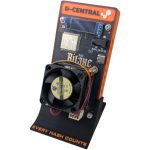
What Is the NerdNOS?
The NerdNOS is the stripped-down, no-nonsense member of the open-source Bitcoin mining family. Running NerdMiner firmware on an ESP32-S3 microcontroller, it does exactly one thing: it mines Bitcoin. No screen. No buttons to cycle through display modes. No frills. Just a bare board connected to your WiFi, hashing SHA-256 around the clock, burning through less power than a phone charger.
Think of NerdNOS as the NerdMiner’s headless sibling. Where the NerdMiner gives you a color TFT display and a beautiful desk companion, the NerdNOS strips all that away and focuses purely on the work. It is a set-it-and-forget-it device. Configure it once through a web interface or serial connection, tuck it behind your router or on a shelf, and let it run. It will hash quietly in the background for months without needing any attention — consuming under 5W, costing you pennies per month, and submitting real SHA-256 shares to the Bitcoin network every single day. Learn more about the philosophy in our guide to solo Bitcoin mining.
The NerdNOS belongs to the broader “Nerd” open-source miner family — a lineup that includes the NerdMiner, NerdAxe, NerdQAxe++, and NerdOctaxe — all featured on our Bitaxe Hub. These devices represent a movement: open-source hardware running open-source firmware, built by the Bitcoin community, for the Bitcoin community. No corporate gatekeepers. No cloud accounts. No subscriptions. Just you, a microcontroller, and the SHA-256 algorithm.
D-Central Technologies has been embedded in this ecosystem since the beginning. We are a pioneer in the Bitaxe and open-source mining ecosystem, creator of the original Bitaxe Mesh Stand, and one of the first companies to stock, support, and advocate for every device in the Nerd family lineup. When you buy a NerdNOS from D-Central, you are buying from Bitcoin Mining Hackers who know this hardware inside and out — because we build in this space every day.
This guide covers everything you need to get your NerdNOS running: hardware overview, firmware flashing, WiFi configuration, pool setup, web interface walkthrough, performance expectations, troubleshooting, and more. No prior mining experience required (completely new to mining? start with our Getting Started guide). Let’s get your NerdNOS hashing.
Both devices run NerdMiner firmware on the same ESP32-S3 microcontroller and perform identical SHA-256 computations. The key difference is form factor. The NerdMiner includes a built-in color TFT display (TTGO T-Display S3 board) that shows real-time mining stats, a Bitcoin clock, and network data — it is designed to be a visible desk companion. The NerdNOS has no screen — it is a headless device optimized for pure hashing. You configure and monitor the NerdNOS through a web interface accessed from your browser, or via serial connection over USB. Same mining power, different philosophy: one is a showpiece, the other is a workhorse.
Technical Specifications
Here is exactly what you are working with. The NerdNOS is not competing with ASICs on hashrate — it is a headless microcontroller miner designed for pure, silent, zero-maintenance solo mining.
NerdNOS — Full Specifications
| Processor | Espressif ESP32-S3 (dual-core Xtensa LX7) |
|---|---|
| Mining Type | CPU mining (SHA-256) |
| Algorithm | SHA-256 (Bitcoin) |
| Hashrate | ~80-120 kH/s (kilohashes per second, varies by firmware and clock speed) |
| Power Consumption | ~2-5W (varies by board variant) |
| Monthly Electricity Cost | Under $0.50/month |
| Power Input | USB (5V via USB-C or Micro-USB depending on board) |
| Display | None — headless device (web interface for monitoring) |
| Connectivity | WiFi 2.4 GHz (802.11 b/g/n) |
| Noise Level | Silent (no moving parts, no fan) |
| Firmware | NerdMiner V2 (pre-installed or user-flashed) |
| Configuration | Web interface (browser) or serial connection (USB) |
| Mining Mode | Solo mining (lottery mining) via Stratum protocol |
| Cooling | None required (passive — negligible heat at under 5W) |
| Open Source | Fully open-source firmware (GitHub) |
The NerdNOS hashes at approximately 80-120 kH/s (80,000 to 120,000 hashes per second). A Bitaxe Gamma hashes at ~1.2 TH/s (1,200,000,000,000 hashes per second). That is roughly 10 million times faster. The NerdNOS uses a general-purpose ESP32-S3 CPU; the Bitaxe uses a dedicated ASIC chip purpose-built for SHA-256. Both are real miners submitting real work to the Bitcoin network. The NerdNOS is your silent background hashing node; the Bitaxe is your dedicated solo mining rig. Both have a place in the sovereign miner’s arsenal.
Hardware Overview
The NerdNOS is built around the ESP32-S3 microcontroller — the same chip that powers the NerdMiner. The ESP32-S3 is a dual-core processor manufactured by Espressif Systems, designed for IoT applications but perfectly capable of performing SHA-256 computations for Bitcoin mining. It is the same silicon that runs thousands of NerdMiners worldwide.
Board Components
Since the NerdNOS ships without a display, the board is simpler than the NerdMiner’s TTGO T-Display S3. Here is what you will find on a typical NerdNOS board:
- ESP32-S3 module — The brain. Dual-core Xtensa LX7 processor running at up to 240 MHz, with built-in WiFi and Bluetooth. Both CPU cores are utilized for mining to maximize hashrate.
- USB port — USB-C or Micro-USB (depending on the specific board variant). Used for power delivery, initial firmware flashing, serial communication, and debugging.
- BOOT button — Used to enter bootloader mode for firmware flashing. Hold this while connecting USB or while pressing the RESET button to force the board into programming mode.
- RESET button — Restarts the device. Press this to reboot the NerdNOS without disconnecting power.
- Status LED — A small indicator LED that provides basic status information (power on, WiFi connected, mining active). The exact LED behavior varies by firmware version.
- Flash memory — Stores the firmware and your configuration (WiFi credentials, Bitcoin address, pool settings). Non-volatile — survives power outages and reboots.
- WiFi antenna — Either a PCB trace antenna (built into the board) or a small ceramic chip antenna. Sufficient range for most home setups, though positioning near your router helps during initial setup.
ESP32-S3 Technical Details
| CPU | Dual-core Xtensa LX7 @ up to 240 MHz |
|---|---|
| RAM | 512 KB SRAM + external PSRAM (varies by module) |
| Flash | 4-16 MB (varies by module) |
| WiFi | 802.11 b/g/n, 2.4 GHz only |
| Bluetooth | BLE 5.0 (not used for mining) |
| USB | Native USB-OTG + UART via USB bridge |
| Operating Voltage | 3.3V (regulated from 5V USB input) |
| Operating Temperature | -40 to 85 C |
Power Requirements
The NerdNOS is one of the most power-efficient Bitcoin miners in existence — because it barely consumes any power at all. The entire device runs from a standard USB port delivering 5V. No special power supply. No barrel jack. No dedicated circuit. Any USB power source you already own will work.
- Phone charger — Any 5V USB charger rated at 500mA or higher (which is essentially every charger made in the last decade)
- Laptop USB port — Direct connection to any computer
- USB power bank — Portable mining, although the practical value is debatable
- USB hub — Connect multiple NerdNOS devices to a single powered USB hub
- Router USB port — Many modern routers have a USB port that can power the NerdNOS
At under 5 watts, running the NerdNOS 24/7 for an entire month consumes approximately 3.6 kWh. At $0.10-0.15/kWh, that is less than fifty cents per month. You will never notice it on your electricity bill.
What You Need
That is genuinely all you need. The NerdNOS is designed to be the simplest possible entry point into Bitcoin mining hardware. No soldering iron, no heatsink compound, no Ethernet cable, no complex networking. A USB cable, WiFi, and a Bitcoin address.
NerdNOS devices purchased from D-Central come pre-loaded with NerdMiner firmware — ready to configure and mine right out of the box. If you purchased a bare ESP32-S3 board from another source and want to turn it into a NerdNOS, you will need to flash the firmware yourself. Both scenarios are covered in this guide.
Firmware Flashing
If your NerdNOS came from D-Central with firmware pre-installed, you can skip this section entirely and jump straight to Initial WiFi Configuration. This section is for users who need to flash or re-flash the NerdMiner firmware onto their ESP32-S3 board — either because they purchased a bare board, need to recover from corrupted firmware, or want to update to the latest release.
Download the Firmware
The NerdNOS runs the same NerdMiner V2 firmware used by the NerdMiner. Download the latest release from the official GitHub repository:
https://github.com/BitMaker-hub/NerdMiner_v2/releasesOn the releases page, look for the latest stable release. Download the .bin firmware file for your specific board. Since the NerdNOS uses an ESP32-S3 without a display, select the appropriate binary — typically named something like nerdminer_v2_esp32s3_noscreen.bin or the equivalent for your board variant. Read the release notes carefully to match the correct binary to your hardware.
Option A — Web-Based Flasher (Recommended)
The easiest way to flash firmware onto the NerdNOS. This uses the Web Serial API built into Chrome and Edge browsers — no software installation required.
- Connect the NerdNOS to your computer via USB cable.
- Enter bootloader mode — Hold the BOOT button, press and release the RESET button, then release the BOOT button. On some boards, simply hold the BOOT button while plugging in the USB cable.
- Open the web flasher — Navigate to the NerdMiner V2 web flasher URL (check the GitHub repository README for the current flasher link) in Chrome or Edge.
- Click “Connect” — A dialog will appear listing available serial ports. Select the one corresponding to your NerdNOS (usually labeled as “USB Serial” or “CP210x” or “CH340”).
- Select firmware version — Choose the latest stable release and the correct board variant.
- Click “Flash” — The browser will upload the firmware to your NerdNOS. This typically takes 1-2 minutes.
- Wait for completion — Do not disconnect the USB cable during flashing. Once complete, the NerdNOS will reboot with the new firmware.
The web-based flasher uses the Web Serial API, which is only available in Chromium-based browsers: Chrome, Edge, Brave, and Opera. Firefox and Safari do not support Web Serial. If you use those browsers, use the esptool method below instead.
Option B — Command-Line with esptool (Advanced)
For full control over the flashing process, use esptool — the official Espressif flash programming utility.
- Install Python if you do not have it: python.org
- Install esptool:
pip install esptool- Connect the NerdNOS to your computer via USB.
- Enter bootloader mode — Hold BOOT, press RESET, release both. (Or hold BOOT while plugging in USB.)
- Identify your serial port — On Windows, open Device Manager and look under “Ports (COM & LPT).” On macOS/Linux, check /dev/tty*.
- Erase existing flash (recommended for clean installs):
esptool.py --chip esp32s3 --port COM3 erase_flash- Flash the firmware:
esptool.py --chip esp32s3 --port COM3 --baud 460800 write_flash 0x0 nerdminer_v2_firmware.binReplace COM3 with your actual serial port. On macOS or Linux, it will be something like /dev/ttyUSB0 or /dev/cu.usbmodem*. Replace the filename with the actual .bin file you downloaded.
- The NerdNOS will reboot with the new firmware once flashing completes.
If your computer does not recognize the NerdNOS when you plug it in, you may need to install a USB-to-serial driver. Most ESP32-S3 boards use either the CP2102 (Silicon Labs) or CH340 (WCH) USB bridge chip. Download the driver from the chip manufacturer’s website: CP2102 Driver or CH340 Driver. After installing, unplug and replug the USB cable.
Initial WiFi Configuration
Since the NerdNOS has no screen, all configuration happens through a WiFi captive portal that the device creates on first boot (or whenever it cannot connect to a saved WiFi network). This is the same Access Point (AP) mode used by the NerdMiner, but since there is no display to confirm status, here is exactly how it works.
Step 1 — Power On and Enter AP Mode
Plug the NerdNOS into a USB power source. On first boot — or if no WiFi network is configured — the device will automatically create its own WiFi access point. You will know the NerdNOS is in AP mode if:
- The status LED is blinking in a distinctive pattern (varies by firmware version — typically a slow blink or solid on)
- A new WiFi network appears in your device’s WiFi scanner
If the NerdNOS previously had a WiFi network configured and you need to force it back into AP mode, power cycle the device (unplug and replug USB) and watch for the AP network to appear within 10-15 seconds. If the saved network is unavailable, the device will fall back to AP mode automatically.
Step 2 — Connect to the NerdNOS Access Point
- On your phone, laptop, or tablet, open WiFi settings.
- Look for a network named “NerdMinerAP” (or a similar name — the exact AP name depends on the firmware version and may include the device’s MAC address).
- Connect to this network. There is typically no password required for the AP, but some firmware versions may use a default password like 12345678 — check the release notes if prompted.
- A captive portal should open automatically in your browser. If it does not, manually navigate to:
http://192.168.4.1Step 3 — Enter WiFi Credentials
On the configuration page, you will see fields for your home WiFi network:
- SSID (WiFi Name) — Enter your WiFi network name exactly as it appears. This is case-sensitive. Double-check for trailing spaces.
- Password — Enter your WiFi password. Special characters are supported but can occasionally cause issues with some firmware versions (see Troubleshooting).
The ESP32-S3 only supports 2.4 GHz WiFi networks. It physically cannot see or connect to 5 GHz networks. If your router uses a combined SSID for both bands, the ESP32 should auto-connect to 2.4 GHz — but if you experience issues, create a dedicated 2.4 GHz-only network in your router settings. This is the single most common setup issue with all ESP32-based miners.
Step 4 — Enter Your Bitcoin Address
On the same configuration page, you will find a field for your Bitcoin wallet address. This is the address where block rewards would be sent if your NerdNOS finds a block.
- Open your self-custody Bitcoin wallet — Sparrow, Electrum, BlueWallet, Coldcard, Trezor, or any wallet where you control the private keys.
- Copy a receive address. We recommend a bc1 (native SegWit / Bech32) address for lowest fees.
- Paste it into the BTC Address field.
- Double-check the address. Triple-check it. This is where a 3.125 BTC block reward would go.
Never use an exchange deposit address (Coinbase, Binance, Kraken, etc.) for mining. Exchanges can change deposit addresses without warning, freeze your account, or refuse mining-related deposits. Use a wallet where you control the private keys. This is Bitcoin mining — sovereignty is the entire point.
Step 5 — Save and Connect
Review your settings — WiFi name, WiFi password, Bitcoin address — and click Save. The NerdNOS will:
- Store the configuration in non-volatile flash memory
- Shut down the AP mode WiFi network
- Connect to your home WiFi network
- Connect to the configured mining pool
- Begin mining automatically
Since there is no display, you will not get a visual confirmation. The status LED should change its pattern to indicate a successful WiFi connection (typically solid on or a different blink pattern). To confirm the NerdNOS is mining, check your mining pool’s web dashboard (see Pool Configuration) or access the device’s web interface on your local network.
Pool Configuration
The NerdNOS firmware comes with Solo CKPool as the default mining pool — the same default used by the NerdMiner. For a CPU miner at this hashrate, solo mining is the only strategy that makes any sense: pool mining would earn you fractions of a satoshi per year, never enough to reach a payout threshold. Solo mining gives you a shot at the full 3.125 BTC block reward. Long odds, but never zero.
Recommended Solo Mining Pools
| Solo CKPool (Default) |
solo.ckpool.org:3333 The original solo mining pool, maintained by Con Kolivas. Zero fees. Your Bitcoin address is your username. If your device finds a block, the full reward goes to you. The most battle-tested solo pool in Bitcoin. |
|---|---|
| Public Pool |
public-pool.io:21496 Open-source solo mining pool popular with the Bitaxe and NerdMiner communities. Zero fees. Clean web dashboard at web.public-pool.io where you can monitor your NerdNOS by entering your Bitcoin address. Excellent for headless devices because the dashboard provides the monitoring your NerdNOS lacks. |
| Ocean |
mine.ocean.xyz:3334 Decentralized mining pool focused on transparency and non-custodial payouts. Supports small miners. A strong choice for miners who prioritize decentralization in their pool selection too. |
To change the pool, access the NerdNOS configuration portal (either by forcing AP mode, or via the web interface at the device’s local IP) and update the Pool URL and Port fields. The password field is typically x for all of these pools.
Since the NerdNOS has no screen, Public Pool is an excellent choice because of its web dashboard. Navigate to the dashboard, enter your Bitcoin address, and you can monitor your NerdNOS hashrate, shares, best difficulty, and uptime from any device — your phone, your laptop, anywhere. It is the closest thing to a remote display for your headless miner.
Web Interface Walkthrough
Once the NerdNOS is connected to your home WiFi network, you can access its built-in web interface from any device on the same network. This is your primary tool for monitoring and configuring the NerdNOS — it replaces the screen that the NerdMiner has.
Finding the Device IP Address
The NerdNOS gets an IP address from your router via DHCP when it connects to WiFi. To find it:
- Check your router’s admin panel — Log into your router (usually 192.168.1.1 or 192.168.0.1) and look at the connected devices list. The NerdNOS will appear with a hostname like “NerdMiner” or “ESP32” or similar.
- Use a network scanner app — Apps like Fing (iOS/Android) or Advanced IP Scanner (Windows) will list all devices on your network with their hostnames and IP addresses.
- Check serial output — If you have the NerdNOS connected to a computer via USB, the serial output will print the assigned IP address on boot (see Serial Debugging).
Once you have the IP address (for example, 192.168.1.42), open a web browser on any device connected to the same network and navigate to:
http://192.168.1.42Replace the IP address with your NerdNOS’s actual IP.
Dashboard Overview
The web interface provides a clean dashboard with the following information:
- Hashrate — Current mining speed in kH/s. Expect approximately 80-120 kH/s depending on your board variant and firmware version.
- Shares — Total number of valid shares submitted to the mining pool since last boot. This number should steadily climb.
- Best Difficulty — The highest-difficulty share your NerdNOS has found. This is your personal record — your closest brush with solving a block. Higher is better.
- Uptime — How long the device has been running since the last reboot.
- WiFi Signal Strength — RSSI value indicating how strong the WiFi connection is. Anything above -70 dBm is good; below -80 dBm may cause connection drops.
- Pool Status — Whether the device is currently connected to the mining pool and actively submitting work.
- Free Memory — Available heap memory on the ESP32-S3. Useful for debugging.
Configuration Settings
From the web interface, you can update all settings without needing to re-enter AP mode:
- WiFi credentials — Change your WiFi SSID and password
- Bitcoin address — Update your mining reward address
- Pool settings — Change pool URL and port
- Device settings — Adjust firmware-specific options like hostname and timezone
After changing any settings, click Save. The NerdNOS will reboot and apply the new configuration. Bookmark the page — you will want to check in on your headless miner periodically.
Your router assigns a dynamic IP address to the NerdNOS via DHCP, which means the IP could change after a reboot or power cycle. To ensure you can always reach the web interface at the same address, set a DHCP reservation (also called a static lease) in your router for the NerdNOS’s MAC address. This way, the router always assigns the same IP to your miner. Check your router’s documentation for how to configure DHCP reservations.
Performance Expectations
Let’s talk real numbers. No hype, no sugarcoating — just the math, the probabilities, and why the NerdNOS matters despite those numbers.
Hashrate Reality
The NerdNOS hashes at approximately 80-120 kH/s. Let’s use 100 kH/s as a round number. That is 100,000 SHA-256 double-hashes per second.
The Bitcoin network’s total hashrate fluctuates between 600-900 EH/s (exahashes per second). One exahash is 1,000,000,000,000,000,000 hashes per second. Your NerdNOS represents roughly one ten-trillionth of the total network hashrate.
NerdNOS vs the Network — Probability Context
| NerdNOS Hashrate | ~100 kH/s (100,000 H/s) |
|---|---|
| Bitcoin Network Hashrate | ~700 EH/s (700,000,000,000,000,000,000 H/s) |
| NerdNOS Share of Network | ~0.000000000000014% |
| Expected Time to Find a Block | ~40,000+ years (statistical average) |
| Block Reward if Found | 3.125 BTC (full block subsidy + transaction fees) |
| Monthly Electricity Cost | < $0.50 |
| Probability of Block per Year | ~0.0000025% — but never zero |
The Probability Discussion
Those numbers look bleak. Forty thousand years is a long time to wait. But here is what the raw statistics do not capture:
Every single hash is independent. The hash your NerdNOS computes right now has the exact same probability of being the winning hash as any hash computed by a warehouse full of Antminer S21 Pros. The hash does not know what device computed it. It does not know your total hashrate. It does not know how long you have been mining. It either meets the difficulty target or it does not. This is pure cryptographic lottery — and in a lottery, someone with one ticket can win just as surely as someone with a million tickets. The odds are different, but the outcome per ticket is identical.
Solo miners with tiny hashrates have found blocks. It has happened multiple times in Bitcoin’s history. It is rare — genuinely rare — but it is not impossible. And when it happens, the winner takes the entire block reward. No splitting with a pool. No proportional payouts. Just 3.125 BTC deposited directly to your address.
The Real Value of Running a NerdNOS
The NerdNOS is not a money-making machine. If you run it expecting profit, you will be disappointed. But if you understand what it actually is — a sovereign, silent, always-on contribution to the Bitcoin network — it becomes something far more valuable than a profit calculation can capture:
- Education by doing — Understanding mining at the protocol level. Hashing, nonces, difficulty, Stratum, shares — these become tangible when a device you own is doing them.
- Network participation — You are running your own mining hardware. No custodian, no permission, no account. Your device, your keys, your hashrate, your rules.
- Decentralization in practice — Every miner on the network, no matter how small, contributes to Bitcoin’s censorship resistance. Geographic and hardware diversity makes Bitcoin stronger. Your NerdNOS is a statement about what kind of network you want Bitcoin to be.
- Zero-maintenance background process — The NerdNOS sits behind your router, draws pennies of electricity, makes no noise, generates no heat, and mines 24/7/365. Set it up once and forget about it. It costs you nothing to run and requires nothing from you.
- The gateway — For many people, a NerdNOS or NerdMiner is the first domino. It leads to a NerdAxe, then a Bitaxe, then a Space Heater, then a closet full of miners. The rabbit hole starts here.
Troubleshooting
The NerdNOS is one of the simplest mining devices in existence — no screen to break, no fan to fail, no ASIC chip to overheat. But issues can still arise, primarily around WiFi connectivity and firmware. Here are the most common problems and their solutions.
WiFi Connection Issues
Symptoms: The NerdNOS cannot connect to your WiFi, repeatedly falls back to AP mode, or connects but drops frequently.
Solutions:
- Verify 2.4 GHz — This is the number one issue. The ESP32-S3 cannot see 5 GHz networks. If your router uses band steering (combined SSID), create a dedicated 2.4 GHz-only SSID for testing.
- Check SSID and password — Re-enter the captive portal (power cycle to force AP mode) and verify the WiFi name and password are exactly correct. SSIDs are case-sensitive.
- Move closer to the router — The ESP32’s built-in antenna has limited range. Place the NerdNOS within a few meters of your router for initial setup. Once confirmed working, move it to its permanent location.
- Avoid special characters — Characters like ‘ ” & # $ % in your WiFi name or password can sometimes cause issues with the configuration portal’s form parsing. Try a simpler password temporarily to isolate the issue.
- Check WiFi signal strength — If you can access the web interface, check the RSSI value. Below -80 dBm indicates a weak signal. Reposition the device or consider a WiFi extender.
- Check router client limit — Some routers cap the number of simultaneous WiFi clients. If you have many IoT devices, you may be hitting the limit.
- Reboot your router — Sometimes the simplest fix. Routers can become sluggish at managing connections after running for weeks without a restart.
Firmware Problems
Symptoms: The NerdNOS is unresponsive, stuck in a boot loop, does not create an AP on first boot, or the status LED behaves unexpectedly.
Solutions:
- Power cycle — Unplug USB, wait 10 seconds, replug. Simple but effective for transient crashes.
- Force bootloader mode — Hold BOOT, press RESET, release both. This puts the ESP32-S3 into programming mode, bypassing corrupted firmware.
- Re-flash firmware — Use the web flasher or esptool to re-flash the latest stable NerdMiner firmware. See the Firmware Flashing section above.
- Erase flash first — If re-flashing does not help, erase the entire flash memory first (esptool.py –chip esp32s3 –port COM3 erase_flash), then re-flash. This clears any corrupted configuration data. You will need to reconfigure WiFi and pool settings afterwards.
- Try a different USB cable — A damaged or data-only (charge-only) USB cable can cause firmware flashing to fail silently. Use a cable you know supports data transfer.
- Try a different USB port — USB hubs and USB 3.0 ports can sometimes cause issues with ESP32 serial communication. Try a direct USB 2.0 port on your computer.
Serial Debugging
For advanced troubleshooting, the NerdNOS outputs diagnostic information over its USB serial connection. This is the most powerful debugging tool for headless devices.
- Connect the NerdNOS to your computer via USB.
- Open a serial terminal — Use PuTTY (Windows), screen (macOS/Linux), or the Arduino IDE Serial Monitor.
- Set the baud rate to 115200.
- Select the correct COM port — same port used for firmware flashing.
screen /dev/ttyUSB0 115200The serial output will show you:
- Boot messages — Firmware version, chip info, flash size
- WiFi status — Connection attempts, assigned IP address, signal strength
- Pool connection — Stratum connection status, subscription messages
- Mining activity — Hashrate, shares found, difficulty
- Errors — WiFi timeout, pool connection failures, memory issues
This serial output is invaluable for diagnosing why a headless NerdNOS is not behaving as expected. If the device cannot connect to WiFi, the serial output will tell you exactly why. If the pool connection is failing, you will see the error messages in real time.
No Shares Being Submitted
Symptoms: The NerdNOS appears to be running (LED on, connected to WiFi), but the pool dashboard shows no activity from your address.
Solutions:
- Verify pool settings — Check the pool URL and port via the web interface. A wrong port number is a common mistake.
- Check Bitcoin address — Ensure the address is valid and correctly formatted. An invalid address causes the pool to reject all work.
- Wait patiently — At 80-120 kH/s, the first share submission may take several minutes depending on the pool’s minimum difficulty setting.
- Try a different pool — Switch from Solo CKPool to Public Pool (or vice versa) to rule out pool-side issues.
- Check serial output — Connect via USB serial and look for pool connection errors or share rejection messages.
- Check DNS/firewall — Some networks block outbound connections on non-standard ports. Try setting your DNS to 1.1.1.1 or 8.8.8.8 in your router settings.
The Nerd Family — Where NerdNOS Fits
The NerdNOS is one device in a growing ecosystem of open-source mining hardware. Here is how the full “Nerd” lineup compares — and the natural upgrade path as your mining ambitions grow.
Open-Source Miner Comparison
| NerdMiner ~$50 |
The desk companion. ESP32-S3 with a color TFT display. ~78 kH/s, 1W, USB-powered. Beautiful display cycling through mining stats, Bitcoin clock, and network data. The showpiece entry point. |
|---|---|
| NerdNOS ~$89 |
The headless hacker. ESP32-S3 without a screen. ~80-120 kH/s, under 5W, USB-powered. Configured and monitored via web interface. Set it and forget it — pure background hashing. |
| NerdAxe ~$190 |
The first ASIC. Bitmain BM1366 chip (same family as Antminer S19 XP). ~500 GH/s at 12W. 9 million times faster than a NerdMiner. Your first real ASIC miner — the leap from CPU to silicon. Read the NerdAxe Setup Guide. Also see our Bitaxe vs NerdAxe comparison. |
| NerdQAxe++ ~$650 |
Quad-chip powerhouse. Four ASIC chips on one board. Serious hashrate for the dedicated home miner. The performance jump from NerdAxe to NerdQAxe++ is where solo mining odds become genuinely interesting. Read the NerdQAxe++ Setup Guide. |
| NerdOctaxe | Eight-chip beast. Top of the open-source Nerd miner lineup. Eight ASIC chips delivering maximum open-source hashpower in a home-friendly form factor. |
The NerdNOS sits at the educational end of this spectrum, alongside the NerdMiner. The difference is philosophy: the NerdMiner is built to be seen, the NerdNOS is built to be forgotten — quietly hashing in the background, costing you almost nothing, demanding zero attention. Both serve the same mission: putting real Bitcoin mining hardware in the hands of individuals.
Browse All Open-Source Miners
D-Central stocks the complete open-source miner ecosystem — NerdMiner, NerdNOS, NerdAxe, NerdQAxe++, NerdOctaxe, and every Bitaxe variant. We are Bitcoin Mining Hackers and pioneers in this space since the beginning. Start with a NerdNOS, upgrade when the itch hits. Every hash counts.
Tips for Headless Operation
Running a screenless mining device requires a slightly different mindset than managing a NerdMiner with its always-visible display. Here are practical tips for getting the most out of your headless NerdNOS.
Monitoring Strategies
- Bookmark the web interface — Save the NerdNOS’s local IP address as a browser bookmark on your phone. Quick periodic check-ins take seconds.
- Use Public Pool’s dashboard — If you mine on Public Pool, their web dashboard at web.public-pool.io lets you monitor your miner from anywhere — not just your local network. Enter your Bitcoin address and see hashrate, shares, best difficulty, and uptime.
- Set a DHCP reservation — Configure your router to always assign the same IP to your NerdNOS. This way, your bookmark never goes stale.
- Check weekly — The NerdNOS is designed to run unattended, but a quick weekly check confirms it is still mining and connected. Five seconds of your time, once a week.
Placement Tips
- Near the router — For the strongest WiFi signal. The ESP32’s antenna is small; closer is better.
- Powered USB port on your router — If your router has a USB port, you can power the NerdNOS directly from it. One fewer wall adapter, one fewer cable.
- Behind a monitor or on a shelf — The NerdNOS has no visual output. Tuck it somewhere out of sight where it has power and WiFi. Let it do its thing.
- Avoid enclosed spaces with no airflow — While the NerdNOS generates minimal heat, cramming it inside a sealed box with other electronics is not ideal. Give it some breathing room.
Running Multiple NerdNOS Devices
Each NerdNOS operates independently with its own WiFi connection and configuration. You can run as many as your network supports. If you use the same Bitcoin address on all devices, their combined hashrate will aggregate under that address on the pool dashboard. Consider a powered USB hub to simplify the cabling for multiple units.
If you find yourself running three or more NerdNOS devices, it is time to ask yourself whether a single NerdAxe would better serve your mission. One NerdAxe at ~500 GH/s delivers roughly 5 million times the hashrate of a NerdNOS — at 12W and about a dollar per month in electricity. The NerdNOS is the perfect background hashing node, but if you want real solo mining odds, the jump to ASIC hardware is where the game changes.
Frequently Asked Questions
What is the difference between NerdNOS and NerdMiner?
Both devices run the same NerdMiner V2 firmware on the same ESP32-S3 processor and perform identical SHA-256 mining. The difference is form factor: the NerdMiner includes a built-in color TFT display (TTGO T-Display S3) that shows real-time stats and serves as a Bitcoin desk clock, while the NerdNOS is a headless device with no screen. The NerdNOS is configured and monitored entirely through a web interface or serial connection. Think of it this way: the NerdMiner is the showpiece you put on your desk, the NerdNOS is the workhorse you tuck behind your router. Same engine, different body. Read the NerdMiner Setup Guide for the full display-equipped experience.
How much electricity does the NerdNOS use?
Under 5 watts — typically between 2-5W depending on the specific board variant. Running 24/7 for an entire month, that is approximately 1.5-3.6 kWh. At North American electricity rates of $0.10-0.15/kWh, your monthly cost is under fifty cents. Annually, the NerdNOS costs less than $6 to operate. You spend more on a single coffee. This is what makes background hashing so appealing — the cost is functionally zero.
Will my NerdNOS ever find a Bitcoin block?
Statistically? The expected time to find a block with a single NerdNOS is measured in tens of thousands of years. Practically? Probably not. But “probably not” is not “never.” Every hash your NerdNOS computes has the same probability of being the winning hash as any hash computed by any miner anywhere in the world. Solo miners with tiny hashrates have found blocks before. The odds are astronomical, but they are never zero. Running a NerdNOS is a ~$0.50/month lottery ticket that you never have to buy again. And if lightning strikes, the reward is 3.125 BTC — the entire block subsidy, all yours, no split.
How do I monitor the NerdNOS without a screen?
Three ways. First, access the built-in web interface by navigating to the device’s local IP address in your browser (any device on the same WiFi network). Second, use your mining pool’s web dashboard — Public Pool at web.public-pool.io is excellent for this, showing your hashrate, shares, and uptime when you enter your Bitcoin address. Third, connect via USB serial and read the real-time diagnostic output at 115200 baud. For day-to-day use, the pool dashboard is the most convenient option because it works from anywhere, not just your local network.
Can I use any mining pool with the NerdNOS?
Yes, the NerdNOS supports any pool that uses the Stratum protocol, which covers virtually all Bitcoin mining pools. However, at 80-120 kH/s, solo mining is the only strategy that makes sense. Pool mining splits rewards proportionally by hashrate — and your share of a pool would be so infinitesimally small that you would never accumulate enough for a payout. Solo mining gives you a shot at the full 3.125 BTC. We recommend Solo CKPool (solo.ckpool.org:3333) or Public Pool (public-pool.io:21496).
What happens if the power goes out?
The NerdNOS stops mining. When power returns, it boots up automatically (no power button), reconnects to your saved WiFi network, reconnects to the mining pool, and resumes mining — all without any intervention from you. Your configuration is stored in non-volatile flash memory, meaning nothing is lost during a power outage. If your internet goes down but power stays on, the device continues running but cannot submit shares. It will reconnect and resume as soon as internet is restored. The NerdNOS is designed for unattended operation — it recovers from outages gracefully and silently.
Is the NerdNOS completely silent?
Completely, truly, absolutely silent. The NerdNOS has no moving parts — no fan, no spinning storage, nothing mechanical. It generates negligible heat at under 5W, so there is no thermal noise either. You can place it in a bedroom, a nursery, or a library and you will never hear it. It is the quietest Bitcoin miner in existence — because it makes literally zero noise.
Can the NerdNOS mine other cryptocurrencies?
The NerdMiner V2 firmware is built specifically for Bitcoin (SHA-256) mining. While the ESP32-S3 hardware is technically capable of running other algorithms, the firmware only supports SHA-256 and Bitcoin Stratum pools. D-Central is a Bitcoin-only company. We are Bitcoin maximalists. The NerdNOS mines Bitcoin, full stop.
Can I update the firmware over WiFi (OTA)?
OTA (Over-The-Air) firmware updates depend on the specific NerdMiner firmware version installed. Some recent versions support OTA updates through the web interface — check the GitHub releases page for your version’s capabilities. If OTA is not available, firmware updates require connecting the NerdNOS to a computer via USB and using the web flasher or esptool. Either way, firmware updates take only a few minutes and ensure you have the latest optimizations and features.
I already have a NerdMiner — why would I also want a NerdNOS?
Different tools for different purposes. Your NerdMiner sits on your desk, looking beautiful, displaying Bitcoin data, and sparking conversations. Your NerdNOS hides behind the router, silently adding more hashes to your total output. Together, they increase your combined hashrate and — more importantly — they represent two more mining nodes contributing to Bitcoin’s decentralization. At under $0.50/month per device, running both costs you less than a single cup of coffee per month. And if you really want to level up, the NerdAxe and NerdQAxe++ take you from CPU mining into ASIC territory.
Why D-Central Technologies
D-Central Technologies is not just another store selling mining hardware. We are Bitcoin Mining Hackers — a Canadian company founded in 2016 in Laval, Quebec, dedicated to the decentralization of every layer of Bitcoin mining. We take institutional-grade mining technology and hack it into accessible solutions for home miners. The NerdNOS embodies this mission perfectly: real Bitcoin mining, stripped to the essentials, accessible to everyone.
When it comes to open-source mining, D-Central is a pioneer:
- Created the original Bitaxe Mesh Stand — the first company to manufacture it
- Stocks the complete open-source lineup — NerdMiner, NerdNOS, NerdAxe, NerdQAxe++, NerdOctaxe, every Bitaxe variant (Supra, Ultra, Hex, Gamma, GT), plus all accessories, PSUs, stands, and heatsinks
- 2,500+ ASIC miners repaired — we know mining hardware at the component level, not just the retail level
- Full-service ecosystem — hardware + repair + parts + hosting + consulting + training. No other company in this space offers the complete lifecycle
- Canadian quality control and shipping — based in Laval, QC, serving the world from the Great White North
When you buy a NerdNOS from D-Central, you are not buying from a dropshipper. You are buying from people who build in this space, repair this hardware, and run these devices ourselves. We answer questions because we know the answers — not because we looked them up in a product listing.
Contact D-Central Support
Having trouble with your NerdNOS setup? Questions about firmware, WiFi configuration, or pool selection? Our team of Bitcoin Mining Hackers has extensive experience with every device in the open-source mining ecosystem. Reach out via our contact page or call us at 1-855-753-9997. We have been doing this since 2016 — there is very little we have not seen.
The NerdNOS is mining’s quiet rebel. No screen, no noise, no drama — just a bare board hashing SHA-256 around the clock on pennies of electricity. It is the most minimal expression of what it means to be a Bitcoin miner: a device, a network connection, and a wallet address. Nothing else required. Nothing else needed.
Every hash your NerdNOS computes is a real, valid SHA-256 computation submitted to the Bitcoin network. Every share is a lottery ticket. Every watt of power is a vote for decentralization. And the odds of finding a block? Never zero.
Every hash counts. Happy mining.
— The D-Central Technologies Team
Bitcoin Mining Hackers since 2016
What is the difference between NerdNOS and NerdMiner?
Both devices run the same NerdMiner V2 firmware on the same ESP32-S3 processor and perform identical SHA-256 mining. The difference is form factor: the NerdMiner includes a built-in color TFT display (TTGO T-Display S3) that shows real-time stats and serves as a Bitcoin desk clock, while the NerdNOS is a headless device with no screen. The NerdNOS is configured and monitored entirely through a web interface or serial connection. Think of it this way: the NerdMiner is the showpiece you put on…
How much electricity does the NerdNOS use?
Under 5 watts — typically between 2-5W depending on the specific board variant. Running 24/7 for an entire month, that is approximately 1.5-3.6 kWh. At North American electricity rates of $0.10-0.15/kWh, your monthly cost is under fifty cents. Annually, the NerdNOS costs less than $6 to operate. You spend more on a single coffee. This is what makes background hashing so appealing — the cost is functionally zero.
Will my NerdNOS ever find a Bitcoin block?
Statistically? The expected time to find a block with a single NerdNOS is measured in tens of thousands of years. Practically? Probably not. But “probably not” is not “never.” Every hash your NerdNOS computes has the same probability of being the winning hash as any hash computed by any miner anywhere in the world. Solo miners with tiny hashrates have found blocks before. The odds are astronomical, but they are never zero. Running a NerdNOS is a ~$0.50/month lottery ticket that you never…
How do I monitor the NerdNOS without a screen?
Three ways. First, access the built-in web interface by navigating to the device’s local IP address in your browser (any device on the same WiFi network). Second, use your mining pool’s web dashboard — Public Pool at web.public-pool.io is excellent for this, showing your hashrate, shares, and uptime when you enter your Bitcoin address. Third, connect via USB serial and read the real-time diagnostic output at 115200 baud. For day-to-day use, the pool dashboard is the most convenient option…
Can I use any mining pool with the NerdNOS?
Yes, the NerdNOS supports any pool that uses the Stratum protocol, which covers virtually all Bitcoin mining pools. However, at 80-120 kH/s, solo mining is the only strategy that makes sense. Pool mining splits rewards proportionally by hashrate — and your share of a pool would be so infinitesimally small that you would never accumulate enough for a payout. Solo mining gives you a shot at the full 3.125 BTC. We recommend Solo CKPool (solo.ckpool.org:3333) or Public Pool (public-pool.io:21496).
What happens if the power goes out?
The NerdNOS stops mining. When power returns, it boots up automatically (no power button), reconnects to your saved WiFi network, reconnects to the mining pool, and resumes mining — all without any intervention from you. Your configuration is stored in non-volatile flash memory, meaning nothing is lost during a power outage. If your internet goes down but power stays on, the device continues running but cannot submit shares. It will reconnect and resume as soon as internet is restored. The…
Is the NerdNOS completely silent?
Completely, truly, absolutely silent. The NerdNOS has no moving parts — no fan, no spinning storage, nothing mechanical. It generates negligible heat at under 5W, so there is no thermal noise either. You can place it in a bedroom, a nursery, or a library and you will never hear it. It is the quietest Bitcoin miner in existence — because it makes literally zero noise.
Can the NerdNOS mine other cryptocurrencies?
The NerdMiner V2 firmware is built specifically for Bitcoin (SHA-256) mining. While the ESP32-S3 hardware is technically capable of running other algorithms, the firmware only supports SHA-256 and Bitcoin Stratum pools. D-Central is a Bitcoin-only company. We are Bitcoin maximalists. The NerdNOS mines Bitcoin, full stop.
Can I update the firmware over WiFi (OTA)?
OTA (Over-The-Air) firmware updates depend on the specific NerdMiner firmware version installed. Some recent versions support OTA updates through the web interface — check the GitHub releases page for your version’s capabilities. If OTA is not available, firmware updates require connecting the NerdNOS to a computer via USB and using the web flasher or esptool. Either way, firmware updates take only a few minutes and ensure you have the latest optimizations and features.
I already have a NerdMiner — why would I also want a NerdNOS?
Different tools for different purposes. Your NerdMiner sits on your desk, looking beautiful, displaying Bitcoin data, and sparking conversations. Your NerdNOS hides behind the router, silently adding more hashes to your total output. Together, they increase your combined hashrate and — more importantly — they represent two more mining nodes contributing to Bitcoin’s decentralization. At under $0.50/month per device, running both costs you less than a single cup of coffee per month. And…