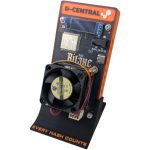
What Is the Bitaxe GT (Gamma Turbo)?
The Bitaxe GT (Gamma Turbo), model designation Bitaxe 801, is the most powerful single-board Bitaxe ever built. It pairs two BM1370 ASIC chips — the same silicon that drives Bitmain’s industrial-grade Antminer S21 Pro — on a premium 6-layer, 120mm x 60mm PCB. At stock settings, the GT delivers 2.0-2.15 TH/s of SHA-256 hashrate while drawing just 35-43W. That is roughly four times the hashrate of a single-chip Bitaxe Supra, packed onto a board that still fits in your hand.
This is solo mining — sometimes called lottery mining. You are not splitting rewards with a pool of thousands. Every hash your Bitaxe GT computes is a ticket in the Bitcoin block reward lottery. If your device finds a valid block, you keep the entire reward: 3.125 BTC at current subsidy. With two BM1370 chips firing in parallel, the GT gives you more lottery tickets per second than any single-board Bitaxe before it. The odds on any given day are still long, but they are significantly better than a single-chip device — and Bitaxe miners have found blocks before. Every hash counts.
D-Central Technologies has been a pioneer in the Bitaxe ecosystem since its earliest days. We created the original Bitaxe Mesh Stand — the first commercially manufactured stand for Bitaxe devices — and have developed a complete line of accessories including custom heatsinks for both standard Bitaxe and Bitaxe Hex form factors, cases, and power solutions. We stock every Bitaxe variant (Supra, Ultra, Hex, Gamma, GT, and more) alongside the full open-source miner lineup. When you buy from D-Central, you are buying from a team that knows this hardware inside and out because we helped shape it.
This guide will walk you through every step of setting up your Bitaxe GT, from unboxing to your first submitted share. No prior mining experience required (new miners: see our Getting Started guide) — but if you have set up other Bitaxe models before, pay close attention to the power section. The GT uses a 12V DC XT30 connector, not the 5V USB-C or barrel jack found on single-chip Bitaxe models. This is the single most important difference. Let’s get your dual-chip hashrate online.
AxeOS is the open-source firmware that runs on every Bitaxe device, including the GT. It provides a web-based dashboard for configuration, monitoring, and tuning — all accessible from your browser. No apps to install, no accounts to create. The GT ships with AxeOS pre-installed. Throughout this guide, when we refer to the Bitaxe interface, we mean the AxeOS web dashboard.
Technical Specifications
Before we dive into the setup, here is what you are working with. The Bitaxe GT is the flagship of the Bitaxe family — dual-chip architecture on a premium 6-layer PCB, purpose-built for maximum hashrate in a compact form factor.
Bitaxe GT (Gamma Turbo) — Full Specifications
| Model Designation | Bitaxe 801 (GT / Gamma Turbo) |
|---|---|
| ASIC Chips | 2x Bitmain BM1370 (Antminer S21 Pro generation) |
| Algorithm | SHA-256 (Bitcoin) |
| Hashrate (Stock) | 2.0-2.15 TH/s |
| Hashrate (Overclocked) | 2.4-2.55 TH/s (with adequate cooling) |
| Power Consumption | 35-43W at stock settings (~18 J/TH) |
| Power Input | 12V DC via XT30 connector (NOT 5V USB-C) |
| Recommended PSU | 12.4V / 10A (124W) with XT30 connector |
| Connectivity | WiFi 2.4 GHz (802.11 b/g/n) via ESP32-S3 |
| Display | Removable 0.91″ OLED status screen |
| Firmware | AxeOS (open-source, pre-installed, web-based interface) |
| Cooling | 60mm Noctua NF-A6x25 fan (~35 dB) |
| PCB | 120 x 60 mm, 6-layer, 1oz copper |
| Operating Temperature | 40-65 °C recommended range |
| Mining Mode | Solo mining (lottery) or pool mining via Stratum |
| Configuration | Web dashboard accessible via any browser on your local network |
| License | Fully open-source hardware and software |
The GT’s dual BM1370 architecture is not just “two chips on a board” — it is a carefully engineered system. The 6-layer PCB provides superior power delivery and thermal management compared to standard 4-layer designs. Two chips sharing a single ESP32-S3 controller means less overhead and more efficient operation. The result is roughly 4x the hashrate of a Bitaxe Supra in a form factor that is only marginally larger. More hashrate means more solo mining attempts per second, which directly improves your odds of finding a Bitcoin block.
What’s in the Box
When your Bitaxe GT arrives from D-Central, here is what you should find inside the package. Take a moment to verify everything is present before you start.
- Bitaxe GT board — The main PCB with two BM1370 ASIC chips, Noctua 60mm fan, ESP32-S3 controller, and removable OLED display
- Heatsink(s) — Pre-attached or included for mounting over both ASIC chips (varies by configuration)
- Thermal pads — If heatsinks are not pre-attached, thermal pads are included for proper heat transfer to each chip
- Noctua NF-A6x25 fan — Pre-installed 60mm fan for active cooling
- 0.91″ OLED display — Removable status display (may be pre-attached or packaged separately)
The Bitaxe GT does NOT ship with a power supply. Unlike single-chip Bitaxe models that use 5V USB-C, the GT requires a 12V DC power supply with an XT30 connector. A standard USB-C charger will NOT work and connecting one could damage your device. You need a dedicated 12.4V / 10A (124W) PSU with an XT30 output connector. See the prerequisites section below for details. This is the most common setup mistake — get the right PSU before you power on.
If anything is missing or appears damaged during shipping, contact D-Central support immediately. We stand behind every unit we sell.
What You’ll Need
The Bitaxe GT only supports 2.4 GHz WiFi networks. If your router broadcasts both 2.4 GHz and 5 GHz under the same network name (SSID), the Bitaxe may have trouble connecting. Check your router settings and make sure a 2.4 GHz network is available. If your router uses a combined SSID, consider creating a separate 2.4 GHz-only network for your mining devices.
A quick note on Bitcoin wallet addresses: You need a valid Bitcoin address to receive mining rewards. This should be an address you fully control — from a hardware wallet like a Coldcard or Trezor, or a self-custody software wallet like Sparrow, Electrum, or BlueWallet. Do not use an exchange deposit address for solo mining payouts. If you find a block, you want that reward in a wallet where you hold the keys. Not your keys, not your coins.
Safety Warnings
The Bitaxe GT operates at 12V DC, not 5V like single-chip Bitaxe devices. At 43W stock draw, this means approximately 3.5A at 12V — and significantly more when overclocked. While 12V DC is safe to touch and poses no electrocution risk, the higher current demands respect:
- Never use a 5V USB-C power supply — it will not power the GT and you risk damaging both the PSU and the board.
- Verify polarity before connecting — the XT30 connector is keyed to prevent reverse polarity, but always double-check with aftermarket cables.
- Do not use damaged or frayed cables — higher current through damaged wiring can cause overheating at the connection point.
- Keep the XT30 connection secure — a loose connector under load can arc and generate heat. Push the connector in firmly until it clicks.
- Never operate the GT without a heatsink — the dual BM1370 chips generate significantly more heat than single-chip models and will thermal-shutdown or suffer damage without proper cooling.
- Allow adequate ventilation — the GT produces more heat than a Supra or Ultra. Do not enclose it in a sealed space.
Like all exposed PCB electronics, the Bitaxe GT is sensitive to electrostatic discharge (ESD). Before handling the board, touch a grounded metal object to discharge any static buildup. Avoid handling the board on carpet or synthetic surfaces. Hold the board by its edges and avoid touching the ASIC chips, capacitors, or solder joints directly.
Hardware Assembly
The Bitaxe GT is designed to be assembled in minutes with no specialized tools. If your unit came with heatsinks pre-attached and the fan and OLED display already connected, you can skip straight to connecting power. Otherwise, follow these steps.
Attach the Heatsinks
Proper thermal management is critical for the GT. With two BM1370 chips generating heat simultaneously, the thermal load is significantly higher than single-chip models. Each chip needs its own heatsink with proper thermal interface material.
- Locate both ASIC chips on the Bitaxe GT board — they are the two largest square components on the PCB. On the 801 design, they are positioned side by side.
- Prepare the thermal pads — Peel the protective film from both sides of each thermal pad. You need one pad per chip. Each pad should be sized to cover the chip surface completely.
- Place a thermal pad directly on top of each ASIC chip. Center them carefully. The thermal pads fill microscopic gaps between chip and heatsink, ensuring efficient heat transfer.
- Press the heatsink(s) down firmly and evenly onto the thermal pads. If your GT uses a single heatsink spanning both chips, align it carefully to cover both chip surfaces equally. If it uses individual heatsinks per chip, mount each one separately.
- Secure mounting hardware — If your heatsink uses screw-through mounting, tighten screws in a cross pattern (opposite corners first) to distribute pressure evenly across both chips.
- Verify the fit — Gently check for wobble or gaps. The heatsink must make solid, even contact with both thermal pads. Poor contact on even one chip will cause thermal throttling under load.
Unlike a single-chip Bitaxe where thermal issues affect one chip, the GT has two chips that share PCB real estate. If one chip overheats, the thermal energy radiates through the PCB and affects the other chip as well. Make sure both chips have complete heatsink coverage. Do not power on the GT with a missing or improperly mounted heatsink on either chip.
Bitaxe Heatsink — D-Central Design
D-Central’s custom-engineered heatsinks are precision-designed for Bitaxe devices, offering superior thermal contact and airflow optimization. For the GT’s dual-chip thermal demands, proper heatsink quality is not optional — it is essential.
Verify Fan and Display
The Bitaxe GT ships with a Noctua NF-A6x25 60mm fan for active cooling — essential for managing the heat output of two ASIC chips.
- Check the fan connector — Verify the fan’s cable is securely plugged into the fan header on the PCB. The connector is keyed and should click into place.
- Verify the OLED display — The 0.91″ OLED is removable. If it was packaged separately, carefully insert it into the display header pins on the board. It should be oriented so text reads correctly when the board is in its normal position.
- Do not obstruct the fan — Ensure no cables, thermal pads, or other objects are in the fan’s intake or exhaust path. The Noctua fan runs at approximately 35 dB — barely audible, but it needs clear airflow to do its job.
Connect Power Supply (XT30)
This is where the Bitaxe GT diverges from every other single-board Bitaxe model. The GT uses a 12V DC XT30 connector for power — not the 5V barrel jack used on single-chip models. This is because the dual BM1370 chips require significantly more power than a single-chip design can draw through USB.
The Bitaxe GT requires 12V DC input via an XT30 connector. Do not attempt to power the GT through USB-C. The USB-C port on the ESP32-S3 module is for firmware flashing and serial debugging only — it cannot deliver the power the GT needs. Connecting a 5V USB-C power supply to the XT30 input (via an adapter) will either fail to power the device or potentially damage it. Use the correct 12V XT30 PSU.
- Verify your power supply — Confirm you have a 12V DC PSU rated for at least 10A (124W) with an XT30 output connector. The recommended voltage is 12.4V.
- Inspect the XT30 connector — The XT30 is a keyed 2-pin connector commonly used in RC hobby and electronics applications. It can only be inserted one way, preventing reverse polarity. Check that neither the board-side nor the PSU-side connector has bent or damaged pins.
- Connect the XT30 plug — Firmly push the PSU’s XT30 connector into the board’s XT30 receptacle until it seats fully. You should feel a positive click. XT30 connectors can be tight on first insertion — this is by design for secure connection.
- Plug the power supply into a wall outlet — Use a surge protector. The GT draws real power compared to single-chip models, so clean, stable mains power matters.
The XT30 connector is rated for up to 30A continuous — far more than a barrel jack at 5V. At 12V and the GT’s maximum current draw, USB-C would be at its absolute limit and prone to voltage drop, overheating, and instability. The XT30 provides a rock-solid, low-resistance power connection with no ambiguity about power delivery negotiation. It is the right connector for the job.
12V XT30 Power Supply for Bitaxe GT
D-Central stocks tested, reliable 12V power supplies with XT30 connectors specifically verified for the Bitaxe GT. Skip the guesswork and get a PSU that delivers clean, stable 12V power to your dual-chip miner. The wrong power supply is the number one cause of GT setup issues.
Position Your Bitaxe GT
Placement matters even more with the GT than with single-chip models. Two ASIC chips means roughly double the thermal output, and the Noctua fan needs unobstructed airflow to keep both chips in the safe operating range.
- Use an upright stand — The D-Central Bitaxe Mesh Stand (the original, designed by us) positions the board vertically for optimal natural airflow across the heatsink fins. Horizontal placement on a flat surface blocks airflow on one side and creates a heat pocket.
- Keep it in open air — Do not place the GT inside a closed cabinet, drawer, or box. It generates significantly more heat than a Supra or Ultra and absolutely needs ambient air circulation.
- Avoid direct sunlight — Placing it near a window in direct sun can raise ambient temps and push the chips toward thermal throttling.
- Near your router is ideal — A strong WiFi signal means fewer disconnections and more consistent share submission. The GT uses 2.4 GHz WiFi, which has good range, but walls and distance degrade signal quality.
- Stable surface with airflow underneath — The GT is lightweight but generates real heat. An elevated, mesh, or slatted surface allows convective cooling from below. Keep cables tidy so nothing tugs on the XT30 connection.
- Consider directed airflow for overclocking — If you plan to push the GT beyond stock speeds, positioning a small desk fan to blow across the heatsink fins can drop temperatures by 5-10 °C and unlock more overclocking headroom.
Initial Setup & WiFi Configuration
With the hardware assembled and power connected via the XT30 connector, it is time to bring your Bitaxe GT online. The initial setup is done entirely through your web browser — no software installation needed.
First Boot
When you connect the XT30 power cable, the Bitaxe GT will power on immediately. There is no power button. Here is what happens:
- The Noctua fan spins up — you should hear a soft, low-pitched hum. This confirms 12V power is reaching the board. The Noctua NF-A6x25 is whisper-quiet, but audible in a silent room.
- The OLED display will light up and show boot information — firmware version, IP address status, and initial diagnostics. This confirms the ESP32-S3 controller is running.
- The LED indicator on the ESP32-S3 module will flash briefly as the firmware initializes.
- After a few seconds, AxeOS completes its boot sequence and begins broadcasting its own WiFi access point.
If the fan does not spin, the OLED stays dark, and no LED lights up, disconnect the XT30 immediately. Verify that your PSU is outputting 12V, that the XT30 connector is fully seated, and that the polarity is correct. Do not repeatedly attempt to power on a non-responsive unit — contact D-Central support for diagnosis.
Connect to AxeOS WiFi
On first boot (or if the GT cannot connect to a saved WiFi network), AxeOS creates its own WiFi access point so you can configure it.
- On your phone, laptop, or tablet, open your WiFi settings.
- Look for a network named “AxeOS” or “Bitaxe_XXXX” (where XXXX is a unique identifier). This is your Bitaxe GT broadcasting its configuration network.
- Connect to this network. No password is required on initial setup (some firmware versions may use “password” or “12345678” as the default — check the AxeOS documentation if prompted).
- Once connected, your device may show a “no internet” warning. This is normal — you are connected directly to the Bitaxe, not to the internet.
After connecting to the Bitaxe’s WiFi access point, open your web browser and navigate to the AxeOS configuration page:
http://192.168.4.1This is the default IP address the Bitaxe assigns itself when acting as an access point. The AxeOS dashboard should load in your browser, showing the main configuration interface.
If the page does not load, try these steps: (1) Make sure you are actually connected to the Bitaxe’s WiFi, not your home network. (2) Disable mobile data on your phone — some phones prefer cellular data over a WiFi connection with no internet. (3) Try a different browser. (4) Clear your browser cache and try again. (5) Power cycle the Bitaxe by disconnecting and reconnecting the XT30 power connector. (6) Check that the OLED display shows boot activity — if the display is dark, the issue is power, not WiFi.
Configure Your WiFi Network
Now you need to tell the Bitaxe GT how to connect to your home WiFi network so it can reach the internet and communicate with your chosen mining pool.
- In the AxeOS dashboard, navigate to the WiFi / Network settings section (sometimes labeled “System” or accessible via a gear icon).
- Enter your WiFi network name (SSID) exactly as it appears in your router settings. This is case-sensitive.
- Enter your WiFi password.
- Click Save and then Restart (or the Bitaxe will reboot automatically).
After rebooting, the Bitaxe GT will attempt to connect to your home WiFi network. The OLED display will show the assigned IP address once connected. The AxeOS access point will disappear once the GT successfully joins your network.
To access the AxeOS dashboard after this point, you need to find the Bitaxe GT’s new IP address on your home network. There are several ways to do this:
- Check the OLED display — The GT’s removable OLED will display the current IP address. This is the fastest method and a major convenience over models without a display.
- Check your router’s admin page — Look in the connected devices list for a device named “AxeOS” or “Bitaxe” or “ESP32”.
- Use the mDNS hostname — Most AxeOS firmware versions support mDNS. Try navigating to:
http://bitaxe.local- Use a network scanner app — Apps like Fing (iOS/Android) or Advanced IP Scanner (Windows) will show all devices on your network. Look for the ESP32 device.
Once you have the IP address, bookmark it — you will be using it frequently to check on your miner.
Your router assigns IP addresses dynamically by default, which means your Bitaxe GT’s address could change after a router reboot. To avoid having to hunt for it every time, log into your router and assign a static IP reservation (also called a DHCP reservation) to the Bitaxe’s MAC address. This way, it always gets the same IP. The OLED will still show whatever IP is assigned, but a static reservation means it will always be the same one.
Configure Mining Settings
Your Bitaxe GT is on your WiFi network and you can reach the AxeOS dashboard — either via the IP shown on the OLED or through your router’s device list. Now it is time to tell it what to mine, where to send the work, and where to deposit any rewards. This is where things get exciting.
Choose Your Mining Pool (Solo vs Pool Mining)
The Bitaxe GT communicates with a mining pool using the Stratum protocol. Even for solo mining, you connect to a pool server — the pool handles the communication with the Bitcoin network on your behalf.
There are two philosophies here:
Solo Mining (Lottery Mining) — You connect to a solo pool like public-pool.io or Ocean. Every hash your Bitaxe GT computes has a chance of finding a full Bitcoin block. If you find one, you get the entire block reward (3.125 BTC). If you do not find a block, you get nothing. With the GT’s 2+ TH/s, you are submitting roughly 4 times more lottery tickets per second than a single-chip Bitaxe. This is the purist’s approach — contributing to network decentralization while rolling the dice for a life-changing payout. This is what we recommend.
Pool Mining — You connect to a traditional mining pool (like Braiins, CKPool, or Ocean in pooled mode). Your hashrate is combined with everyone else’s, and you receive small, frequent payouts proportional to your contribution. With a Bitaxe GT producing ~2 TH/s, your pool payouts will still be small — but roughly 4x what a Supra earns. Pool mining with a Bitaxe is more about learning and participating than income.
For this guide, we will set up solo mining — the most popular choice for Bitaxe miners worldwide. We will cover three recommended solo pool options.
Enter Pool Settings
In the AxeOS dashboard, navigate to the Mining / Stratum configuration section. You will see fields for the pool URL, port, and your worker name.
Choose one of these recommended solo mining pools:
Solo Mining Pool Options
| Pool | Stratum URL | Port | Fee |
|---|---|---|---|
| Public Pool | public-pool.io | 21496 | 0% (free) |
| Solo CKPool | solo.ckpool.org | 3333 | 2% |
| Ocean (DATUM) | datum-beta1.mine.ocean.xyz | 21000 | 0% (non-custodial) |
For this guide, we recommend Public Pool for beginners — it is free, open-source, and purpose-built for solo miners.
Recommended Pool Settings (Public Pool)
| Pool URL | public-pool.io |
|---|---|
| Port | 21496 |
| Full Stratum Address | stratum+tcp://public-pool.io:21496 |
| User / Worker Name | Your Bitcoin address (see next section) |
| Password | x (or leave blank) |
Some AxeOS firmware versions have the URL and port as separate fields; others want the full Stratum address in a single field. Enter the information in whatever format your version requires.
Set Your Bitcoin Address
The Worker Name field in the Stratum configuration is where you enter your Bitcoin wallet address. On public-pool.io for solo mining, your worker name IS your Bitcoin address — this is how the pool knows where to send the block reward if your device finds a block.
- Open your Bitcoin wallet (hardware wallet software, Sparrow, Electrum, BlueWallet, etc.).
- Generate or copy a receive address. It will start with bc1 (native SegWit), 3 (wrapped SegWit), or 1 (legacy). We recommend using a bc1 (native SegWit) address for the lowest transaction fees.
- Paste this address into the Worker Name or Username field in AxeOS.
- You can optionally append a worker identifier by adding a period and a name — for example: bc1qyouraddresshere.mygt. This helps you identify the device on the pool dashboard if you run multiple miners.
Double-check the address character by character. A single wrong character means any reward would be sent to the wrong address (or rejected). Once everything looks good, click Save and the Bitaxe GT will reboot and start mining.
Never use a Bitcoin exchange deposit address (Coinbase, Binance, Kraken, etc.) as your mining payout address. Exchanges can change your deposit address without notice, lock your account, or refuse mining-related deposits. Use a wallet where you control the private keys. Not your keys, not your coins — especially not your hard-won block reward.
Configure Fan & Temperature Settings
The Bitaxe GT’s Noctua fan runs automatically, but AxeOS lets you fine-tune the thermal management to your preferences.
- In the AxeOS dashboard, find the Fan / Thermal settings section.
- Fan mode — AxeOS typically offers automatic and manual fan control. For the GT, we recommend automatic mode, which ramps fan speed based on ASIC temperature. This ensures both chips stay within safe operating range without unnecessary noise.
- Target temperature — If available, set the target temperature to 55-60 °C. The fan will modulate speed to maintain this target. For the dual-chip GT, this is the sweet spot between performance and thermal margin.
- Thermal shutdown threshold — AxeOS has a built-in thermal protection cutoff. Do not disable this. If either chip exceeds the threshold (typically 75-80 °C), the firmware will reduce power or halt mining to prevent damage.
The Noctua NF-A6x25 at full speed produces approximately 35 dB — about the same as a quiet library. At lower speeds during normal operation, it is nearly inaudible. The GT’s acoustic profile is still comfortable for a living room or office environment, despite its higher performance.
Solo Mining with Public Pool
Public Pool (public-pool.io) is a free, open-source solo mining pool designed specifically for small miners like the Bitaxe. It has become the go-to choice for the Bitaxe community, and for good reason:
- Zero fees — Public Pool charges no pool fees. If your Bitaxe GT finds a block, 100% of the block reward goes to your Bitcoin address.
- Fully transparent — The pool software is open-source. You can audit every line of code.
- Built for solo miners — Unlike traditional pools that split rewards, Public Pool submits your work directly as solo mining attempts. Every valid share is a real shot at a full block reward.
- Community dashboard — You can monitor your hashrate, share count, and best difficulty shares on the Public Pool website using your Bitcoin address.
After configuring your Bitaxe GT with the Public Pool settings from the previous section, your device will begin hashing with both BM1370 chips and submitting shares. Within a few minutes, you should see your miner appear on the Public Pool dashboard with approximately 2 TH/s of reported hashrate.
To check your miner’s status on Public Pool, visit:
https://web.public-pool.io/#/app/bc1q...youraddressReplace bc1q…youraddress with your actual Bitcoin address. The dashboard will show your connected workers, total hashrate, share history, and best difficulty shares found.
What does “best difficulty” mean? Every share your Bitaxe GT submits has a difficulty value. Most will be very low. Occasionally, you will find a share with a much higher difficulty — these are your “near misses.” The higher the difficulty of your best share, the closer you have come to finding a block. With 2+ TH/s, your GT will push best difficulty numbers roughly 4x faster than a single-chip Bitaxe, giving you more impressive near-misses more often.
Overclocking & Tuning
The Bitaxe GT is already the most powerful single-board Bitaxe at stock settings. But the open-source spirit of this device means you have full control over its performance parameters. For detailed overclocking techniques, see our Bitaxe Overclocking Manual. Overclocking the GT can push hashrate from 2.0-2.15 TH/s up to 2.4-2.55 TH/s — at the cost of higher power consumption, more heat, and louder fan operation.
The GT has two ASIC chips, which means overclocking affects both simultaneously. Pushing frequency and voltage too high can cause instability, excessive heat, or — in extreme cases — permanent damage to one or both BM1370 chips. With two chips, the thermal headroom is tighter than single-chip models. Start with small increments, monitor temperatures closely, and prioritize stability over raw hashrate. A GT that runs reliably at 2.1 TH/s around the clock beats one that crashes every few hours at 2.5 TH/s.
Understanding Frequency and Voltage
Two primary settings control the Bitaxe GT’s performance. These settings apply to both BM1370 chips simultaneously:
- Core Frequency (MHz) — This controls the clock speed of both BM1370 ASICs. Higher frequency means more hashes per second from each chip, but also more heat and power draw.
- Core Voltage (mV) — This controls how much electrical potential is supplied to the ASIC cores. Higher voltage provides more stability at higher frequencies, but increases power consumption and heat output from both chips.
These two settings are interdependent. Increasing frequency without increasing voltage will eventually cause errors and instability. Think of voltage as the foundation and frequency as the building height — you need a stronger foundation to build higher. With two chips sharing the same PCB, thermal coupling means heat from one chip affects the other, so the GT reaches its thermal ceiling sooner than you might expect from a simple “2x single chip” calculation.
Safe Overclocking Steps
Follow this incremental approach:
- Start at stock settings — Run your Bitaxe GT for at least 30-60 minutes at default settings. Note the baseline hashrate, power draw, and temperature for both chips. Write these numbers down. The GT should be producing 2.0-2.15 TH/s at stock.
- Increase frequency by 10-25 MHz — In the AxeOS dashboard under the tuning section, bump the core frequency up by a small increment. Use smaller steps with the GT than you would with a single-chip Bitaxe — dual chips amplify thermal effects. Save and let the Bitaxe restart.
- Monitor for 30 minutes — Watch the hashrate, temperature, and error rate. Both chips should be stable. If the hashrate is consistent (not fluctuating wildly), the temperature is under 65 °C, and you see no spike in rejected shares, the overclock is stable.
- Repeat with another small increase — Continue stepping up until you see instability: frequent restarts, rejected shares, temperatures above 70 °C, or declining hashrate despite higher frequency (thermal throttling).
- If instability occurs, increase voltage slightly — Bump the core voltage up by 10-20 mV and try again. This gives both ASICs more electrical headroom to operate at the higher frequency.
- Find your sweet spot — The ideal overclock is the highest frequency where your GT runs stably 24/7 with acceptable temperatures. For most GT units with good cooling, the overclocked range is 2.3-2.55 TH/s.
- Back off one step — Once you find the edge of stability, drop the frequency back by one increment. This gives you a safety margin for warmer days or ambient temperature changes.
- Verify PSU headroom — At maximum overclock, the GT can draw significantly more than stock. Confirm your 12V PSU has headroom above the overclocked power draw. If your PSU is rated at exactly the overclocked wattage, you are too close — voltage ripple and transient spikes could cause instability.
Monitoring Temperature
Temperature is displayed on both the AxeOS dashboard and the OLED screen in real time. With dual chips, pay attention to the temperature of each chip individually — one may run warmer than the other due to airflow patterns or heatsink mounting differences.
Temperature Ranges — Bitaxe GT
| Below 40 °C | Cool — Very safe, you likely have room to overclock further |
|---|---|
| 40-55 °C | Optimal — Ideal operating range for long-term reliability with dual chips |
| 55-65 °C | Warm — Acceptable but monitor closely, especially in summer or enclosed rooms |
| 65-70 °C | Hot — Reduce frequency or improve cooling. Dual-chip thermal coupling makes this range riskier than on single-chip models |
| Above 70 °C | Critical — Reduce overclock immediately. Risk of throttling, instability, and long-term chip damage |
Keep in mind that ambient room temperature directly impacts your GT temperatures. The dual-chip design is more sensitive to ambient changes than single-chip models — a 5 °C room temperature increase can translate to a 7-10 °C increase at the chips due to thermal coupling effects. Plan your overclock settings for the warmest conditions you expect.
Monitoring Your Bitaxe GT
Once your Bitaxe GT is mining, you have three ways to monitor it: the AxeOS web dashboard, the onboard OLED display, and your pool’s web dashboard. Here is what the key numbers mean and what to look for.
Key Dashboard Metrics
- Hashrate — Displayed in TH/s (terahashes per second) on the GT. At stock, expect 2.0-2.15 TH/s. It will fluctuate naturally — hashrate variance is mathematical, not a hardware problem. Look at the average over 10-30 minutes for a true reading.
- Temperature (per chip) — The ASIC chip temperatures in Celsius. The GT may report temperatures for each BM1370 individually. Both should be within the safe ranges listed above. A significant difference between the two (more than 5 °C) may indicate uneven heatsink contact.
- Fan Speed — Shown as RPM or as a percentage. The Noctua fan adjusts automatically based on temperature. Higher temps trigger higher fan speeds. At full speed, the NF-A6x25 is still just ~35 dB.
- Shares Accepted — The number of valid shares submitted to your mining pool. This should be steadily increasing. With the GT’s higher hashrate, shares accumulate faster than on single-chip models.
- Shares Rejected — Shares the pool did not accept. A small rejection rate (under 2%) is normal. A high rate indicates instability, overclocking too aggressively, or network latency.
- Best Difficulty — The highest-difficulty share your GT has ever found. This is your personal record — your closest brush with finding a block. With 2+ TH/s, you will set new personal records more frequently than single-chip Bitaxe owners.
- Uptime — How long the GT has been running since its last reboot. Longer uptime means more stable operation. Frequent reboots indicate a problem (usually thermal, power, or overclocking-related).
- Core Voltage & Frequency — Confirms your current settings are applied to both chips.
- Power Consumption — Estimated wattage draw. At stock, expect 35-43W. When overclocked, this will increase proportionally. At ~40W, the GT costs roughly $2-3 per month in electricity — still negligible.
OLED Display Information
The GT’s removable 0.91″ OLED provides at-a-glance status without needing to open a browser. Depending on the AxeOS firmware version, the display typically cycles through:
- Current hashrate
- ASIC chip temperature
- Share count and best difficulty
- WiFi status and IP address
- Uptime
The OLED is removable — if the display is not needed or you find the light distracting at night, you can gently unplug it from the header pins. The GT will continue mining normally without it.
It is tempting to watch the hashrate counter all day — especially when the GT is pushing 2+ TH/s. Resist the urge. Check your Bitaxe once in the morning and once in the evening. If the hashrate is in the expected range, temperatures are under 65 °C, and shares are being accepted, everything is working perfectly. Solo mining is a marathon, not a sprint. Set it, verify it, and let it run. Glance at the OLED when you walk by — that is enough.
You can also monitor your Bitaxe GT from outside your home network by checking the Public Pool dashboard — it shows your connected workers, total hashrate, and share history using just your Bitcoin address. No login or account required.
Troubleshooting
Most Bitaxe GT issues have straightforward solutions. For a comprehensive cross-model reference, see our Bitaxe Troubleshooting Guide. The GT adds a few unique considerations compared to single-chip models, primarily around power delivery and dual-chip thermals. Here are the most common problems and how to fix them.
Bitaxe GT Not Powering On
Symptoms: No fan spin, no OLED activity, no LED on the ESP32-S3 module when the XT30 is connected.
Solutions:
- Verify PSU output — Confirm your power supply is actually outputting 12V. Some PSUs have a power switch or need to be plugged in for several seconds before output stabilizes.
- Check XT30 connection — The XT30 connector must be fully seated. It can feel tight on first insertion. Push firmly until you feel it click. A partial connection may deliver power intermittently or not at all.
- Inspect for damage — Check the XT30 connector on both the PSU cable and the board for bent, damaged, or blackened pins. Inspect the board for any visible damage (burned components, broken traces).
- Try a different outlet — Eliminate the wall outlet as a variable.
- Do NOT use USB-C as a workaround — The USB-C port on the ESP32-S3 cannot power the GT. It is for firmware flashing only.
- Contact D-Central support — If the board does not power on with a confirmed-working 12V XT30 PSU, the issue may be a hardware defect covered under warranty.
Bitaxe GT Not Connecting to WiFi
Symptoms: The GT keeps broadcasting its own “AxeOS” access point, meaning it cannot connect to your home WiFi.
Solutions:
- Verify SSID and password — Reconnect to the GT’s access point (192.168.4.1), check the saved WiFi credentials. SSIDs are case-sensitive. Passwords must be exact.
- Confirm 2.4 GHz — The Bitaxe GT does not support 5 GHz WiFi. If your router uses a combined SSID (band steering), try disabling it and creating a separate 2.4 GHz network.
- Check for special characters — Some SSID or password special characters may cause issues. If your SSID or password contains characters like ‘ ” & # $, try renaming your network or using a simpler password temporarily.
- Move closer to the router — Weak signal strength on 2.4 GHz can prevent initial connection. Set up the GT close to the router first, then move it to its permanent location.
- Check router client limits — Some routers limit the number of connected devices. Ensure your router has not hit its client cap.
- Factory reset — If nothing works, you can reset the AxeOS firmware to defaults. Check the AxeOS documentation for the reset procedure (usually involves holding a button during boot or using the web interface).
Low or Unstable Hashrate
Symptoms: Hashrate is significantly below 2.0 TH/s at stock settings, or hashrate fluctuates wildly.
Solutions:
- Check temperature — If either ASIC is overheating, the firmware will automatically throttle (reduce frequency) to protect both chips. Improve cooling, reduce overclock, or reposition the device for better airflow.
- Verify power supply — An underpowered or unstable PSU is the most common GT-specific issue. The GT needs stable 12V at several amps. Voltage sag under load causes both chips to underperform. Verify your PSU is rated for at least 10A at 12V (124W). A PSU rated at exactly the load is insufficient — you need headroom.
- Check the XT30 connection — A loose XT30 can cause intermittent power drops that look like hashrate instability. Ensure the connector is fully seated.
- Review frequency/voltage settings — If you have been overclocking, the settings may be causing one or both chips to error out and restart repeatedly, averaging the hashrate down. Return to stock settings and test.
- Check both chip temperatures individually — If one chip runs significantly hotter than the other, its heatsink contact may be poor. Re-seat the heatsink with a fresh thermal pad on the affected chip.
- Update firmware — Ensure you are running the latest AxeOS firmware that supports the BM1370 dual-chip configuration. Check the AxeOS GitHub releases for the latest compatible firmware.
High Temperature
Symptoms: One or both ASIC temperatures consistently above 65 °C or spiking above 70 °C.
Solutions:
- Check heatsink contact on both chips — Remove the heatsink and verify the thermal pads are making full, even contact with each ASIC chip. Both pads must be properly aligned. Replace any thermal pad that has shifted, compressed unevenly, or degraded.
- Improve airflow — Move the GT to a more open location. Use a stand for vertical positioning. Point a small desk fan at the heatsink. The GT’s dual-chip design benefits more from supplemental airflow than single-chip models.
- Reduce ambient temperature — Air conditioning, moving away from heat sources, or relocating to a cooler room all help. The GT is more sensitive to ambient temperature changes due to dual-chip thermal coupling.
- Reduce overclock — Lower the core frequency by 10-25 MHz. This is the most effective immediate fix. Both chips will reduce heat output together.
- Check the Noctua fan — Ensure the fan is spinning and connected properly. A failed or disconnected fan on the GT will cause rapid overheating. Listen for the characteristic Noctua hum.
- Upgrade cooling — For aggressive overclocking, consider aftermarket heatsinks with larger fin area, or position the GT in the path of a case fan or desk fan for active supplemental cooling.
No Shares Found
Symptoms: The GT appears to be hashing (hashrate displays a number, fans are spinning), but the share count stays at zero.
Solutions:
- Verify pool settings — Double-check the pool URL, port number, and your Bitcoin address. A single typo will prevent shares from being accepted.
- Check internet connection — The GT needs internet access to communicate with the pool. Verify your WiFi connection is active and your router has internet. Check the OLED display for WiFi status.
- Wait longer — On some pool configurations, it can take several minutes for the first share to appear. Be patient for at least 10-15 minutes before troubleshooting.
- Try a different pool — Temporarily switch to another pool (e.g., solo.ckpool.org on port 3333) to rule out a pool-side issue.
- Check firewall/DNS — Some routers block certain outbound ports or have DNS filtering that interferes with Stratum connections. Try changing your router’s DNS to 1.1.1.1 or 8.8.8.8.
- Reboot everything — Disconnect the XT30, wait 10 seconds, reconnect. Then reboot your router. Sometimes a fresh connection resolves intermittent network issues.
OLED Display Not Working
Symptoms: The OLED display stays dark or shows garbled text, but the GT is otherwise mining normally (fan spinning, hashrate visible in AxeOS web dashboard).
Solutions:
- Check the connection — The OLED connects to the PCB via header pins. Gently remove and re-seat the display, ensuring all pins are aligned and fully inserted.
- Check orientation — The display may be installed upside down. Try rotating it 180 degrees and re-seating.
- Update firmware — Some early AxeOS versions may not fully support the GT’s OLED. Update to the latest firmware.
- Accept it — The OLED is a convenience feature, not a necessity. If the display fails but mining is working fine via the web dashboard, you can continue operating without it. The web dashboard provides all the same information and more.
Frequently Asked Questions
What are the odds of my Bitaxe GT finding a Bitcoin block?
The odds are small on any given day, but meaningfully better than a single-chip Bitaxe. At ~2 TH/s, the GT represents roughly 4x the hashrate of a Supra — so your daily probability is roughly 4x higher as well. That said, 2 TH/s is still a tiny fraction of Bitcoin’s total network hashrate (measured in hundreds of exahashes). The probability is comparable to a lottery — but your Bitaxe GT plays every second of every day as long as it is running. Bitaxe miners have found blocks before. It is improbable on a short timeline but not impossible, and that is the thrill of solo mining. You are not doing this for guaranteed daily income — you are doing it for the dream of a 3.125 BTC block reward, and to support Bitcoin’s decentralization. Every hash counts.
How much electricity does the Bitaxe GT use?
At stock settings, the Bitaxe GT draws approximately 35-43 watts. Running 24/7, this translates to roughly 0.84-1.03 kWh per day, or about 25-31 kWh per month. At typical North American electricity rates ($0.10-0.15/kWh), that is approximately $2.50-4.65 per month. Overclocking will increase power draw, but even at maximum overclock, the GT is unlikely to exceed 60W — still a very modest electricity bill for a real Bitcoin ASIC miner. The efficiency of ~18 J/TH at stock is excellent for a device of this class.
Can I use my existing 5V barrel jack power supply from another Bitaxe?
No. This is the most important thing to understand about the GT. It requires 12V DC via an XT30 connector, not a 5V barrel jack. Your Bitaxe Supra or Gamma power supply will not work — it outputs 5V, the GT needs 12V. You need a dedicated 12V / 10A (124W minimum) power supply with an XT30 output connector. D-Central stocks compatible PSUs specifically tested for the GT — check our power supply selection.
How does the GT compare to running two individual single-chip Bitaxe units?
The GT offers several advantages over two separate single-chip Bitaxe devices: (1) Fewer points of failure — one board, one power connection, one WiFi connection, one firmware to manage. (2) Better efficiency — the 6-layer PCB provides superior power delivery with less loss than two separate 4-layer boards. (3) Simpler setup — one device to configure, one pool connection to manage. (4) Less desk space — 120mm x 60mm total footprint. The trade-off is that two separate Bitaxe units give you redundancy (if one fails, the other keeps mining) and more flexible placement options. For most users, the GT’s single-device simplicity wins.
Is the Bitaxe GT louder than other Bitaxe models?
The GT uses a Noctua NF-A6x25 60mm fan, which produces approximately 35 dB at full speed — comparable to a quiet room or library. Single-chip models with smaller fans can be quieter, but the Noctua is renowned for its noise-to-airflow ratio and is among the quietest fans available at this size. During normal operation, the fan typically runs below full speed, making it nearly inaudible. The GT is absolutely suitable for a living room, office, or bedroom. You will not hear it over ambient room noise.
How do I update the AxeOS firmware on the GT?
Firmware updates are applied through the AxeOS web dashboard. Navigate to the System or OTA Update section. You can either (1) upload a firmware binary file (.bin) that you downloaded from the ESP-Miner GitHub releases page, or (2) use the built-in OTA update feature if your firmware version supports it. Important: Make sure you download the firmware version that specifically supports the Bitaxe 801 (GT) dual-chip configuration. Using firmware built for single-chip models may not properly drive both BM1370 chips. Always read the release notes before updating. Note your current settings (frequency, voltage, pool config) before updating, as some updates may reset configuration to defaults.
What happens if I lose power or my internet goes down?
The Bitaxe GT handles interruptions gracefully. If power is lost, the device simply stops — there is no data corruption risk as the ESP32 uses flash memory for configuration storage. When power returns (by reconnecting the XT30 connector), the GT boots up automatically (there is no power button) and reconnects to your WiFi network and mining pool. Your settings are preserved. If your internet goes down, the GT continues to run but cannot submit shares. It will reconnect to the pool automatically when internet is restored. You lose mining time during outages, but no configuration or hardware damage occurs.
Can I run multiple Bitaxe GT units at the same time?
Absolutely. Each GT operates independently with its own WiFi connection and pool settings. You can run as many as your network, power outlets, and 12V PSUs support. Each device gets its own IP address on your network. If you use the same Bitcoin address for all of them, your combined hashrate will appear as one total on the Public Pool dashboard. Multiple GTs stack multiplicatively — two GTs give you ~4 TH/s, three give you ~6 TH/s, and so on. D-Central stocks the Bitaxe Mesh Stand (our original design) for clean multi-unit setups.
What is the difference between the Bitaxe GT and the Bitaxe Gamma?
The Bitaxe Gamma uses a single BM1370 chip and produces roughly 1.0-1.2 TH/s at stock. The Bitaxe GT (Gamma Turbo) uses two BM1370 chips on a premium 6-layer PCB, doubling the hashrate to 2.0-2.15 TH/s. The GT also requires 12V DC via XT30 instead of the Gamma’s 5V USB-C, reflecting its higher power requirements. Think of the GT as two Gammas engineered into a single, more efficient board. Same chip generation, doubled firepower, different power requirements.
Is solo mining with the GT “worth it” financially?
If you measure “worth” strictly by expected daily income versus electricity cost, a Bitaxe GT mining solo is not a conventional money-making proposition. The expected value calculation does not favor it on any short timeline. But that is the wrong framework for understanding what the GT does. Solo mining with a Bitaxe GT is about participating directly in the Bitcoin network — running your own SHA-256 computations with two of the most advanced ASIC chips ever made, contributing to hashrate decentralization, and holding a lottery ticket for 3.125 BTC every single second. It costs you a few dollars a month in electricity. For many Bitcoiners, that is the cheapest and most meaningful way to engage with the protocol they believe in. And at 2+ TH/s, the GT gives you the best solo odds of any single-board Bitaxe ever built. Technology first, conviction always. That is the D-Central way.
Upgrade Path — What Comes Next
The Bitaxe GT is the pinnacle of single-board Bitaxe mining. But if your appetite for hashrate grows — and it usually does — here is where to go from here:
Beyond the Bitaxe GT
| Device | Hashrate | Description |
|---|---|---|
| Multiple Bitaxe GTs | 2+ TH/s each | Stack GTs for multiplicative hashrate. Simple, proven, modular. |
| NerdQAxe++ | ~4 TH/s | Open-source quad-chip miner. Double the GT’s hashrate in a single device. |
| NerdOctaxe Gamma | ~8 TH/s | Eight BM1370 chips. Serious open-source hashrate for the dedicated solo miner. |
| Bitcoin Space Heater | 10-90+ TH/s | Full ASIC miner in a space heater enclosure. Mining + heating your home. D-Central specialty. |
D-Central stocks the full open-source miner lineup plus our signature Bitcoin Space Heaters. Whatever your next step, we have the hardware, the accessories, and the expertise to support it.
Next Steps
Your Bitaxe GT is up, running, and submitting shares with two BM1370 chips hammering out over 2 terahashes per second. Welcome to the top tier of single-board solo mining — you are running the most powerful Bitaxe ever built. Here is where to go from here:
- Join the community — The Bitaxe community is active on Twitter/X, Discord, and Reddit. Share your GT setup photos, compare best difficulty scores, and celebrate block wins together. Follow @DCentralTech on X for news and updates.
- Experiment with overclocking — Now that your GT is running stable at stock, revisit the Overclocking section to push toward 2.4-2.55 TH/s. Document your best settings for your specific unit — silicon lottery means every GT has a slightly different sweet spot.
- Keep firmware updated — Follow the ESP-Miner GitHub repository for new AxeOS releases. Firmware updates often include performance improvements, bug fixes, and new features specific to dual-chip support. See our Bitaxe Firmware Update Guide for step-by-step instructions.
- Scale up your operation — One GT often leads to two. Or five. Check out the NerdQAxe++ and NerdOctaxe Gamma for the next level of open-source hashrate, or add another GT to double your solo mining odds.
- Consider a Bitcoin Space Heater — If you want serious hashrate AND free heating, D-Central’s Bitcoin Space Heaters convert full-size ASIC power into room heating. Mining and comfort, combined. Made by Bitcoin Mining Hackers, for Bitcoin Mining Hackers.
- Accessorize your setup — D-Central carries the full range of Bitaxe accessories — heatsinks, mesh stands (we invented them), cases, and power supplies including XT30-equipped PSUs for the GT. Browse Bitaxe accessories.
- Read the Bitaxe Hub — D-Central’s Bitaxe Hub is your definitive resource for all things Bitaxe — model comparisons, deep-dive guides, firmware tutorials, and community block win tracking.
Open-Source Bitcoin Miners — D-Central Technologies
Already running the most powerful single-board Bitaxe? Scale up with additional GTs, explore the NerdQAxe++ for quad-chip hashrate, or go all-in with the NerdOctaxe Gamma. D-Central is a Bitaxe pioneer — we stock every variant and ship from Canada with fast, reliable delivery. More hashrate, more lottery tickets, more decentralization.
Solo mining is a long game. Your Bitaxe GT is hashing with twin BM1370 chips around the clock — two terahashes per second, every second, each one a fresh attempt at finding a Bitcoin block. Most days will pass quietly. But one day — maybe tomorrow, maybe in a year — your dual-chip powerhouse might find the hash that changes everything. Until then, you are part of something bigger: a global network of individuals running their own miners, keeping Bitcoin decentralized, and proving that you do not need a warehouse full of hardware to participate in securing the most important monetary network ever built.
Every hash counts.
— The D-Central Technologies Team
Bitcoin Mining Hackers since 2016 | Laval, Quebec, Canada
What are the odds of my Bitaxe GT finding a Bitcoin block?
The odds are small on any given day, but meaningfully better than a single-chip Bitaxe. At ~2 TH/s, the GT represents roughly 4x the hashrate of a Supra — so your daily probability is roughly 4x higher as well. That said, 2 TH/s is still a tiny fraction of Bitcoin’s total network hashrate (measured in hundreds of exahashes). The probability is comparable to a lottery — but your Bitaxe GT plays every second of every day as long as it is running. Bitaxe miners have found blocks before. It…
How much electricity does the Bitaxe GT use?
At stock settings, the Bitaxe GT draws approximately 35-43 watts. Running 24/7, this translates to roughly 0.84-1.03 kWh per day, or about 25-31 kWh per month. At typical North American electricity rates ($0.10-0.15/kWh), that is approximately $2.50-4.65 per month. Overclocking will increase power draw, but even at maximum overclock, the GT is unlikely to exceed 60W — still a very modest electricity bill for a real Bitcoin ASIC miner. The efficiency of ~18 J/TH at stock is excellent for a…
Can I use my existing 5V barrel jack power supply from another Bitaxe?
No. This is the most important thing to understand about the GT. It requires 12V DC via an XT30 connector, not a 5V barrel jack. Your Bitaxe Supra or Gamma power supply will not work — it outputs 5V, the GT needs 12V. You need a dedicated 12V / 10A (124W minimum) power supply with an XT30 output connector. D-Central stocks compatible PSUs specifically tested for the GT — check our power supply selection.
How does the GT compare to running two individual single-chip Bitaxe units?
The GT offers several advantages over two separate single-chip Bitaxe devices: (1) Fewer points of failure — one board, one power connection, one WiFi connection, one firmware to manage. (2) Better efficiency — the 6-layer PCB provides superior power delivery with less loss than two separate 4-layer boards. (3) Simpler setup — one device to configure, one pool connection to manage. (4) Less desk space — 120mm x 60mm total footprint. The trade-off is that two separate Bitaxe units…
Is the Bitaxe GT louder than other Bitaxe models?
The GT uses a Noctua NF-A6x25 60mm fan, which produces approximately 35 dB at full speed — comparable to a quiet room or library. Single-chip models with smaller fans can be quieter, but the Noctua is renowned for its noise-to-airflow ratio and is among the quietest fans available at this size. During normal operation, the fan typically runs below full speed, making it nearly inaudible. The GT is absolutely suitable for a living room, office, or bedroom. You will not hear it over ambient…
How do I update the AxeOS firmware on the GT?
Firmware updates are applied through the AxeOS web dashboard. Navigate to the System or OTA Update section. You can either (1) upload a firmware binary file (.bin) that you downloaded from the ESP-Miner GitHub releases page, or (2) use the built-in OTA update feature if your firmware version supports it. Important: Make sure you download the firmware version that specifically supports the Bitaxe 801 (GT) dual-chip configuration. Using firmware built for single-chip models may not properly…
What happens if I lose power or my internet goes down?
The Bitaxe GT handles interruptions gracefully. If power is lost, the device simply stops — there is no data corruption risk as the ESP32 uses flash memory for configuration storage. When power returns (by reconnecting the XT30 connector), the GT boots up automatically (there is no power button) and reconnects to your WiFi network and mining pool. Your settings are preserved. If your internet goes down, the GT continues to run but cannot submit shares. It will reconnect to the pool…
Can I run multiple Bitaxe GT units at the same time?
Absolutely. Each GT operates independently with its own WiFi connection and pool settings. You can run as many as your network, power outlets, and 12V PSUs support. Each device gets its own IP address on your network. If you use the same Bitcoin address for all of them, your combined hashrate will appear as one total on the Public Pool dashboard. Multiple GTs stack multiplicatively — two GTs give you ~4 TH/s, three give you ~6 TH/s, and so on. D-Central stocks the Bitaxe Mesh Stand (our…
What is the difference between the Bitaxe GT and the Bitaxe Gamma?
The Bitaxe Gamma uses a single BM1370 chip and produces roughly 1.0-1.2 TH/s at stock. The Bitaxe GT (Gamma Turbo) uses two BM1370 chips on a premium 6-layer PCB, doubling the hashrate to 2.0-2.15 TH/s. The GT also requires 12V DC via XT30 instead of the Gamma’s 5V USB-C, reflecting its higher power requirements. Think of the GT as two Gammas engineered into a single, more efficient board. Same chip generation, doubled firepower, different power requirements.
Is solo mining with the GT “worth it” financially?
If you measure “worth” strictly by expected daily income versus electricity cost, a Bitaxe GT mining solo is not a conventional money-making proposition. The expected value calculation does not favor it on any short timeline. But that is the wrong framework for understanding what the GT does. Solo mining with a Bitaxe GT is about participating directly in the Bitcoin network — running your own SHA-256 computations with two of the most advanced ASIC chips ever made, contributing to hashrate…