Quick answer
Install Ollama to run a local LLM in about ten minutes. Ollama wraps the llama.cpp engine in a one-line install with a model registry. You need at least 8 GB RAM; a GPU is recommended — 8 GB VRAM runs a 7–8B model at Q4, 24 GB (a used 3090) runs 30B. You finish with Llama 3.1 8B responding.
Ten minutes from now, a model that rivals anything OpenAI was shipping in 2023 will be running on a box you already own. No API keys. No rate limits. No prompts uplinked to a hyperscaler’s log pipeline. Just weights on your disk, tokens on your screen, and the quiet satisfaction of a pleb who stopped renting their cognition.
This is the first hands-on post in our self-hosted AI series, and we picked Ollama because it’s the easiest on-ramp. It wraps llama.cpp (the inference engine Georgi Gerganov gave the world) in a clean CLI, adds a model registry, and ships as a one-line install. Credit where it’s due: the Ollama team — Michael Chiang, Jeffrey Morgan, and contributors — turned “compile this C++ project and wrestle with quantization flags” into “run this command.” We’ll cover LMStudio and raw llama.cpp in the runner comparison post; start here.
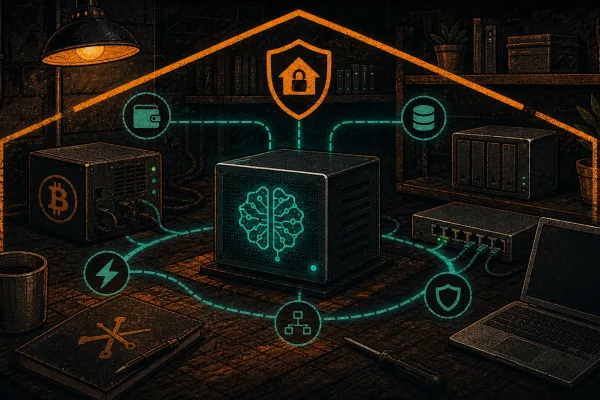
This is one more layer decentralized. Your node already validates Bitcoin. Your Lightning channels already route value. Now your inference stack runs on your own metal too.
What you’ll need
- A machine with at least 8 GB RAM. CPU-only inference works; it’s just slow.
- GPU strongly recommended: NVIDIA RTX 30-series or newer (CUDA), AMD RX 7000+ (ROCm on Linux), or Apple Silicon M1+ (Metal, automatic).
- VRAM guidance: 8 GB VRAM runs 7B–8B models comfortably at Q4 quantization. 12–16 GB handles 13B. 24 GB (a used 3090 is the pleb’s sweet spot — see the used 3090 post) runs 30B or quantized 70B. Full detail in the Pleb’s Guide to Self-Hosted AI.
- 20 GB free disk for starter models. Plan for 100+ GB if you’re going to hoard the library.
By the end of this post you’ll have Ollama installed and running as a service, Llama 3.1 8B pulled and responding to prompts, and enough command-line muscle memory to pull, list, and swap between any model in the registry.
Step 1: Install Ollama (~90 seconds)
Pick your platform. All three install paths land in the same place: an ollama CLI on your $PATH and a background service listening on localhost:11434.
Linux
curl -fsSL https://ollama.com/install.sh | sh
What the script does: detects your distro, drops the ollama binary in /usr/local/bin, creates a dedicated ollama system user, installs a systemd unit (ollama.service), and starts it. If you have an NVIDIA GPU with drivers already installed, it’ll detect CUDA and wire it up. Same for AMD ROCm.
Security-conscious pleb callout: yes, you’re piping curl into sh. That makes every sovereign Bitcoiner twitch, and it should. The script is short and auditable. Read it first:
curl -fsSL https://ollama.com/install.sh | less
Once you’re satisfied, run the install. You’re the kind of person who reads scripts before executing them — that’s the baseline for staying sovereign.
macOS
Download the DMG from ollama.com. Drag Ollama.app into /Applications. Launch it once to accept the permission prompt. You’ll see a llama icon in the menu bar. The ollama CLI gets symlinked automatically; open Terminal and it’s ready.
Windows
Grab the installer from ollama.com. Run it. It installs as a system service and adds ollama to PATH for both Command Prompt and PowerShell. An Ollama tray icon appears next to your clock.
Verify the install
ollama --version
You should see something like ollama version 0.5.x (your version will likely be newer by the time you read this). If the command isn’t found, open a new terminal so your shell re-reads $PATH, then retry.
If the service didn’t start on Linux:
sudo systemctl start ollama
sudo systemctl enable ollama
Step 2: Pull your first model (~3–5 minutes)
Models aren’t bundled. You pull them from Ollama’s registry like Docker images. We’ll start with Llama 3.1 8B — Meta’s open-weights model, the right balance of quality and size for a first run.
ollama pull llama3.1:8b
What’s happening: Ollama is downloading about 4.7 GB of model weights from its registry. The file format is GGUF (llama.cpp’s container format), and the default quant level is Q4_K_M — a 4-bit quantization that trades a sliver of output quality for ~4x smaller file size and faster inference than full precision. If that sentence was a word soup, the short version is: we squish the model so it fits in consumer hardware, and the squishing is almost invisible in quality. The quantization deep-dive covers why Q4 is the pleb sweet spot and when to step up to Q5 or Q6.
Models land in ~/.ollama/models/ on Linux/macOS, or C:\Users\<you>\.ollama\models\ on Windows. If you’re on a laptop with a small SSD and a big external drive, set OLLAMA_MODELS before starting the service to point somewhere roomier.
The word “token” will show up a lot from here on. A token is roughly ¾ of an English word — the unit the model reads and writes in. “Tokens per second” is your inference speed. More is better.
Pick a model that fits your VRAM
Don’t pull Llama 3.1 8B blindly if your GPU won’t hold it. Rough guide:
| VRAM | Recommended first pull |
|---|---|
| No GPU (CPU only) | ollama pull llama3.2:3b |
| 6–8 GB | ollama pull llama3.2:3b or ollama pull gemma3:4b |
| 10–12 GB | ollama pull llama3.1:8b (this post’s default) |
| 16 GB | ollama pull qwen2.5:14b |
| 24 GB (3090 / 4090 pleb) | ollama pull llama3.1:8b first to verify, then ollama pull llama3.1:70b (Q4, ~40 GB, longer download) |
Gemma 3 is a gift from Google’s research team. Llama comes from Meta’s open-weights program. Qwen is from Alibaba. All three released their weights publicly; we stand on their shoulders when we run them.
Step 3: Chat with it (~30 seconds)
ollama run llama3.1:8b
First run will load the model into VRAM (or RAM if you’re CPU-only). You’ll see a >>> prompt. Type something:
>>> Explain like I'm running a Bitcoin node what "quantization" means in LLMs.
Example response:
Running a full Bitcoin node, you could store every transaction with full floating-point precision in the UTXO set — but nobody does that, because 8-byte integers are enough and they use less disk. Quantization in LLMs is the same trick: the model’s weights were trained as 16-bit or 32-bit floats, but we round them to 4-bit or 8-bit integers before inference. You lose a hair of precision, you gain 4x less VRAM and 2–3x faster inference, and for most prompts you can’t tell the difference in the output. Q4_K_M — the default Ollama pulls — is the “pruned block filter” of LLM quantization: small enough to run on consumer hardware, accurate enough that you’d have to run side-by-side benchmarks to notice the loss.
Type /bye to exit. Type /? inside the session to see the other commands — /set for parameters, /show for model info, /save to snapshot a conversation, /clear to reset context.
Step 4: Understand what’s running (~2 minutes)
See what’s loaded
ollama ps
Shows every model currently held in VRAM/RAM, how big it is, and how long until it unloads. Default idle timeout is 5 minutes — after that, Ollama frees the VRAM so your games or Stable Diffusion can have it back.
See everything you’ve pulled
ollama list
Every model on disk, with sizes. This is your local library.
Confirm GPU acceleration is actually happening
On NVIDIA, open a second terminal while a query is running:
nvidia-smi
You should see ollama (or ollama_llama_server) in the process list, and GPU utilization should spike well above zero during inference. If the GPU column reads 0% and the CPU fans are roaring, Ollama fell back to CPU — usually a CUDA driver version mismatch. The troubleshooting post has the fix matrix.
On macOS (Apple Silicon), Metal is automatic — no toggle, no setup. Open Activity Monitor → Window → GPU History during a query to watch the unified memory bar move.
On Linux with AMD, ROCm support is built in; make sure your kernel has the amdgpu driver and your user is in the render and video groups.
Step 5: Your first verification benchmark (~1 minute)
ollama run llama3.1:8b --verbose "Write a haiku about self-sovereignty"
The --verbose flag prints eval counts and tokens-per-second after the response. This is your truth check: if the number is way off from expected, your stack isn’t configured right.
What “good” looks like for Llama 3.1 8B Q4
| Hardware | Expected tok/s (eval rate) |
|---|---|
| CPU only (modern 8-core) | 8–15 |
| Apple Silicon M3 / M4 | 25–45 |
| RTX 3060 12 GB | 40–55 |
| RTX 3090 | 60–80 |
| RTX 4090 | 100+ |
Way under these numbers? The usual suspects: CPU fallback (re-check nvidia-smi), thermal throttling, or another process hogging VRAM. Work through the troubleshooting checklist.
Step 6 (optional): Other models to try next
The beauty of Ollama is swapping models is one command. A short starter pack, one from each major open-weights lab:
ollama pull qwen2.5:7b— Alibaba’s Qwen series. Strong all-around, especially multilingual.ollama pull deepseek-r1:8b— DeepSeek’s reasoning model. Shows its chain-of-thought in<think>tags before answering; great for math and logic.ollama pull gemma3:4b— Google’s compact model. Punches above its size; runs on almost anything.ollama pull phi4:14b— Microsoft’s latest small-but-capable model. Worth the 8 GB download.ollama pull qwen2.5-coder:7b— Qwen’s code-specialized variant. The best open-weights coding assistant you can run on 8 GB VRAM right now.ollama pull codellama:7b— Meta’s original code-tuned Llama. Older but still solid.
Pull a few, compare them on the same prompt, and keep the one that feels right. ollama rm <model> removes any you don’t want.
Browse the full library at ollama.com/library and the project source at github.com/ollama/ollama.
What’s next
You have a working local LLM. Three natural next moves:
- Give it a ChatGPT-style web UI — the CLI is fine, but a browser interface with conversation history, model switching, and document upload makes it something you’ll actually use daily. Walkthrough: Open WebUI: The ChatGPT Experience, Self-Hosted.
- Wire it into your existing tools — your local model can power Home Assistant voice responses, Obsidian note rewrites, iOS Shortcuts, and more. Guide: Connect Your Self-Hosted AI to Home Assistant, Obsidian, and Shortcuts.
- Understand the tradeoffs between runners — Ollama is easy, but LMStudio gives you a GUI and llama.cpp gives you raw control. Comparison: LMStudio vs Ollama vs llama.cpp.
You’re self-sovereign now
Ten minutes ago your inference happened on somebody else’s GPU, under somebody else’s terms of service, logged to somebody else’s database. Now it happens in your Hashcenter. No API keys. No usage caps. No rate limits at the moment you need it most. No prompts walking out the front door.
This is one more layer decentralized. The same logic that said “run your own node” says “run your own model.” Your node validates consensus. Your model reasons over your data. Neither one asks permission.
Read the Sovereign AI for Bitcoiners Manifesto for the why, and the Pleb’s Guide to Self-Hosted AI for the full map. Then pull another model. That’s what local inference is for.
Further reading: Local inference shares a thermal and power envelope with Bitcoin mining — see From S19 to Your First AI Hashcenter and the Sovereign AI for Bitcoiners Manifesto for the full-stack argument. For the mining-catalog side, the Bitcoin space heater setup guide covers the 120V/circuit math.
Live Canadian SKUs (24 August 2026 prices): NVIDIA DGX Spark — $9,449 CAD · AMD Strix Halo 128 GB — $7,349 CAD · custom GPU inference rig (quote). Retired vapour names (Pleb AI Box, Workstation 24/48, Hashcenter AI Node 80+) are not for sale.