If you followed the Install Ollama in 10 Minutes walkthrough, you already have a local language model running on hardware you own. Good. The terminal is fine for testing prompts, benchmarking tokens/sec, and confirming the thing actually works. It is unusable for daily driving. You will not paste multi-turn conversations into a shell window for a month and come out the other side still enthusiastic about sovereign AI.
What you want is ChatGPT. Specifically, you want the UX of ChatGPT — the sidebar of saved conversations, the model picker, the file uploads, the clean chat bubbles — pointed at your model on your box. That is exactly what Open WebUI is. It is an open-source, MIT-licensed web interface that started life as “Ollama WebUI” and grew into a full ChatGPT-class frontend. All credit to Timothy J. Baek and the Open WebUI contributors — they did the hard work so plebs like us get a polished product for the cost of one Docker command.
By the end of this post you will have: a browser-based chat interface, multi-user accounts for the household, conversation history, a model picker that lists every model Ollama has pulled, drag-and-drop file upload with RAG over your documents, optional web search, and (optional) reachability from any device, anywhere, over Tailscale. Private ChatGPT, running on your Hashcenter, paid for once.
Prereqs
Before you run anything below, make sure you have:
- Ollama running locally. If you don’t, stop here and do the 10-minute Ollama install first. Open WebUI is a frontend — it does not serve models by itself.
- Docker installed. On Linux:
curl -fsSL https://get.docker.com | shand you’re done. On macOS or Windows: grab Docker Desktop from docker.com, install, launch it once. The Docker Engine project (and the convenience-script install path maintained by Docker Inc.) makes this genuinely painless — credit where it’s due. - 4 GB of free RAM. Open WebUI itself is light. The GPU-and-VRAM-heavy work all happens in Ollama; the WebUI container is just a Python/Node app shuffling JSON.
- Optional: Tailscale. If you want to hit this thing from your phone at the coffee shop without opening ports on your router, install Tailscale on the Hashcenter host. We cover this at the end. (Pleb-friendly Tailscale briefing lives in our From S19 to Your First AI Hashcenter walkthrough — look for the Tailscale callout.)
That’s it. No Python venvs, no npm, no frontend build step. Docker does all of it.
Step 1 — Install via Docker (~2 minutes)
This is the canonical command from the Open WebUI docs. Copy, paste, run:
docker run -d -p 3000:8080 \
  --add-host=host.docker.internal:host-gateway \
  -v open-webui:/app/backend/data \
  --name open-webui \
  --restart always \
  ghcr.io/open-webui/open-webui:main
What each flag does, in plain English:
-d— run detached (in the background).-p 3000:8080— map port 3000 on your host to the container’s port 8080. You’ll hit the UI athttp://<host>:3000.--add-host=host.docker.internal:host-gateway— this is the magic line. It lets the container reach Ollama running on the host machine athttp://host.docker.internal:11434. Without it, the container can’t find your models.-v open-webui:/app/backend/data— persistent volume for user accounts, chat history, settings, and uploaded documents. Survives container restarts and upgrades.--name open-webui— readable container name so you don’t have to remember the hash.--restart always— comes back up automatically after reboots. This is a daily-driver service, treat it like one.ghcr.io/open-webui/open-webui:main— the image. Pulled from GitHub Container Registry.
Alternative: bundled-Ollama image. If you skipped the separate Ollama install and want one container that runs both, there is ghcr.io/open-webui/open-webui:ollama. It includes Ollama inside the same container. Simpler for first-time plebs; less flexible if you want to run Ollama as a system service (recommended for production). Pick one, not both.
Verify the container is alive:
docker ps
You should see open-webui in the list, status Up, port 0.0.0.0:3000->8080/tcp.
If you see nothing, check docker logs open-webui for errors. The most common first-run issue is the port already being taken — change -p 3000:8080 to -p 3001:8080 or similar.
Step 2 — First-run setup
Open a browser. Go to http://localhost:3000 if you’re on the same box. If the Hashcenter is a headless server on your LAN, use http://<server-ip>:3000 from your laptop.
You’ll get a signup screen. Create the first account carefully — the first user created is automatically promoted to admin. That is you. Every subsequent signup is a regular user by default (and you can disable signups entirely from the admin panel once the household is set up).
Once you’re in, head to Settings → Connections. Open WebUI autodetects Ollama at http://host.docker.internal:11434. You should see a green checkmark and your installed models listed. If it’s red, the --add-host flag on the Docker command didn’t take — blow away the container (docker rm -f open-webui) and re-run Step 1 exactly.
Step 3 — First chat
Click New Chat. At the top of the chat view there’s a model picker. It lists every model you’ve pulled via ollama pull. If you followed the Ollama install post, you probably have llama3.1:8b or gemma3:4b already. Pick one.
Type a prompt. Hit enter. Watch it stream.
Open WebUI shows tokens/sec in the response footer — useful for knowing which models your hardware is actually comfortable running. An 8B-parameter model on a 3090 should land around 60–80 tokens/sec; the same model on CPU-only will crawl at 4–8. The numbers tell you which models are daily-driver candidates and which are demo-only.
Every conversation you have autosaves to the left sidebar. Rename, delete, pin, search — all standard.
Multi-user — share the Hashcenter with the household
Here’s where it gets good. A single ChatGPT Plus subscription is ~$20/month, one user. A ChatGPT family plan is more. You’ve already paid for your hardware. Why not let everyone under your roof use it?
Go to Admin Panel → Users → Add User. Add your partner, your kids, the roommate, the visiting in-law who wanted to try that AI thing. Each user gets:
- Their own login
- Their own chat history (fully isolated — nobody sees anyone else’s conversations)
- Their own settings
As admin, you can scope model access per user role. Want the kids limited to a safe smaller model? Set it at the role level. Want guests to have a time-limited account with only one model? Also doable.
The sovereignty angle: your household now runs one LLM instance, on hardware you own, in a building you pay the power bill for, and no prompts — including the deeply weird ones your teenager is going to type — leave your LAN. It is a quiet substitute for the frontier-lab family subscription, and it gets better every time you pull a new model.
Web search integration (optional)
The base setup is great for chatting with a model that knows everything up to its training cutoff. It cannot look up “what happened last week.” Open WebUI fixes that with a web search integration.
Go to Settings → Web Search. You’ll see a list of supported backends:
- SearXNG — self-hosted meta-search engine. The sovereign option. One Docker Compose file, point Open WebUI at it, done. This is what we recommend for plebs.
- Google PSE, Bing, Brave — commercial APIs. You’ll need an API key and a billing relationship with Google/Microsoft/Brave. Fast, reliable, not sovereign.
- DuckDuckGo — works without a key, but rate-limited aggressively.
SearXNG is a beautiful piece of open-source infrastructure (huge thanks to the SearXNG project maintainers). It aggregates results from dozens of search engines without sending your queries directly to any one of them. Run it locally, and your Open WebUI can cite live information without handing your question history to a single commercial search provider.
Rough flow for the SearXNG path:
docker run -d --name searxng -p 8888:8080 searxng/searxng- In Open WebUI, Settings → Web Search → SearXNG, URL
http://host.docker.internal:8888/search?q=<query>&format=json. - Toggle “Web Search” on in the chat composer. Now your model can answer “what did BTC close at yesterday” by actually looking it up.
Full SearXNG hardening (settings.yml, rate limiting, which engines to enable) is beyond this post — the SearXNG docs cover it well.
RAG over local documents
RAG — Retrieval-Augmented Generation — sounds like jargon. In plain terms: instead of cramming an entire PDF into the prompt, the system chops your documents into chunks, indexes them, and at query time looks up only the chunks that are relevant to your question. The model sees a short, focused context instead of a 500-page book. You get fast, accurate, grounded answers over material the model was never trained on.
Open WebUI has RAG built in. To use it:
- In any chat, click the + icon in the composer. Select a file. PDF, DOCX, TXT, MD — all supported.
- Ask a question about the document. Example: “Summarize the section on power profiles.”
- The model answers with citations pointing back to the uploaded file.
For the hardcore pleb: the default embedding model is fine but English-biased. For better results, head to Settings → Documents → Embedding Model and point at nomic-embed-text (free, open, excellent — pull it via ollama pull nomic-embed-text first). Your documents are chunked and indexed with that embedding model, kept in the Open WebUI volume, and never leave your machine. If you want to go deeper, the default vector store is swappable for pgvector or similar — credit to the pgvector team and the broader Postgres ecosystem that makes local vector search so accessible.
The privacy payoff is enormous. You can upload tax documents, legal PDFs, medical records, internal company docs — material you would never paste into a frontier model’s web UI — and query them with a capable local model. The documents never leave the LAN.
Tools and functions (briefly)
Open WebUI has a Tools system: small Python scripts that the model can call during a conversation. Weather lookups, calculators, web fetchers, Home Assistant control, shell commands — anything you can write in Python.
There is a community tool registry. Review every tool before installing — a tool runs code on your server. Don’t paste random stuff from the internet into an admin panel that is wired to call Python on your Hashcenter. This is power-pleb territory; start by reading the Open WebUI tools docs, then write a hello-world tool yourself, then, maybe, install something from the community.
A small but useful example is plugging Open WebUI into Home Assistant so you can ask “turn off the garage heater” and have the LLM actually do it. We’ll walk through that wiring end-to-end in the upcoming Connecting AI to Home Assistant + Obsidian post.
Exposing over Tailscale (LAN-grade access from anywhere)
You now have private ChatGPT on your Hashcenter. It works great on your LAN. But you leave the house. Your phone can’t reach 192.168.1.50:3000 from a coffee shop.
The dumb answer is port-forward 3000 to the internet. Do not do this. You’d expose your LLM server and all its chat history to every bot on Shodan.
The right answer is Tailscale — a mesh VPN that gives every device on your account a private IP on a WireGuard network. Install Tailscale on the Hashcenter host and on your phone, both logged into the same account, and your phone can now reach the Hashcenter the same way it does at home — except the traffic is an end-to-end encrypted WireGuard tunnel, and no ports are open on your router.
Rough steps:
- On the Hashcenter:
curl -fsSL https://tailscale.com/install.sh | shthensudo tailscale up. - Note the hostname Tailscale assigns, something like
hashcenter.tailnet-name.ts.net. - Install the Tailscale app on your phone, log in.
- Browse to
http://hashcenter.tailnet-name.ts.net:3000. Private ChatGPT, in your pocket, anywhere.
Security posture: Open WebUI’s account system handles auth (use a real password), Tailscale handles network-level access (only devices on your tailnet can even reach port 3000). Belt and suspenders. The Tailscale team and the WireGuard project both deserve credit here — they made this the boring, one-command operation it is today.
Sovereignty close: your LLM now follows you around like a cloud app — but it’s your cloud, over a mesh you control, on hardware you own. No vendor can kill your access, raise your prices, or change the terms of service for the model you use.
Where the Hashcenter fits in
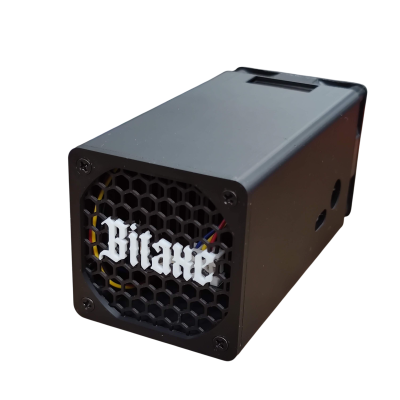
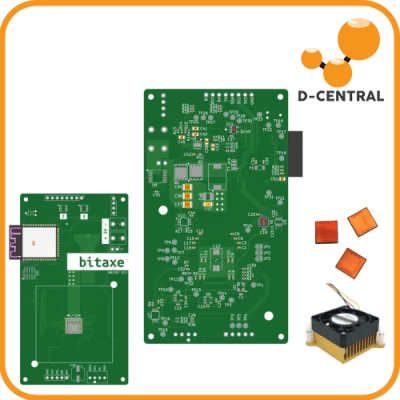
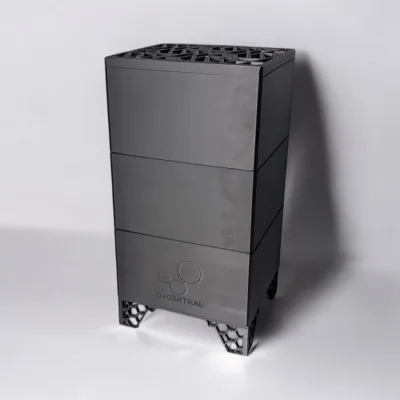
Everything above is trivial on a single desktop with a decent GPU. It’s better on a dedicated server. It’s elegant in a shed-mounted Hashcenter, where DCENT hardware handles power, thermals, and monitoring in the same rack as the GPU that’s actually doing the inference. The same box that is heating your garage in the winter is also serving ChatGPT to your household. That is what we mean when we say an AI Hashcenter — compute and heat as the same product, orchestrated by sovereign hardware and sovereign software.
(Reminder: all DCENT products are in public beta as of July 2026, GPL-3.0. We’re not selling you a miracle; we’re building it in the open.)
For the full architecture walk, see Heating Your Home With Inference and From S19 to Your First AI Hashcenter. For when the whole stack inevitably misbehaves, the upcoming Self-Hosted AI Troubleshooting will cover the common failure modes. And if you’re weighing backend options, LM Studio vs Ollama vs llama.cpp is worth a read before you commit long-term.
Wrapping up
Let’s count what you just built:
- ChatGPT-tier UX in the browser
- Multi-user accounts with isolated chat history
- RAG over your private documents, with local embeddings
- Optional self-hosted web search
- Optional remote access from anywhere over Tailscale
- Zero prompts leaving your LAN unless you toggle web search on
The subscription you can now cancel has a dollar value, and you can put a number on it. Sovereignty — the fact that nobody else is logging your household’s questions, nobody can change the terms on you, nobody can deprecate the model you’ve come to rely on — has a different kind of value, and it does not have a monthly price tag.
You are now running one more layer of your digital life on your own infrastructure. That’s the whole point.
Keep going:
- The Pleb’s Guide to Self-Hosted AI — the overview of where this all fits
- Sovereign AI for Bitcoiners: A Manifesto — the why, written plainly
External resources
- openwebui.com — project site
- github.com/open-webui/open-webui — source
- docs.openwebui.com — official docs
- searxng.github.io — self-hosted search
- tailscale.com — mesh VPN