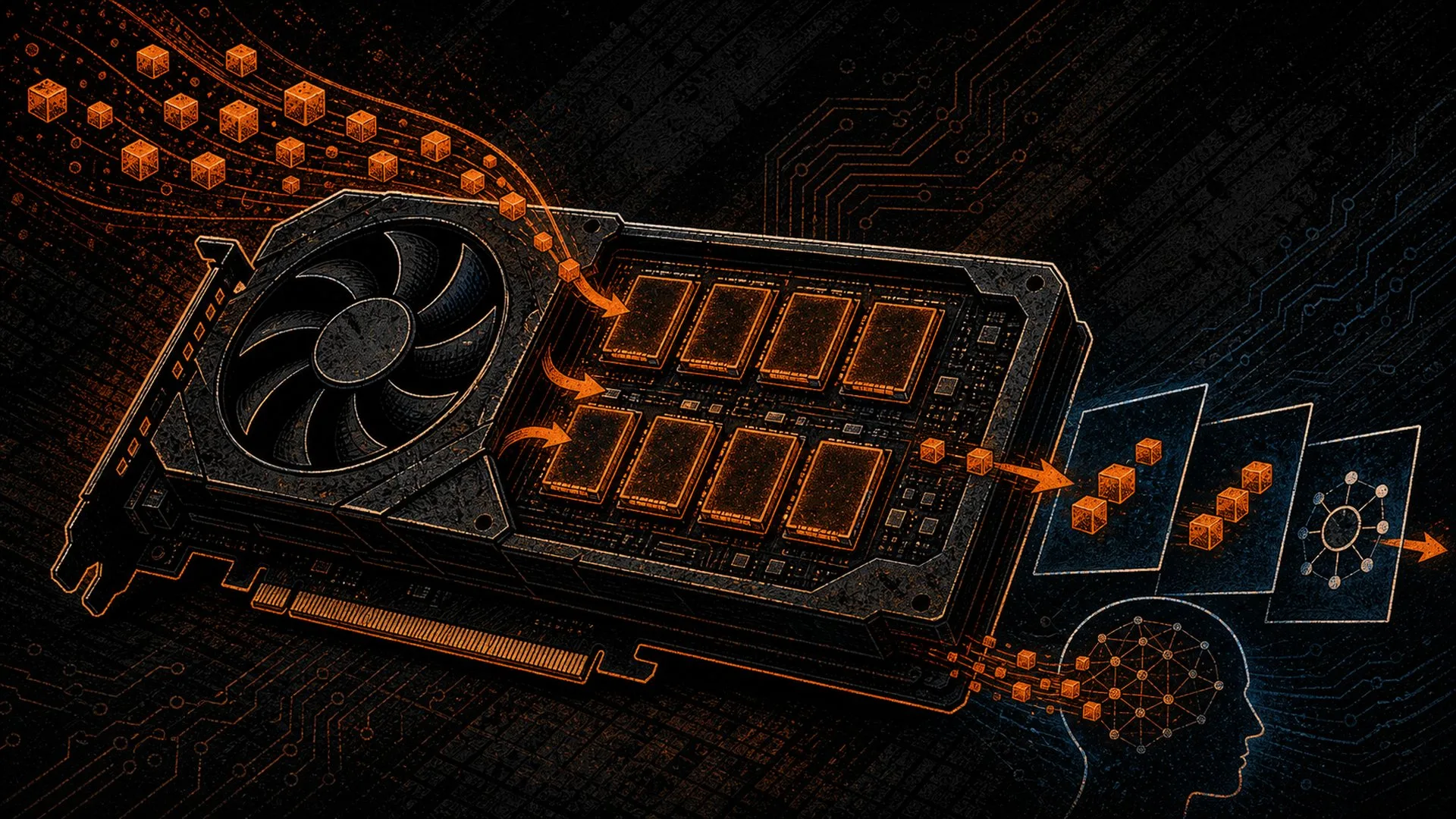
“How much VRAM do I need to run local AI?” is the first question every pleb asks before pulling the trigger on a GPU — and it’s the one question every spec sheet refuses to answer plainly. The honest answer is that you can calculate it yourself with a single line of arithmetic, no marketing required. Once you understand the three things that eat VRAM — the model weights, the context window, and a little runtime overhead — you can size any rig in under a minute and stop overpaying for hardware you’ll never saturate. This is the hardware-sizing companion to our guide to GGUF, Q4, Q8 and fp16 quantization: that post explains what the quant labels mean; this one tells you exactly how much VRAM each choice costs and what tokens/sec you should expect when you run it.
If you’d rather own your inference outright than rent it from a cloud that logs every prompt, this is the same instinct that drives Bitcoin self-custody. Owning your compute is one more layer decentralized — and it starts with knowing what to buy.
The only VRAM formula you actually need
An LLM is a pile of numbers called parameters. To run inference, every one of those numbers has to live in memory the GPU can reach — that’s VRAM. The size of the model in memory is just parameter count multiplied by the bytes used to store each parameter. That second number is set entirely by your quantization level.
Here are the bytes-per-parameter you’re working with:
- fp16 / bf16 — 2 bytes per parameter (the “full quality” baseline for inference)
- Q8 (8-bit) — roughly 1 byte per parameter
- Q4 (4-bit) — roughly 0.5 bytes per parameter
So the weights-only math is dead simple:
VRAM for weights ≈ parameters × bytes-per-parameter
A 7-billion-parameter model at Q4 is 7,000,000,000 × 0.5 bytes ≈ 3.5 GB. The same 7B at fp16 is 7B × 2 ≈ 14 GB. A 70B model at fp16 is a brutal 140 GB — datacenter territory — but quantized to Q4 it collapses to about 35 GB, which fits on a pair of used 3090s. Same model, same behaviour almost, three-quarters of the footprint thrown away. That’s the entire reason quantization exists, and it’s why your GPU-buying decision is really a quantization decision in disguise.
A small but useful rule of thumb: the “B” in a model name is roughly its Q8 size in GB, because Q8 is about one byte per parameter. An 8B model is ~8 GB at Q8, ~4 GB at Q4, ~16 GB at fp16. Once you internalise that, you can ballpark any model on sight.
Weights aren’t the whole bill: context and overhead
If you size your GPU to fit only the weights, you’ll hit an out-of-memory error the moment you paste in a long document. Two more things claim VRAM at runtime.
The KV cache (your context window)
Every token the model reads or writes is stored in a structure called the KV cache. The longer your context window — the prompt plus the conversation so far — the more VRAM the cache consumes, and it grows roughly linearly with token count. A short chat costs almost nothing. A 32k-token context (a long document, a big codebase, a sprawling conversation) can add several gigabytes on top of the weights, scaling with model size as well as token count. This is the part of the budget people forget, and it’s the number-one cause of the dreaded OOM crash — which we cover in depth in our self-hosted AI troubleshooting guide.
Runtime overhead
The inference engine, CUDA context, and activation buffers take a slice too. As a working margin, budget about 15–20% on top of weights-plus-context, then round up to whatever GPU tier covers it. Headroom is free performance: a model that barely fits will spill into system RAM and crawl; one with breathing room runs at full speed.
VRAM sizing cheat sheet
Putting the arithmetic together, here’s the practical lookup. “Total” assumes a modest context window plus overhead — bump it up if you run very long contexts.
| Model size | Q4 weights | Q8 weights | fp16 weights | Comfortable GPU (Q4) |
|---|---|---|---|---|
| 3B | ~1.5 GB | ~3 GB | ~6 GB | 6–8 GB card / iGPU |
| 7–8B | ~4 GB | ~8 GB | ~16 GB | 8–12 GB card |
| 13–14B | ~7 GB | ~14 GB | ~28 GB | 12–16 GB card |
| 32–34B | ~18 GB | ~34 GB | ~68 GB | 24 GB card (one 3090/4090) |
| 70B | ~35 GB | ~70 GB | ~140 GB | 2× 24 GB (dual 3090) |
The pattern is clear: 24 GB of VRAM is the pleb sweet spot. It runs every model up to ~34B comfortably at Q4 with room for real context, and two of them open the door to 70B. That’s exactly why the used market is the way it is — more on the specific card below.
What about tokens per second?
Fitting the model in VRAM tells you whether it runs. Tokens per second tells you whether it’s pleasant to use. For chat, anything above your own reading speed (~10 tokens/sec) feels live; below ~5 tokens/sec feels like dial-up.
Generation speed is gated almost entirely by memory bandwidth, not raw compute, because each token requires reading the entire model out of VRAM once. That’s why a card’s GB/s spec matters as much as its GB capacity, and why a smaller quant that fits in fast VRAM beats a larger one that spills to system RAM every single time.
Rough expectations for a 7–8B model at Q4, the most popular pleb workload:
- Modern 24 GB GPU (used 3090, 4090): very comfortable — well into the dozens of tokens/sec, faster than you can read.
- Mid-range 8–12 GB GPU: still snappy for 7–8B; tighten the quant and context for bigger models.
- Apple Silicon (unified memory): usable thanks to high-bandwidth shared RAM; great for laptops, not a speed champion.
- CPU-only / model spilled to system RAM: functional but slow — single-digit tokens/sec. Fine for batch jobs, painful for interactive chat.
Bigger models are slower at the same hardware tier because there’s simply more data to stream per token. A 70B at Q4 on dual 3090s is genuinely useful but noticeably more deliberate than an 8B on a single card. Match the model to the job: an 8B handles most assistant and log-reading tasks; reach for 34B–70B only when the quality jump earns the latency. If your tokens/sec is mysteriously bad, the cause is almost always a VRAM spill — verify with the diagnostics in our troubleshooting guide before blaming the GPU.
So which GPU should a pleb actually buy?
Start from the model you want to run daily, size the VRAM from the cheat sheet, add your context budget, and buy the cheapest card that clears it with headroom. For most sovereign-stack builders that lands on one place: a used 24 GB card. It runs everything up to 34B at Q4 with comfortable context and pairs up for 70B when you grow into it. We made the full value case in our deep-dive on the used RTX 3090 for LLMs in 2026 — the short version is that secondhand 24 GB cards remain the best dollar-per-usable-VRAM buy on the planet.
A few buying principles that save plebs money:
- Buy VRAM, not benchmarks. For local LLMs, a 24 GB last-gen card beats a 12 GB current-gen card outright — capacity decides what you can run at all.
- Bandwidth is your speed dial. Between two cards of equal VRAM, the higher GB/s wins on tokens/sec.
- Headroom over heroics. Don’t size to the exact byte; leave 15–20% so context growth doesn’t tip you into a spill.
- Prices here are in CAD. When you compare against USD listings elsewhere, do the conversion before declaring a “deal.”
And remember the heat is not waste. A GPU pulling 350W is a 350W space heater that happens to think — the same first principle behind heating your home with inference, not just hashing. In a cold Québec winter, your sovereign AI rig earns its keep twice.
Sizing in practice: three pleb builds
- The laptop tinkerer. Goal: a private assistant and code helper. Run an 8B at Q4 (~4 GB) on an 8–12 GB GPU or Apple Silicon. Start here with our 10-minute Ollama install.
- The home-lab builder. Goal: a capable 32B model for serious work, long context for documents. One 24 GB card covers it at Q4 with room to spare. Pick your runner with LM Studio vs Ollama vs llama.cpp.
- The basement sovereign. Goal: 70B-class reasoning, fully offline. Dual 24 GB cards at Q4 (~35 GB weights split across both). This is the basement-not-a-national-GPU-strategy tier — heavyweight inference you own end to end.
Frequently asked questions
How much VRAM do I need to run a 7B model?
About 4 GB for the weights at Q4, or ~8 GB at Q8. Add a couple of GB for context and overhead and an 8 GB card runs a 7–8B model comfortably. fp16 needs ~16 GB for the same model, which is why almost nobody runs fp16 for inference.
Does a longer context window need more VRAM?
Yes. The KV cache that holds your conversation grows roughly linearly with token count, so a 32k-context session can add several gigabytes on top of the weights. If you plan to feed in long documents or whole codebases, size your card for the weights plus a generous context budget, not the weights alone.
Is Q4 quantization “worse” than fp16?
Technically yes, in practice barely. Q4 throws away ~75% of the memory footprint versus fp16 for a single-digit-percentage quality drop on most tasks — usually imperceptible in chat and general reasoning. For local rigs, Q4_K_M or Q5 is the standard pleb default; reserve fp16 for cases where you’ve measured a real difference. The full breakdown is in our quantization guide.
Why are my tokens/sec so slow even though the model “fits”?
Almost always because part of the model spilled out of VRAM into system RAM, where bandwidth is a fraction of the GPU’s. Either drop to a smaller quant, shrink your context, or move to a card with more VRAM so the whole model stays on-device.
Own the compute, not just the prompt
VRAM sizing isn’t mystical — it’s params × bytes per param, plus context, plus a margin. Run the arithmetic, buy the right card once, and you’ll never rent your thinking from a cloud that reads your prompts again. That’s the whole point of a sovereign stack: your data, your compute, your code, one more layer decentralized. New to the idea? Start with The Pleb’s Guide to Self-Hosted AI, then explore the full D-Central AI hub for the runners, models, and rig builds that make it real.
DCENT_OS is D-Central Technologies’ GPL-3.0 open-source Bitcoin mining firmware for selected Bitmain Antminer ASIC miners. Guarded artifacts exist only for exact S9 XIL and S19j Pro XIL lanes; install evidence is incomplete and neither is production-ready. Check the exact evidence ledger.